This Excel workbook organizes multiple pets under one household record without treating every pet as operationally identical. Household contact and default pickup information stay in the Households sheet, while the Pets sheet maintains separate pet-level requirements for service, feeding, pickup, staff assignment, status, and profile review.
The XLSX includes Summary, Households, Pets, and Assumptions sheets. Formulas calculate household pet counts, retrieve household names and contacts, evaluate profile review dates, and surface incomplete records so staff can decide what must be corrected before relying on the roster.
How this workbook can help
- Groups multiple pets under a shared household identity while retaining a separate row for every pet.
- Reduces repeated entry by retrieving the household name and primary contact from the matching Household ID.
- Highlights missing assignments, feeding details, pickup details, required fields, duplicate IDs, and review issues.
- Summarizes active households, active pets, roster checks, review alerts, and active pets by default service.
What is in the file
How to get started
1. Review the assumptions
Confirm the profile review interval, maximum pet weight, roster statuses, pickup types, species, services, and fictional staff list. These settings support the workbook's validation lists and review formulas.
2. Add each household
Enter one row per client household and assign a unique Household ID. Complete the household name, primary contact, default pickup type, account status, and profile review date; add phone, email, and pickup instructions where applicable.
3. Add each pet separately
Create one row for every pet, use the matching Household ID, and record that pet's species, service, feeding requirement, pickup type, pickup requirement, assigned staff member, roster status, and review date.
4. Resolve checks and make the next decision
Review the calculated alerts on the Households and Pets sheets, then use the Summary sheet to identify outstanding work. Correct source entries until applicable records report Ready and review alerts reflect the intended status.
Situation: Managing Several Pets Under One Client
A single client may have several pets that share contact information but need different services, feeding instructions, pickup arrangements, or staff members. In this roster, the household is the shared client unit, while each pet remains an independent operational record. This avoids forcing all pets in a household into one combined set of instructions.
Action: Create Linked Household and Pet Records
Start on the Households sheet by assigning a unique Household ID and entering the client-level information. On the Pets sheet, repeat that Household ID for every pet belonging to the client. Formulas then retrieve the household name and primary contact, while the household roster counts active and listed pets associated with that ID.
Complete the pet-specific fields independently. For an active pet, pay particular attention to service, feeding details, pickup type, pickup requirement, staff assignment, roster status, and profile review date because these entries affect summary counts and readiness checks.
Result: Use the Summary as a Review Queue
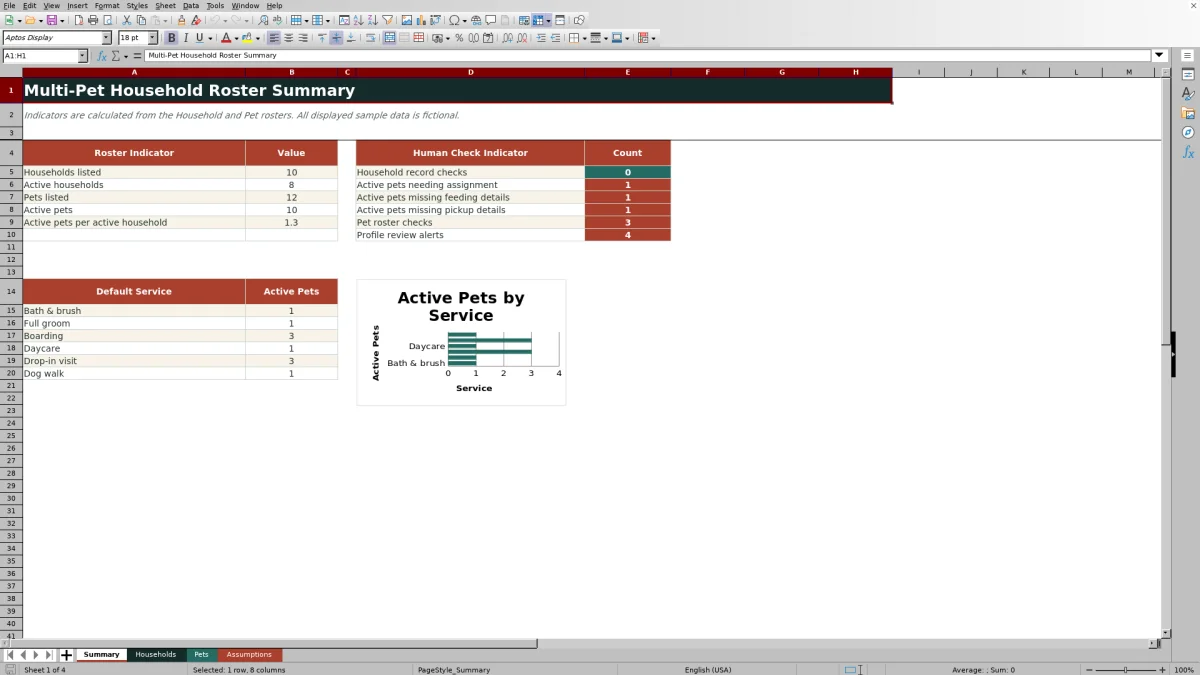
The Summary sheet reports households listed, active households, pets listed, active pets, and active pets per active household. It also counts household record checks, active pets needing assignment, active pets missing feeding details, active pets missing pickup details, pet roster checks, and profile review alerts. These figures are not booking confirmations; they are indicators that help staff locate records requiring attention.
The included chart groups active pets by default service using the service choices maintained on the Assumptions sheet. It offers a quick roster-level view rather than a schedule, capacity forecast, or revenue report.
Interpretation: Understand Alerts Before Acting
A household Record Check can identify a duplicate Household ID or missing required household fields. A pet Readiness Check can identify a duplicate Pet ID, missing required fields, an invalid household link, missing active-pet details, or an assignment issue. The practical response is to fix source data on the relevant roster rather than overwrite calculated cells.
Review Alert formulas compare profile review dates with the interval in Assumptions, which is set to 180 days in the sample workbook. Current means the recorded date is not in the future and remains within that interval. Other messages can request a review date, flag a future date, recommend a profile review, or indicate that an archived record is not scheduled.
Practical Example: From Situation to Next Decision
Situation: The fictional Northstar Sample Household, H-001, contains Pixel Sample, P-001, and Comet Sample, P-002. Action: Both pet rows use H-001, but Pixel retains Bath & brush service, no feeding during service, household pickup instructions, and Alex Sample as assigned staff; Comet retains a Drop-in visit, an owner-provided labeled food portion, no transport, and Devon Sample as assigned staff.
Result: The household formulas can count two active pets and two listed pets for H-001, while each pet row retrieves the same household name and primary contact. Interpretation: The shared client relationship does not imply shared service, feeding, pickup, or assignment requirements. Next decision: verify the profile review date before relying on the record. If the workbook is opened before the sample date of August 20, 2026, the review formula can flag that date as future-dated, so staff should replace it with the actual completed review date or wait until the review occurs.
Comparison: Household-Only, Pet-Only, and Linked Rosters
The best structure depends on whether the operation needs shared client data, separate pet instructions, or both. This workbook uses a linked two-roster approach and therefore depends on consistent Household IDs.
| Approach | Best fit | What it preserves | Primary limitation |
|---|---|---|---|
| Household-only roster | Simple client contact lists | One shared household identity and contact record | Pet-specific services and instructions may be combined or omitted |
| Pet-only flat roster | Independent pet records with little need for household reporting | Separate details for every pet | Household contacts may be repeated, and grouped pet counts are harder to maintain |
| Linked Excel workbook | Multi-pet clients with shared household data and different pet requirements | Household identity plus separate service, feeding, pickup, assignment, status, and review fields | Household IDs must remain unique and be entered consistently on pet rows |
The linked workbook is the stronger alternative when staff need both household context and pet-level operating instructions. A simpler list may be sufficient when no relationship between household and pet records needs to be maintained.
Common Errors, Solutions, and Next Decisions
A duplicate Household ID or Pet ID should be replaced with a unique identifier. “Household not found,” “Contact not found,” or “Check Household ID” calls for matching the pet's Household ID to exactly one household row. A missing feeding or pickup warning should be resolved by completing the applicable pet fields, while an unassigned active pet should receive an available staff value from the maintained list.
“Check future date” means the entered review date is later than today; replace it with the actual completed review date. “Review profile” means the recorded date exceeds the configured review interval, so review the profile and then enter the new completion date. The next decision is whether the corrected record is ready for operational use, needs owner confirmation, requires staff assignment, or should remain paused or archived.
Frequently asked questions
How are several pets connected to the same household?
Enter the same valid Household ID on each related pet row. The Pets sheet uses that ID to retrieve the household name and primary contact, and the Households sheet uses it to calculate active and listed pet counts.
Can pets in one household have different services and instructions?
Yes. Every pet has separate fields for default service, feeding requirement, pickup type, pickup requirement, assigned staff, roster status, and profile review date.
What does the workbook check automatically?
Its formulas check for issues including duplicate IDs, missing required fields, invalid household links, active pets lacking feeding or pickup details, assignment issues, and profile review dates that are missing, future-dated, or older than the configured interval.
Can I change the available dropdown choices?
Yes. The Assumptions sheet contains the maintained values for roster status, pickup type, species, default service, and assigned staff, along with the editable profile review interval and maximum pet weight.
Does the Summary sheet replace a booking schedule?
No. The Summary sheet reports roster counts, checks, review alerts, and active pets by default service. The manifest does not show appointment dates, booking times, or schedule-capacity calculations.
Editorial responsibility

Tessa MarloweClient records and service workflows

Caleb HensleyWorkbook QA and operating controls