The New Pet Client Onboarding Checklist for Excel is a three-sheet workbook that helps staff coordinate client and pet profile setup, owner-supplied documents, payment terms, deposits, and first-service readiness. It provides room for 100 client records and calculates open items, completion, days to service, readiness, and deposit checks.
Staff enter information on the Clients sheet, adjust workflow requirements on the Assumptions sheet, and monitor totals and readiness categories on the Summary sheet. The formulas organize entered information but do not verify external records, confirm payment activity, or replace a final staff review.
How this workbook can help
- Keeps client details, pet information, onboarding requirements, deposits, and staff notes in one structured checklist.
- Highlights incomplete records in relation to the scheduled first-service date so staff can prioritize follow-up.
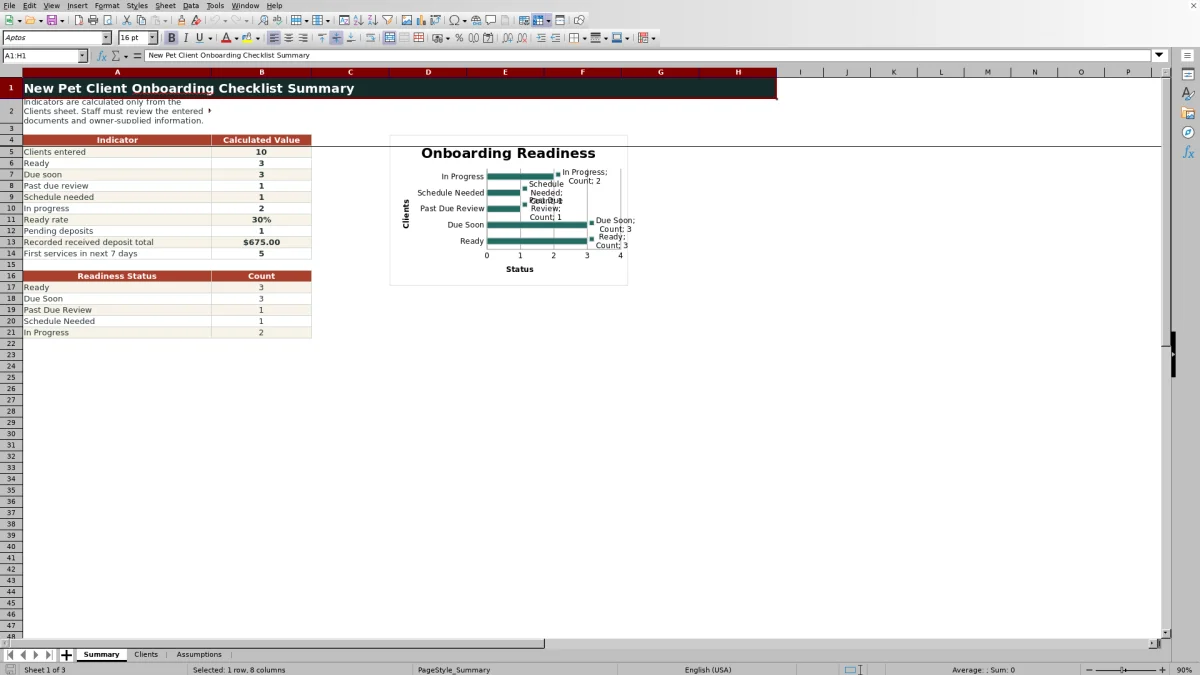
- Summarizes readiness counts, pending deposits, received-deposit totals, ready rate, and services scheduled within seven days.
- Lets the business adjust required onboarding steps, the due-soon warning period, and the deposit review threshold.
What is in the file
How to get started
1. Confirm the workflow settings
Open the Assumptions sheet before entering live records. Confirm the three-day first-service warning period, the six Yes or No requirement settings, and the $200 deposit review threshold. Change these editable values if they do not match the business's chosen process.
2. Replace the demonstration records
On the Clients sheet, replace or clear the fictional examples in rows 5 through 104. Enter information only in the yellow input cells, including the client ID, client and pet details, dates, assigned staff member, checklist statuses, deposit information, and notes.
3. Update each onboarding requirement
Select Complete, Pending, or Not Required for profile setup, the service agreement, care instructions, vaccination record status, emergency contact, and payment terms. Record whether a deposit is required and keep its amount and status consistent. Do not overwrite formulas in columns Q through U, because those columns calculate the record's checks and readiness results.
4. Review results and make the next decision
Use Open Items, Completion, Days to Service, Readiness, and Deposit Check to identify follow-up work. Review the Summary sheet for workload and timing patterns, then perform a human review before deciding that a client is prepared for the first service.
What the Excel Onboarding Checklist Tracks
The Clients sheet contains 100 client rows, covering Client ID, Client Name, Pet Name, Pet Type, Intake Date, First Service Date, Assigned To, and Staff Notes. The checklist also tracks Profile Setup, Service Agreement, Care Instructions, Vaccination Record, Emergency Contact, Payment Terms, Deposit Required, Deposit Amount, and Deposit Status. Dropdowns standardize common entries, while the deposit amount field accepts a blank or nonnegative numeric value.
How Readiness and Deposit Checks Work
Columns Q through U calculate Open Items, Completion, Days to Service, Readiness, and Deposit Check for each populated record. An incomplete record can be labeled Due Soon when its first service falls within the warning period set on the Assumptions sheet. Other readiness outputs include Ready, Past Due Review, Schedule Needed, In Progress, and Check Date. Deposit Check can request a requirement selection, identify an inconsistent entry, flag a pending deposit, request an amount, or prompt review when a required deposit exceeds the configured threshold.
Practical Example: From Intake to a Next Decision
Situation: the fictional DEMO-003 record has a scheduled first service, Pending care instructions, and a required $75 deposit marked Pending. Action: staff follows up for the owner-supplied care instructions and confirms whether the deposit was actually received before changing either status. Result: the calculated Open Items, Completion, Readiness, and Deposit Check fields refresh from the updated entries. Interpretation: any remaining alert represents an administrative item that still needs attention, not independent proof that a document or payment is valid. Next decision: staff either continues follow-up before the service or, once required entries are resolved, completes a final operational review.
Comparison: Excel Checklist and Alternatives
This workbook emphasizes structured consistency without claiming to replace a dedicated operational platform. The appropriate option depends on record volume, collaboration needs, integrations, and the controls already used by the business.
| Option | Best suited to | Advantages | Limitations |
|---|---|---|---|
| This Excel checklist | A defined, file-based onboarding process | Validated entries, calculated checks, adjustable assumptions, summary indicators, and a readiness chart | Does not verify documents, process payments, or confirm real-world readiness |
| Unstructured notes or email | Occasional, simple intake | Flexible and quick to begin | Statuses are less consistent, and aggregate reporting requires manual work |
| Dedicated client-management platform | Teams needing centralized workflows or integrations | May support broader automation and shared operational records | Capabilities vary and can require additional cost, configuration, and training |
Common Errors and Solutions
Protect the formulas in columns Q through U. Error: typing over these cells prevents the row from calculating correctly. Solution: restore the formulas and keep routine entry in the designated input fields. Error: entering a first-service date as text can produce Check Date or prevent Days to Service from calculating. Solution: enter a valid Excel date. Error: selecting No for Deposit Required while retaining an amount or a status other than Not Required produces Check entry. Solution: make the three deposit fields consistent. Error: leaving fictional demonstration rows in place causes them to affect Summary totals. Solution: replace or clear the demo inputs while preserving calculated cells.
Interpreting the Summary and Readiness Results
The Summary sheet counts entered clients and records labeled Ready, Due Soon, Past Due Review, Schedule Needed, and In Progress. It also calculates the ready rate, pending-deposit count, recorded total of deposits marked Received, and first services scheduled within the next seven days. Ready is a workflow status based on entered values and configured assumptions; it is not proof that outside records, payment activity, or service conditions have been independently confirmed. A Check Date result requires separate review and is not one of the five categories plotted in the Summary chart.
Workflow Controls and Final Review
The Assumptions sheet controls the warning lead time, whether six onboarding items are required, and the deposit review threshold. These settings should reflect the business's selected process rather than assumed legal, clinical, or payment requirements. Vaccination Record is an administrative status field only, and the workbook does not collect clinical details. After reviewing calculated alerts, staff should confirm source documents and owner-supplied information, document exceptions in Staff Notes, and make the final service decision under the business's own procedures.
Frequently asked questions
How many client records can the Excel checklist hold?
The Clients sheet provides 100 prepared record rows, from row 5 through row 104.
Can the required onboarding steps be changed?
Yes. The Assumptions sheet lets staff choose Yes or No for profile setup, service agreement, care instructions, vaccination record status, emergency contact, and accepted payment terms.
What does a Ready status mean?
Ready means the workbook found no open items under the configured assumptions and entered values. Staff must still review documents, owner-supplied information, payments, and actual service readiness.
Why does a record show Check Date?
Check Date indicates that the First Service Date entry is present but is not recognized as a valid numeric Excel date. Correct the date entry and review the recalculated result.
How does the workbook review deposits?
The Deposit Check formula compares Deposit Required, Deposit Amount, and Deposit Status. It can identify missing, pending, inconsistent, or above-threshold entries, but it does not confirm that money was actually received.
Editorial responsibility

Tessa MarloweClient records and service workflows

Caleb HensleyWorkbook QA and operating controls