This pet appointment waitlist tracker is an Excel workbook for organizing unmet scheduling requests and identifying active requests that may need timely follow-up. It records each pet’s requested service, preferred date, date flexibility, contact details, assignment, status, and scheduling notes.
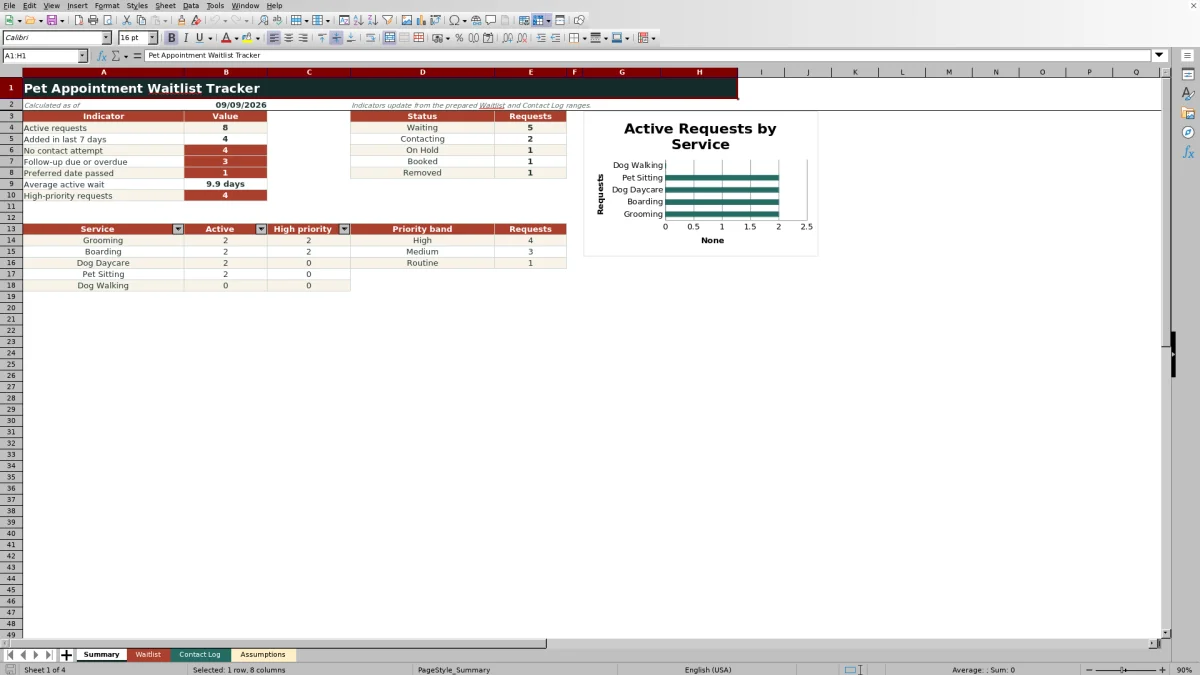
The XLSX connects a central Waitlist with a Contact Log, then calculates contact history, wait days, priority scores, priority bands, and check alerts. A Summary sheet presents workload indicators and service-level counts, while editable Assumptions control scoring and list choices. These outputs support consistent decisions, but the workbook calls for human review before staff offer an opening or contact a client.
How this workbook can help
- Keep unmet pet appointment requests and scheduling details in one structured register.
- Identify requests that have no contact attempt, a due follow-up, or a preferred date that has passed.
- Review demand by service, status, and priority band from a date-sensitive summary.
- Apply configurable scoring rules while retaining staff judgment over the next scheduling decision.
What is in the file
How to get started
1. Review the workbook settings
Open Assumptions and confirm the scoring limits, service points, date-flexibility points, statuses, contact methods, outcomes, team members, and permitted date range. The yellow cells are intended for editable values. Statuses in rows 4 through 6—Waiting, Contacting, and On Hold—are treated as active by the formulas.
2. Add each waitlist request
Enter a unique Request ID in Waitlist rows 5 through 104, followed by the date added, client and pet names, service, preferred date, flexibility, contact information, assignment, status, next follow-up, and notes. Leave formula columns L, M, O, P, Q, and R intact so they can calculate contact history, wait days, priority, and alerts.
3. Record every contact attempt
Add each outreach event to the Contact Log with its own Attempt ID and the matching Waitlist Request ID. Complete the attempt date, method, outcome, team member, follow-up date, and notes. The Request Check field reports Matched only when the ID corresponds to exactly one prepared Waitlist record.
4. Review and act on the results
Use Summary to review active demand, recent additions, missing contact attempts, due follow-ups, passed preferred dates, average wait, and high-priority totals. Filter Waitlist by status, service, priority band, or Check Alert, verify the underlying details, choose the next action, and document subsequent outreach in the Contact Log.
Track Unmet Pet Appointment Requests
The workbook is designed for requests that have not yet become completed appointments. Each Waitlist row combines the client and pet identity with the requested service, preferred date, flexibility, preferred contact method, assignment, current status, and scheduling notes. This structure makes it possible to see both what the client requested and what the team has already done, rather than relying on separate notes or memory.
How the Priority Logic Works
For active statuses, the workbook calculates elapsed wait days and combines workbook-defined factors into a Priority Score. Those factors include wait time up to a configured cap, service points, date-flexibility points, preferred-date timing, and contact-related conditions represented in the formulas and assumptions. The score is then translated into High, Medium, or Routine using editable thresholds. Because scores depend on TODAY(), assumptions, and correctly entered records, a priority band should be read as a review signal rather than an automatic promise of an appointment.
Practical Example: From Request to Next Decision
Situation: Suppose a grooming request has a Waiting status, was added three days ago, requires an exact date, has a preferred date four days away, and has no logged contact attempt. Action: Staff enter the request in Waitlist with a unique ID and review its calculated fields before filtering the queue. Result: Wait Days calculates for the active request, Contact Attempts remains zero, the Summary includes it in the no-contact count, and the workbook can display a no-contact alert once the configured threshold is met. Interpretation: Under the supplied assumptions, Exact date only carries more flexibility points than Within 7 days, so this request may rank above an otherwise similar flexible request; the final band still depends on the complete score and thresholds. Next decision: A staff member verifies availability, contacts the client if appropriate, records the attempt in Contact Log, and updates the Waitlist follow-up or status instead of treating the score as an automatic booking instruction.
Comparison: Excel Waitlist Tracker, Basic List, and Calendar
The best format depends on whether the team needs a prioritized queue, a simple record, or management of appointments that are already scheduled.
| Capability | This Excel tracker | Basic one-sheet list | Appointment calendar |
|---|---|---|---|
| Primary purpose | Manage unmet requests and follow-up decisions | Store a simple queue or set of notes | Manage booked dates and time slots |
| Contact history | Separate Contact Log rolls attempt counts and latest contact dates into Waitlist | Usually entered manually in the same row or notes | Varies by calendar or scheduling system |
| Prioritization | Uses configurable formulas for scores, bands, and alerts | Usually requires manual review | Typically focuses on availability rather than waitlist priority |
| Summary reporting | Includes indicators, service counts, priority totals, and one chart | Depends on formulas added by the user | Depends on the product and reporting plan |
| Key limitation | Prepared ranges stop at row 104 and decisions remain manual | Can become inconsistent as details accumulate | May not capture unmet demand or flexible-date preferences |
This workbook is the stronger alternative when staff need transparent queue logic in Excel. A calendar remains more appropriate for controlling confirmed appointment slots, and a basic list may be sufficient for a very small queue that does not require contact rollups or scoring.
Common Errors and Solutions
A duplicate Request ID causes the Waitlist Check Alert to request review; assign one unique ID to each request and correct related Contact Log entries. A blank or mistyped Request ID in Contact Log produces Check request ID instead of Matched; compare it with the prepared Waitlist range and correct the value. If formulas are overwritten in Waitlist columns L, M, O, P, Q, or R, restore them from an intact prepared row rather than entering calculated results manually.
A Contact Log Follow-Up Date does not automatically populate the Waitlist Next Follow-Up field; update that Waitlist field separately when the operating workflow requires it. A passed preferred date or due follow-up should be investigated and resolved through contact, status, or date updates rather than simply deleting the alert. If the team needs more than 100 requests or attempts, extend formulas, formatting, validation, and all dependent ranges carefully because the supplied preparation ends at row 104.
Read the Summary Without Overreading It
Summary answers practical workload questions: how many requests are active, how many were added in the last seven days, which active records have no attempt, which follow-ups are due, which preferred dates have passed, how long active requests have waited on average, and how many requests are marked High. It also breaks out status counts, active and high-priority requests by service, and priority-band totals. These are queue indicators based on the prepared data and formulas; they do not confirm appointment capacity, client availability, or successful contact.
Capacity, Maintenance, and Responsible Use
The Waitlist and Contact Log each provide 100 prepared data rows, from row 5 through row 104. Their formulas use fixed worksheet ranges rather than Excel tables or defined names, so adding rows outside that area requires deliberate maintenance. TODAY()-based calculations also require workbook recalculation to stay current. Preserve the formulas, use the validated selections where available, replace all sample records with operational data, and apply appropriate controls to client contact information. Use the tracker to decide what staff should review next, not as a substitute for appointment availability checks or direct confirmation with the client.
Frequently asked questions
What does the pet appointment waitlist tracker calculate?
It calculates the latest logged contact date, contact-attempt count, active wait days, priority score, High or Medium or Routine priority band, and check alerts. Summary formulas also calculate workload indicators and request counts by status, service, and priority band.
How many requests and contact attempts can the prepared workbook hold?
The supplied Waitlist has 100 prepared data rows and the Contact Log has 100 prepared data rows, covering rows 5 through 104. More rows require formulas, validation, formatting, and dependent references to be extended correctly.
Does a Contact Log follow-up date update the Waitlist automatically?
No. Contact Log entries feed the calculated Last Contact and Contact Attempts fields, but Waitlist Next Follow-Up is a separate editable field. Staff should update it according to their workflow.
Which statuses count as active requests?
The formulas treat Assumptions rows 4 through 6 as active statuses. In the supplied workbook, those values are Waiting, Contacting, and On Hold. Changing these stable choices can affect formulas, validation lists, and Summary results.
Can the priority score make the scheduling decision automatically?
No. The score and band help staff identify records for review, but they do not verify appointment capacity, clinical suitability, client availability, or successful contact. Staff should check the request details and current availability before acting.
Editorial responsibility

Tessa MarloweClient records and service workflows

Caleb HensleyWorkbook QA and operating controls