The Dog Walking Route Planner is an Excel workbook for arranging daily visits by route date, walker, stop order, client, dog, and service area. It provides space for 100 visit rows and keeps dog-walking schedules distinct from unrelated mobile service or grooming jobs.
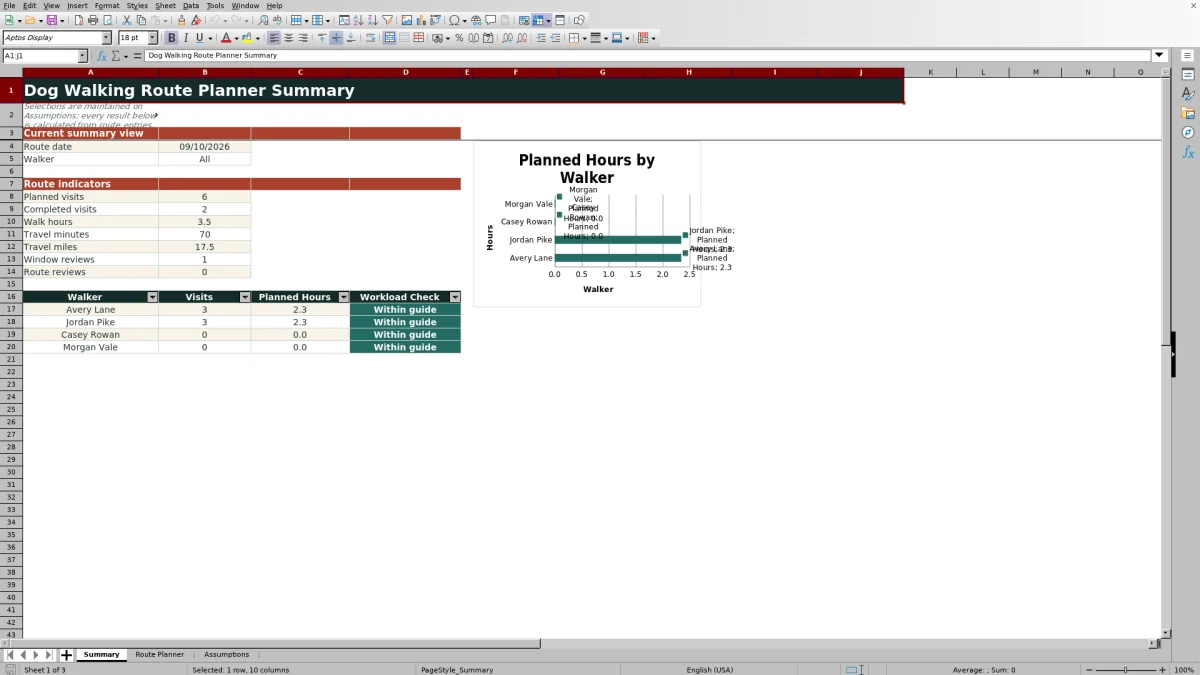
Enter each client's availability window, required walk length, and estimated travel from the prior stop. The XLSX then calculates a sequential schedule, checks visit windows, walk durations, and travel estimates, and summarizes the selected day's visits and workload by walker.
How this workbook can help
- Builds daily walker routes around client visit windows and requested walk durations.
- Makes estimated travel time and mileage between consecutive stops visible during scheduling.
- Highlights window conflicts and route entries that need human review before assignment.
- Summarizes visits, walking hours, travel, exceptions, and workload for a selected date and walker.
What is in the file
How to get started
1. Configure the planning assumptions
Open the Assumptions sheet and review the minimum and maximum walk minutes, travel-review limits, daily route-hours guide, valid route dates, and editable walker, status, and area lists. Set the summary date and choose either one walker or All.
2. Enter visits in route order
On Route Planner, add each visit in date, walker, and stop-order sequence. Enter the client ID, dog, area, availability window, walk minutes, travel minutes and miles from the prior stop, status, and an appropriate owner care note.
3. Check the calculated schedule
Read Planned Start and Planned End for each row. Window Check indicates whether the calculated visit fits its entered window, while Route Check tests the entry against the workbook's planning limits.
4. Review results and make the next assignment decision
Investigate all review flags, then adjust the order, travel estimate, visit details, or walker assignment as appropriate. Use Summary to evaluate planned and completed visits, walk hours, travel, exceptions, and each walker's planned workload.
Situation: Coordinate Time-Sensitive Dog Walking Visits
A walker may need to complete several visits with different availability windows, walk lengths, and distances between homes. The spreadsheet turns those constraints into a visible same-date, same-walker schedule instead of leaving the coordinator to reconcile separate notes, calendar entries, and travel estimates mentally. Each row also retains the client ID, dog, service area, status, and owner care note needed to understand the stop.
Action: Sequence Stops and Enter Travel Estimates
Arrange rows by route date, walker, and stop order, then enter each visit window and walk duration. Travel Minutes From Prior and Travel Miles From Prior describe the trip into the current stop. For the first entered route row, the planned start uses the window start. On subsequent adjacent rows with the same date and walker, the formula uses the later of the current window start or the prior planned end plus entered travel time. This produces a schedule from the coordinator's chosen sequence rather than attempting to optimize the route automatically.
Result: Read Schedule and Workload Outputs
The Route Planner calculates planned start and end times and reports whether each visit remains within its availability window. Route Check compares entries with the editable limits on Assumptions, including the current walk-duration and travel-review guides. Summary can report planned visits, completed visits, walk hours, travel minutes, travel miles, window reviews, and route reviews for the selected date and either one walker or all walkers. It also compares each listed walker's planned hours with the daily route-hours guide.
Practical Example: Interpret a Three-Stop Route
In the workbook's fictional September 10 example, Avery Lane walks Biscuit from 8:00 to 8:30 AM. Juniper has a 9:00 to 10:00 AM window, a 45-minute walk, and 20 minutes of travel from Biscuit; the walker could arrive at 8:50 but the formula waits until 9:00, producing a 9:45 end. Orbit requires 15 more travel minutes and has a 10:00 to 11:00 AM window, so the visit runs from 10:00 to 10:30. Across these three shown entries, the route contains 105 walk minutes, 35 travel minutes, 9.1 travel miles, and 10 minutes of waiting time. The result indicates that this sequence fits all three entered windows under the stated estimates, while also showing that elapsed route time is longer than walk time alone.
Errors and Solutions for Review Flags
A Review window result can mean the window end precedes the start, a value is not recognized as a time, or the calculated visit ends after the allowed window. Verify the times first; if they are correct, revise the stop order, travel estimate, or walker assignment. A Review duration result means the walk falls outside the current 15-to-60-minute guide, so confirm the requested duration or update the assumption deliberately. Unusually high entered travel can also prompt route review under the current 30-minute and 12-mile guides. Missing or invalid inputs may produce an entry or limits review; complete the required fields and confirm the Assumptions values. Canceled visits are marked Not routed by design and should not be treated as scheduling errors.
Comparison: Excel Route Planner vs. Calendar and Mapping Tools
This workbook is strongest for documenting visit constraints, testing sequencing feasibility, and reviewing walker workload. It is not a live navigation service or an automatic route optimizer, so the appropriate tool depends on the decision being made.
| Approach | Best use | Key limitation |
|---|---|---|
| Dog Walking Route Planner Excel workbook | Sequencing visits, calculating planned times, checking windows, and summarizing workload from entered estimates | Does not calculate roads, live traffic, GPS directions, or the mathematically optimal route |
| Basic calendar | Displaying appointments and sending general time reminders | Usually does not carry forward travel time or test a sequence against visit windows |
| Mapping or route-optimization tool | Estimating road travel, navigation, and geographic stop order when supported by the tool | May not capture walk-duration rules, care notes, visit status, or the workbook's workload summaries |
A practical workflow is to obtain realistic travel estimates from an appropriate mapping source, enter them in the XLSX, and then use the spreadsheet to evaluate visit timing and walker workload.
Interpretation and Next Scheduling Decision
A route with no review flags is feasible only under the windows, durations, sequence, and travel estimates entered; it is not a guarantee against traffic, access delays, or changes in the dog's needs. If one visit fails its window while the rest fit, first test a local stop-order change or a different walker. If several stops are flagged or planned hours exceed the daily guide, consider dividing the route. After making changes, reread both checks and the Summary totals before confirming assignments.
Frequently asked questions
Does the Excel workbook automatically optimize a dog walking route?
No. The workbook calculates planned times from the stop order and travel estimates you enter. It does not calculate road routes, live traffic, GPS directions, or an optimal stop sequence.
How many dog walking visits can the route table hold?
The Route Planner provides 100 visit rows, covering rows 5 through 104 of the RoutePlanTable.
How are canceled visits handled?
A canceled visit is marked Not routed, its planned times are left blank, and it is excluded from the principal Summary totals that count or sum non-canceled visits.
What causes window and route review messages?
Window reviews can result from invalid windows or a planned end that falls after the window end. Route reviews can result from missing or invalid entries, walk durations outside the configured range, or travel values above the configured review guides.
Can walker names, statuses, areas, and planning limits be changed?
Yes. The Assumptions sheet contains editable walker, status, and area choices, along with walk-duration, travel, daily-hours, summary, and valid-date settings.
Editorial responsibility

Tessa MarloweClient records and service workflows

Caleb HensleyWorkbook QA and operating controls