This Excel grooming station schedule coordinates appointment use of grooming tables, tubs, and dryers. Staff can record each appointment, assign timed station windows, and review formula-driven checks for overlapping equipment use.
The workbook includes Schedule, Summary, and Assumptions sheets. Together, they support up to 100 appointment rows, configurable operating limits and dropdown choices, status reporting, planned-hour calculations, and resource conflict review before assignments are finalized.
How this workbook can help
- Coordinates table, tub, and dryer windows in a single appointment schedule.
- Flags overlapping station assignments, incomplete records, invalid times, and sequencing issues for staff review.
- Summarizes appointment statuses, planned active hours, clear rows, and conflicts by station type.
- Allows operating hours, planning dates, services, groomers, statuses, and station labels to be adapted to local needs.
What is in the file
How to get started
1. Configure operating assumptions
Open the Assumptions sheet and update the operating limits, planning dates, groomer labels, services, and available table, tub, and dryer names.
2. Enter and assign each appointment
On the Schedule sheet, add a unique appointment record, select its date, service, groomer, and status, and assign start and end times for each required station.
3. Resolve schedule alerts
Review the four check columns for table, tub, dryer, and overall schedule results. Correct overlapping assignments, blank required fields, invalid time ranges, duplicate IDs, or stages entered out of sequence.
4. Monitor the schedule
Use filters to investigate specific dates, resources, or statuses, then open the Summary sheet to review workload totals, planned hours, status distribution, and conflict counts.
Coordinate the Full Station Workflow
Each Schedule row follows an appointment through its table, tub, and dryer stages. Separate start and end fields make the resource sequence visible, while Planned Hours measures the span from the earliest station start to the latest station finish when all required times are valid. This layout helps staff evaluate both individual appointments and the combined demand placed on shared equipment.
Understand the Conflict Checks
The Table Check, Tub Check, and Dryer Check compare active appointments that use the same station on the same date. Overlapping intervals are marked Conflict, while appointments that only touch at an endpoint are not treated as overlapping. Canceled rows are excluded and return Not active; missing assignments return Incomplete; invalid or out-of-hours windows prompt a time review.
Practical Scheduling Example
Situation: two active appointments on the same date are assigned to Tub 1 from 9:00–9:30 AM and 9:15–9:45 AM. Action: staff enter both assignments on the Schedule sheet. Result: the Tub Check flags the overlapping rows as Conflict. Interpretation: Tub 1 cannot support both appointments during the shared 15-minute period, even if their tables and dryers differ. Next decision: move the second tub window to begin at 9:30 AM or assign another available tub, then verify that the check changes to Clear.
Common Errors and Solutions
Fix the inputs before relying on totals. A duplicate appointment ID causes the overall row to require review, so assign a unique ID. Blank required fields produce Incomplete, so finish the appointment and resource details. End times that are not later than start times, or windows outside the configured operating hours, require corrected times or deliberately revised assumptions. A tub stage beginning before the table stage ends, or a dryer stage beginning before the tub stage ends, also requires the stages to be resequenced.
Comparison With Alternative Scheduling Methods
The best fit depends on scheduling complexity. This workbook provides structured station-level checks, but it is not an automatic booking or dispatch system.
| Approach | Conflict visibility | Customization | Main limitation |
|---|---|---|---|
| Excel grooming station schedule | Checks overlapping table, tub, and dryer windows by date and station. | Operating limits, lists, services, staff labels, and station labels are editable. | Requires accurate manual entry and does not automatically reassign resources. |
| General calendar | Shows time overlap visually, but resource-stage conflicts may require separate calendars. | Useful for reminders, sharing, and basic appointment blocks. | May not connect table, tub, and dryer stages in one record. |
| Whiteboard or paper schedule | Provides immediate local visibility but no formula-driven warnings. | Quick to change during the day. | Totals, historical review, and conflict detection are manual. |
Choose the workbook when station allocation and reviewable checks are more important than automated customer booking. A calendar or dedicated scheduling platform may be preferable when notifications, online booking, groomer-capacity rules, or real-time multiuser updates are required.
Use the Summary to Guide Decisions
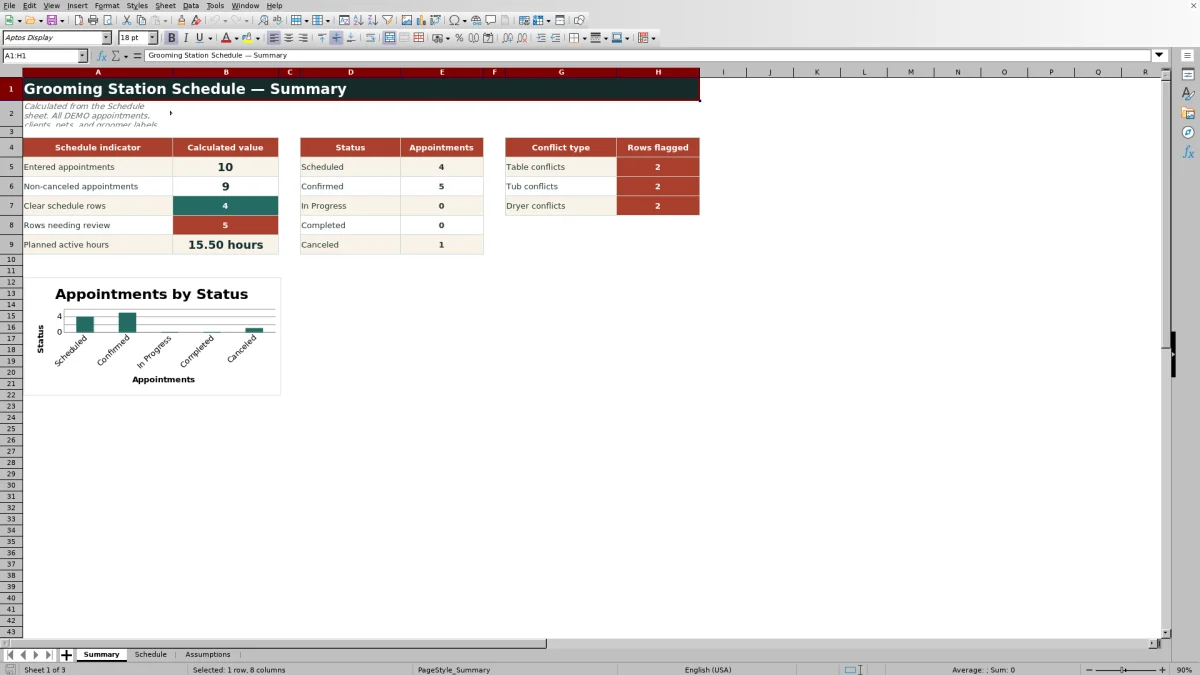
The Summary sheet reports entered and non-canceled appointments, clear rows, rows needing review, and planned active hours. It also counts appointments by status and conflicts by table, tub, and dryer, with a chart based on the status totals. A rising tub-conflict count, for example, can indicate that tub timing or capacity should be addressed before adding more appointments.
Know the Workbook’s Scope
The schedule evaluates the data entered in its 100 appointment rows and supports staff review rather than guaranteeing operational feasibility. It does not check whether one groomer has simultaneous appointments, calculate pricing or payroll, manage inventory, or automatically resolve conflicts. After clearing station alerts, the next decision should still consider groomer availability, pet needs, service duration, cleaning time, and local procedures.
Frequently asked questions
How does the Excel workbook detect a station conflict?
It compares non-canceled appointments on the same date and flags rows when the same table, tub, or dryer has overlapping start and end times.
Are canceled appointments included in conflict counts?
No. Rows marked Canceled are excluded from active station-conflict checks and are identified as Not active.
Can I change the groomers, services, and station names?
Yes. The Assumptions sheet contains the lists used by the Schedule sheet dropdowns, including groomers, services, tables, tubs, dryers, and statuses.
What causes the overall Schedule Check to require review?
A row can require review because of a duplicate appointment ID, a date outside the accepted range, a station alert, or a tub or dryer stage that begins before the preceding stage ends. Missing required details produce an Incomplete result.
Does the workbook check groomer availability?
No. It records the selected groomer but does not test for simultaneous appointments assigned to that person. Staff must review groomer capacity separately.
Editorial responsibility

Tessa MarloweClient records and service workflows

Caleb HensleyWorkbook QA and operating controls