The Pet Service Master Booking Calendar is an Excel workbook for maintaining one booking register across grooming, boarding, daycare, dog walking, and pet sitting. Each prepared row captures dates, times, client and pet details, service, quantity, assigned staff, status, and owner-supplied care notes.
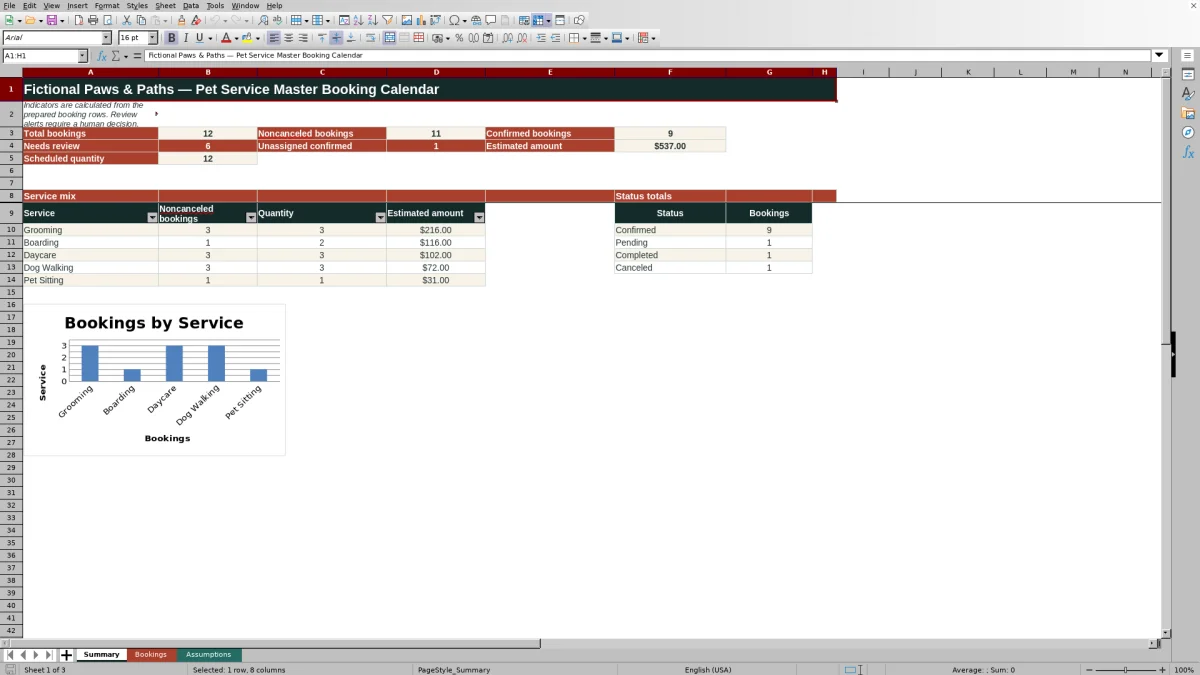
Formula-driven columns retrieve the applicable default rate, calculate an estimated amount, and return schedule-check messages. A separate Summary sheet turns those entries into a review-ready schedule with booking indicators, service totals, status counts, and a service-mix chart.
How this workbook can help
- Consolidates five pet-service categories in a single schedule instead of maintaining separate booking lists.
- Makes confirmed bookings without assigned staff and other schedule issues easier to identify.
- Connects editable service rates to automatic unit-rate and estimated-amount calculations.
- Provides summary totals by service and status for faster operational review.
What is in the file
How to get started
1. Configure the assumptions
Open the Assumptions sheet and review the planning controls, including billing units, default rates, daily start limits, permitted service dates, staff choices, and status choices.
2. Enter or revise bookings
Use the yellow input cells on the Bookings sheet to record the booking ID, start and end details, client, pet, service, quantity, assignment, status, and care notes.
3. Resolve calculated alerts
Inspect Unit Rate, Estimated Amount, and Schedule Check. Correct duplicate IDs, incomplete date or time values, invalid end times, and confirmed bookings that do not have an assigned staff member.
4. Review the operating picture
Filter the booking register as needed, then use the Summary sheet to assess booking counts, scheduled quantity, estimated amounts, service mix, status totals, and work requiring attention.
Situation: Multiple services, one schedule
Pet businesses often need to coordinate appointments, day services, overnight stays, and visits without losing sight of staff coverage or booking status. This workbook places service, date, status, and assignment information in one filterable register while retaining distinct billing units for appointments, nights, days, and visits.
Action: Configure the workbook
The Assumptions sheet supplies the choices used by the booking register. It includes Grooming, Boarding, Daycare, Dog Walking, and Pet Sitting, along with their billing units, default rates, and daily start limits. Staff and status lists can also be edited, and the earliest and latest permitted service dates control date-entry validation.
Result: Automatic booking calculations
When a recognized service is selected, the Unit Rate formula retrieves its default rate from Assumptions. Estimated Amount then multiplies that rate by the entered quantity. Summary formulas count total, noncanceled, and confirmed bookings; calculate scheduled quantity and estimated amounts excluding canceled rows; and group activity by service and status.
Practical example: From booking to decision
Situation: a grooming appointment is scheduled for September 11, 2026, from 9:00 AM to 11:00 AM. Action: enter booking ID FB-1001, select Grooming, record a quantity of 1, assign Fictional Staff - Rowan, and set the status to Confirmed. Result: the Grooming default rate of $72 produces a $72 estimated amount. Interpretation: because staff is present, the row does not meet the confirmed-without-assignment condition, although its remaining schedule check should still be reviewed. Next decision: verify the timing and care note, then use the Summary sheet to consider the booking within that day's service workload.
Interpretation: Common errors and solutions
“Review duplicate ID” means the same booking ID appears more than once; assign a unique ID or remove the unintended duplicate. “Review dates/times” calls for valid Excel date and time values within the configured entry window. “Review end time” requires the combined end date and time to be later than the start. “Assign staff” appears when a confirmed booking has no assignment; select a listed staff member or correct the status if the booking is not yet confirmed.
Comparison: Master workbook vs. separate schedules
The best method depends on whether the priority is consolidated operational review, service-specific ownership, or simple visual placement.
| Approach | Organization | Calculations and checks | Best fit |
|---|---|---|---|
| Pet Service Master Booking Calendar | One register for five service categories | Rate lookup, estimated amount, schedule checks, and summary formulas | Teams that need a consolidated Excel-based operating view |
| Separate service sheets or files | Each service maintains its own schedule | Cross-service totals usually require additional consolidation | Services run independently with limited shared staffing |
| Basic calendar | Bookings are placed as calendar events | Pricing, quantities, status analysis, and exception checks require separate setup | Users focused mainly on visual appointment placement |
Next decision: Prioritize work from the summary
Start with the Needs Review and Unassigned Confirmed indicators, then inspect the corresponding booking rows. Use service totals to understand the current mix and status totals to distinguish confirmed, pending, completed, and canceled work. Because rates and limits are planning assumptions, the next operational decision should combine these indicators with staff availability and human review rather than treating the workbook as an automated dispatch system.
Frequently asked questions
Which pet services are included in the Excel workbook?
The configured service list includes Grooming, Boarding, Daycare, Dog Walking, and Pet Sitting.
How does the workbook calculate the estimated amount?
The Unit Rate formula looks up the selected service's default rate on the Assumptions sheet. Estimated Amount multiplies that rate by the entered quantity.
What issues can the Schedule Check column identify?
It can return messages for duplicate booking IDs, invalid or incomplete dates and times, an end that is not later than the start, and a confirmed booking without assigned staff.
Are canceled bookings included in the summary totals?
Canceled rows remain represented in the status totals, but they are excluded from noncanceled booking counts, scheduled quantities, service-level activity totals, and summarized estimated amounts.
Editorial responsibility

Tessa MarloweClient records and service workflows

Caleb HensleyWorkbook QA and operating controls