This kennel allocation planner is an Excel workbook for assigning confirmed boarders to kennels based on stay dates, required zone, party size, largest dog weight, and kennel availability status. Its formulas help expose incompatible assignments and overlapping confirmed stays before the schedule is finalized.
The XLSX organizes work across Summary, Allocations, Kennels, and Assumptions sheets. Staff enter bookings and kennel details, select assignments from controlled lists, and use calculated exception flags to distinguish ready allocations from records that need a kennel or human review.
How this workbook can help
- Helps detect overlapping confirmed stays assigned to the same kennel.
- Checks kennel zone, dog-count capacity, weight capacity, and availability status.
- Centralizes booking assignments and kennel inventory in one workbook.
- Provides planning-date metrics for active stays, active dogs, assignments, and exceptions.
What is in the file
How to get started
1. Set the planning controls
Open Assumptions and update the planning date, permitted booking-date range, maximum dogs per booking, and maximum entered dog weight. Keep the zone and status lists aligned with the choices used by the operation.
2. Maintain the kennel inventory
On Kennels, enter a unique kennel ID, zone, maximum weight, maximum dogs, status, and description for each unit. Only kennels marked Available can pass the allocation status check.
3. Enter and assign bookings
On Allocations, add the booking ID, pet or party name, arrival, departure, number of dogs, largest dog weight, required zone, and booking status. For a confirmed booking, select a kennel ID from the validated list.
4. Review results and resolve exceptions
Check Nights, Kennel Zone, Capacity Result, Overlap Count, and Allocation Check. Correct missing dates, duplicate booking IDs, unavailable kennels, fit problems, or overlaps, then use Summary to review the updated totals.
Scheduling Situation and Workbook Scope
A kennel schedule becomes difficult to manage when confirmed stays must be matched against several constraints at once. This workbook brings booking dates, dog counts, largest-dog weights, required zones, kennel capacities, and operational statuses into one allocation process. It is designed to help staff review assignments; it does not automatically optimize the schedule or physically prevent a conflicting selection.
Action: How the Allocation Logic Works
For a confirmed booking with an assigned kennel, the workbook looks up the kennel zone and tests whether the party size, largest dog weight, and required zone fit that kennel. It also checks whether the kennel is marked Available and counts other confirmed assignments whose dates overlap. The formulas use half-open date logic: arrival occupies the kennel, while departure permits another booking to arrive on that same date.
Practical Example: From Booking to Decision
Situation: the fictional booking BKG-1001 is for Biscuit Lane, one 42-pound dog requiring a Standard zone from September 10 through September 13, 2026. Action: assign K-101, a Standard kennel marked Available with capacity for one dog up to 60 pounds. Result: the stay calculates as three nights and the capacity test fits; if no other confirmed K-101 booking overlaps those dates, the overlap count is zero and the allocation becomes Ready. Interpretation: the assignment satisfies the workbook's recorded rules, but it is not a broader welfare or operational assessment. Next decision: retain K-101 after staff verify any needs not represented in the file, or choose another suitable kennel if an exception appears.
Result: Reading the Summary
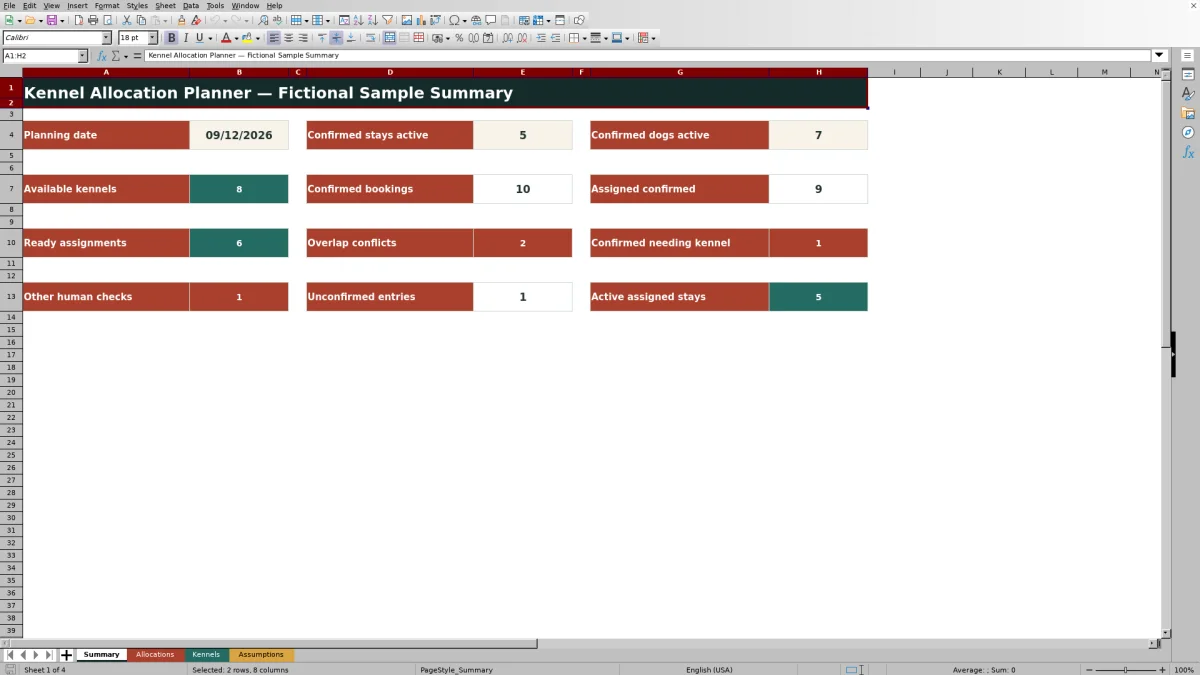
Summary converts row-level allocation checks into planning indicators. It reports confirmed stays and dogs active on the selected planning date, total confirmed bookings, assigned confirmed bookings, ready assignments, overlap conflicts, confirmed bookings needing kennels, other checks, unconfirmed entries, and active assigned stays. Its Available kennels value counts inventory records marked Available; it does not subtract kennels occupied on the planning date.
Errors and Solutions
Use the allocation message to fix the first failing condition. Needs kennel calls for a valid kennel selection. Check dates requires complete dates with departure after arrival. Check booking ID indicates a duplicated identifier. Check kennel status means the selected unit is not marked Available, while Check fit points to a zone, weight, or dog-count mismatch. A Conflict-prefixed result means another confirmed stay overlaps in the same kennel; verify the dates and move one booking to a compatible unit rather than merely clearing the warning.
Comparison: Formula-Guided Planner vs Manual Schedule
The workbook offers more structured review than an unvalidated calendar or blank grid, but each approach has an appropriate scope.
| Approach | Compatibility review | Overlap handling | Best fit | Tradeoff |
|---|---|---|---|---|
| This Excel planner | Formula checks for exact zone, dog count, weight, and Available status | Counts overlapping confirmed stays assigned to the same kennel | Repeatable scheduling within the 150 prepared booking rows and 100 prepared kennel rows | Flags problems but does not block assignments or evaluate unrecorded care needs |
| Manual calendar or blank grid | Depends entirely on staff review | Depends on visual inspection | Very small or temporary schedules with few constraints | Flexible, but lacks the workbook's built-in validation and exception formulas |
The formula-guided planner is the stronger alternative when consistent checks and traceable exceptions matter. A manual schedule may be quicker for a tiny one-off plan, provided a person verifies every constraint and overlap.
Interpretation and Next Decision
A Ready result means the entered data passed the checks represented by the workbook; it is not a guarantee that every operational concern has been considered. Temperament, medical needs, cleaning buffers, staff coverage, and other requirements are outside the recorded logic. After interpreting the flags, staff should confirm those external considerations and decide whether to keep, change, or escalate each assignment. Entries beyond Allocations row 154 or Kennels row 104 also require deliberate extension of formulas and validation because the workbook does not use Excel tables.
Frequently asked questions
Does the Excel planner prevent double booking automatically?
No. It calculates an overlap count and returns a conflict result when confirmed stays assigned to the same kennel overlap, but it does not stop a user from selecting that kennel.
How does the workbook treat same-day departures and arrivals?
A booking occupies the kennel through dates before its departure. Another booking can arrive on the first booking's departure date without being counted as an overlap.
What makes an allocation ready?
A confirmed booking must have a unique booking ID, valid arrival and departure dates, a recognized kennel marked Available, a matching zone, sufficient dog-count and weight capacity, and no overlapping confirmed assignment in that kennel.
Does Available kennels mean the kennels are unoccupied today?
No. The Summary count reflects kennel inventory records whose status is Available. It does not deduct kennels occupied on the selected planning date.
Can more booking or kennel rows be added?
Yes, but the prepared formulas and validation currently cover Allocations rows 5 through 154 and Kennels rows 5 through 104. Because the workbook has no Excel tables, additional rows may require manual extension of formulas, validation, formatting, filters, and referenced ranges.
Editorial responsibility

Tessa MarloweClient records and service workflows

Caleb HensleyWorkbook QA and operating controls