This inactive pet client reactivation list is an Excel workbook for organizing lapsed client records and determining which entries should receive attention based on last service date, contact consent, and outreach status.
The XLSX calculates days inactive, priority, and follow-up alerts from editable assumptions. It supports administrative review before outreach; it does not contact clients automatically or replace a person’s verification of dates, consent, and account status.
How this workbook can help
- Organizes client, pet, service-date, consent, assignment, and outreach information in one working list.
- Prioritizes eligible inactive records using editable inactivity and high-priority thresholds.
- Separates actionable records from entries requiring a date, consent, status, or human review.
- Provides summary counts that help teams monitor workload, reactivations, holds, and follow-up needs.
What is in the file
How to get started
1. Set the reporting assumptions
Open the Assumptions sheet and confirm the as-of date, inactive threshold, high-priority threshold, and follow-up interval. Keep the high-priority threshold at or above the inactive threshold so the timing rules remain logically ordered.
2. Enter or verify client records
Replace the fictional demonstration entries in the Reactivation List. Use the yellow cells to enter client and pet details, service dates, consent, contact method, assignment, outreach status, last outreach date, and administrative notes.
3. Review the calculated queue
Allow Excel to recalculate, then filter the Priority and Follow-up alert columns. Use High and Standard results to identify eligible inactive records while separating holds, completed records, current clients, and questionable dates.
4. Make and document the next decision
Complete a human review of identity, service history, consent, status, and notes before contact. After an authorized action, update the outreach status and last outreach date so the working list and Summary sheet reflect current information.
When an inactive-client list becomes useful
A reactivation review becomes difficult when service dates, consent records, assignments, and outreach updates are scattered across unrelated files. This workbook creates a single administrative queue for up to 100 records. The situation is not simply that a client has not returned; the team must also determine whether the date is valid, whether contact is permitted, whether prior outreach changes the next step, and whether the record has already been completed or placed on hold.
Build the review queue from controlled inputs
The action begins with the Assumptions sheet, where the as-of date and three timing values control the calculations. The working list then collects the last service date, consent choice, preferred contact method, assignment, outreach status, and last outreach date. Dropdowns draw from the stable choices on the Assumptions sheet, reducing label variations that could otherwise prevent the lookup formulas from returning the intended priority and alert.
What the calculated results show
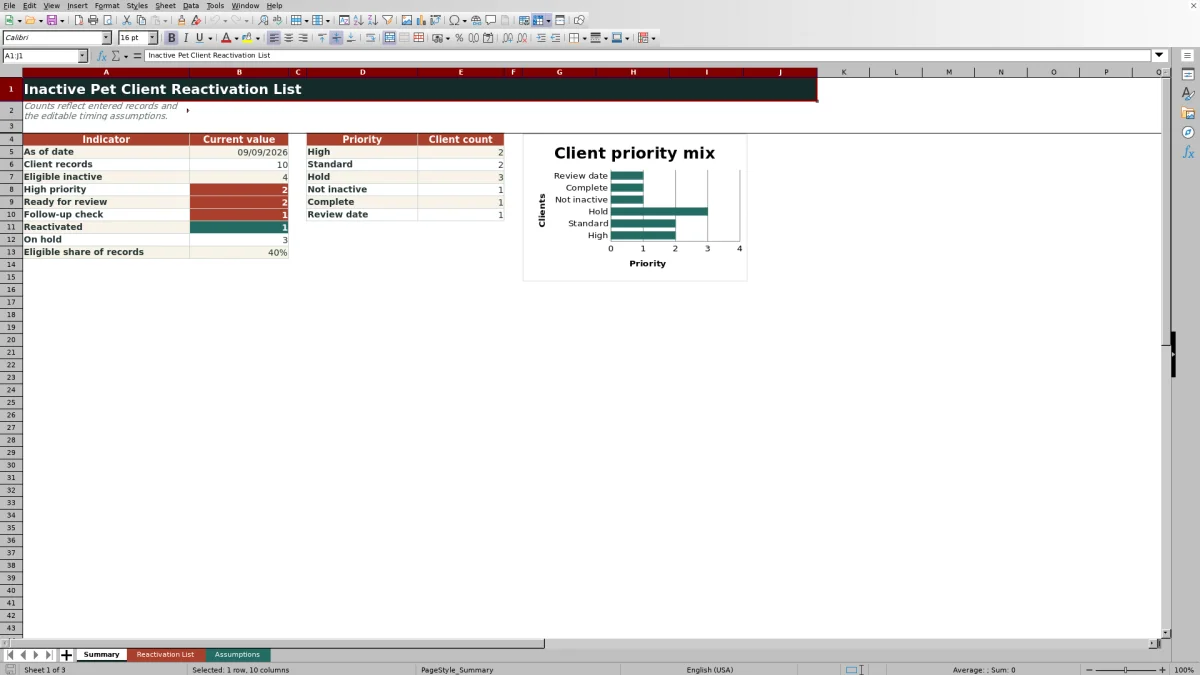
The immediate result is a days-inactive value plus a priority and follow-up alert for each populated row. The Summary sheet counts all client records, eligible inactive records, high-priority entries, records ready for review, follow-up checks, reactivations, and holds. It also reports the eligible share of entered records and charts counts for High, Standard, Hold, Not inactive, Complete, and Review date outcomes.
Interpret priority and follow-up together
A High or Standard priority indicates that the record passed the workbook’s date, consent, and status logic and met an inactivity threshold; it is not automatic authorization to contact the client. Hold indicates that consent or status prevents routine progression, while Review date and Human check call for correction or judgment. Complete and Not inactive explain why no reactivation action is currently needed. The next decision should therefore use both calculated columns alongside the underlying record and administrative notes.
Practical example: from lapse to next decision
Situation: the demonstration record DEMO-001 has a last service date of November 3, 2025, Yes consent, and a Not started status. Action: evaluate it using the workbook’s September 9, 2026 as-of date, 120-day inactivity threshold, and 240-day high-priority threshold. Result: the elapsed period is 310 days, so the formula classifies the record as High and displays Ready for review. Interpretation: the record is older than both thresholds and is not blocked by the entered consent or status. Next decision: a staff member should verify the client data, service date, current consent, preferred email method, and notes before deciding whether outreach is appropriate.
Comparison: Excel reactivation list and common alternatives
The best format depends on whether the need is a transparent review queue, an unstructured register, or an integrated campaign system. This workbook provides visible formulas and controlled inputs but does not send messages or synchronize with another platform.
| Option | Prioritization | Best fit | Important limitation |
|---|---|---|---|
| This Excel workbook | Uses service dates, editable thresholds, consent mappings, and outreach status to calculate priorities and alerts. | Teams that need a reviewable list for up to 100 records with assignments, notes, filters, and summary counts. | Requires manual data entry, recalculation, record review, and separate outreach activity. |
| Basic flat spreadsheet | Depends on manual sorting or ad hoc formulas created by the user. | Simple record storage when no consistent prioritization process is required. | Offers fewer controls and can produce inconsistent labels or decisions. |
| CRM or practice platform | May support automated segments, reminders, and messaging depending on the product and configuration. | Organizations that need integrated client histories and higher-volume communication workflows. | May require licensing, implementation, permissions, configuration, and platform-specific compliance review. |
Compared with a flat list, the Excel template adds repeatable decision logic. Compared with a configured CRM, it is more manual and should be treated as an administrative review tool rather than an outreach engine.
Common errors and solutions
A missing or future last service date produces Review date and Check service date; correct or verify the date rather than overriding the calculated result. No or Unknown consent produces a hold; confirm the authoritative consent record and update the choice only when authorized. Altering dropdown labels or mapping meanings can break the intended lookup logic; use the established choices and keep their mappings aligned. If the high-priority threshold is lower than the inactive threshold, revise the assumptions so the high threshold is equal to or greater than the inactive threshold. If outputs appear stale after an edit, recalculate the workbook before filtering or relying on the Summary counts.
Frequently asked questions
What determines whether a pet client is inactive?
The workbook compares the last service date with the editable as-of date. Its default inactive threshold is 120 days, while the default high-priority threshold is 240 days.
How does contact consent affect priority?
The supplied mapping treats Yes as eligible for outreach and No or Unknown as ineligible. Records without eligible consent are placed on hold rather than assigned a High or Standard priority.
What does Ready for review mean?
Ready for review indicates that the entered status mapping permits review and the record does not require a follow-up-date check. It is not final approval to contact the client; a person should still verify the underlying information.
Does the Excel workbook send emails, texts, or phone reminders?
No. The workbook records a preferred contact method and helps prioritize administrative review, but outreach must occur through an authorized external process.
Can the inactivity and follow-up thresholds be changed?
Yes. The Assumptions sheet contains editable values for the as-of date, inactive threshold, high-priority threshold, and follow-up interval. The high-priority threshold should not be lower than the inactive threshold.
Editorial responsibility

Tessa MarloweClient records and service workflows

Caleb HensleyWorkbook QA and operating controls