This Dog Walking Schedule Template for Excel is an XLSX workbook for assigning recurring weekly walks to pets, walkers, weekdays, time windows, and effective date ranges. It pairs a 100-row scheduling area with pet reference records and formulas that calculate pet names, walk durations, and review flags.
Use it to turn scattered requests into a reviewable weekly plan: enter assignments, inspect schedule and pet-record checks, and then use the summary to decide where timing, staffing, or source data needs attention.
How this workbook can help
- Keeps recurring walk assignments, pet references, access notes, and planning settings in one workbook.
- Surfaces possible timing conflicts, invalid entries, duplicate IDs, inactive pets, and workload-limit issues for review.
- Summarizes active assignments and scheduled hours so weekly workload is easier to assess.
- Uses editable lists and planning limits so the workbook can reflect the walkers, statuses, and duration rules used by the business.
What is in the file
How to get started
1. Review the scheduling assumptions
Open the Assumptions sheet and update the walker list, status lists, and planning limits as needed. The prepared values include a six-hour daily planning limit per walker, a 0.25-hour minimum duration, and a two-hour maximum duration.
2. Build the pet reference list
On the Pets sheet, enter unique pet IDs, pet names, client names, pet statuses, and owner-supplied care notes. Schedule formulas use the pet ID to retrieve the pet name and evaluate the referenced record.
3. Enter recurring walk assignments
On the Schedule sheet, add one recurring assignment per row. Enter a unique schedule ID and pet ID, select the walker and weekday, set the time window and effective dates, choose a status, and add a route or access note when useful.
4. Review checks and make a decision
Review both check columns before relying on the plan. Resolve timing, date, duration, ID, workload, or pet-record issues, and then use the Summary sheet to evaluate active walks and hours by weekday.
Situation: Coordinating Repeating Dog Walks
Recurring dog walks create more than a list of appointments. Each assignment connects a pet, an available walker, a weekday, a time window, and a date range. The workbook organizes this situation as one assignment per row, making it possible to distinguish active work from paused or ended records while retaining route and access details.
Action: Build Consistent Schedule Records
Start with the Pets sheet so each pet has a reference record and status. Then create schedule rows using unique schedule IDs, valid pet IDs, assigned walkers, weekdays, start and end times, and an effective date range. The workbook calculates the pet name and duration rather than requiring those values to be typed repeatedly.
Result: Read the Weekly Summary
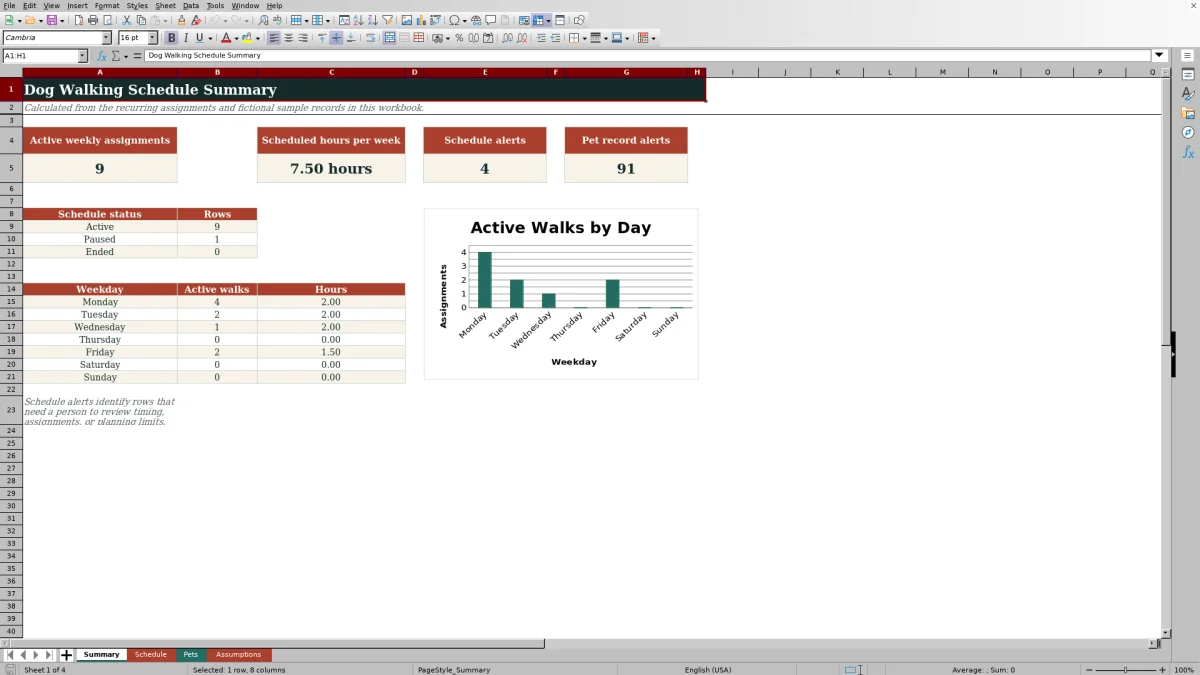
The Summary sheet counts Active rows, totals their scheduled hours, and reports schedule and pet-record alerts. It also separates Active, Paused, and Ended rows and shows active walks and hours for Monday through Sunday. These results indicate where work is concentrated, but they should be read alongside the detailed check columns.
Interpretation: A Practical Scheduling Example
In the fictional sample, SCH-001 assigns Avery Fiction to Maple on Monday from 9:00 to 9:30 AM, while SCH-002 assigns the same walker to Scout from 9:15 to 9:45 AM. Both rows are Active and use the same September 1 through December 31, 2026 date range. Because the records meet the workbook's overlap conditions, the result should be treated as a potential double-booking rather than simply two nearby walks. By contrast, an overlapping Monday window assigned to a different walker does not represent the same walker conflict.
Next Decision: Resolve Flags Before Finalizing the Plan
After interpreting an alert, decide whether to move a time window, assign another walker, correct a date, update the pet record, or change the row's status. Workload and conflict flags are prompts for human review, not guarantees that a route is feasible. Travel time, client instructions, and operational constraints still need to be considered by the scheduler.
Common Errors and Solutions
The check columns help connect common data problems with practical corrections.
- If required fields are missing, complete the pet ID, walker, weekday, time window, and effective dates.
- If the end time is not later than the start time, correct the time window; if the effective end precedes the start, correct the date range.
- If duration falls outside the configured minimum or maximum, revise the window or update the Assumptions sheet when the business rule itself has changed.
- If a schedule ID or pet ID is duplicated, replace it with a unique identifier or remove the unintended duplicate.
- If a pet is not found or is inactive, correct the pet ID or update the source record on the Pets sheet.
- If a walker exceeds the daily planning limit or has overlapping assignments, redistribute or reschedule the affected work.
Rows marked NOT ACTIVE generally reflect Paused or Ended assignments rather than an entry failure.
Comparison: Excel Template vs. Simpler Alternatives
This workbook is designed for row-based recurring assignments and formula-driven review. A visual calendar can be faster for a very small schedule, while a blank spreadsheet offers more freedom but requires the user to build equivalent controls.
| Approach | Recurring date control | Built-in review | Best fit |
|---|---|---|---|
| This Excel template | Weekday plus effective start and end dates | Duration, schedule, pet-record, conflict, and planning-limit checks | Teams that need structured recurring records and review prompts |
| Simple weekly calendar | Visual weekly placement, usually maintained manually | Depends on the calendar and the user's review process | Small schedules where quick visual placement matters most |
| Blank spreadsheet | Defined entirely by the user | None unless formulas, validation, or formatting are added | Custom workflows that justify additional setup and maintenance |
The Excel template adds consistency and alerts, but it is not an automatic route optimizer or a substitute for checking real travel and access conditions.
Frequently asked questions
What sheets are included in the Excel dog walking schedule template?
The workbook includes Summary, Schedule, Pets, and Assumptions sheets. Together they cover recurring assignments, pet references, editable planning settings, calculated checks, and weekly reporting.
How does the workbook identify possible scheduling conflicts?
Active assignments require review when the relevant walker, weekday, overlapping time windows, and overlapping effective date ranges create a potential conflict. The flag is a prompt for a person to verify the schedule.
Can I change the walkers and status choices?
Yes. The Assumptions sheet contains editable walker, weekday, pet-status, and schedule-status lists used by the workbook's prepared validation rules.
How many records can the prepared workbook hold?
The prepared entry areas run from row 6 through row 105, providing 100 recurring schedule rows and 100 pet reference rows.
Does each row create a separate appointment for every calendar date?
No. Each Schedule row represents one weekly recurring assignment based on a weekday and an effective start and end date. It does not expand the assignment into individual dated appointments.
What should I do when a check column shows an alert?
Review the affected row and its source pet record, correct missing or inconsistent data, and then decide whether the walk should be rescheduled, reassigned, paused, ended, or retained after manual verification.
Editorial responsibility

Tessa MarloweClient records and service workflows

Caleb HensleyWorkbook QA and operating controls