This pet allergy alert register Excel workbook records owner-reported alerts at the pet level and surfaces the relevant alert details for each booked service. It provides prepared space for 100 pet alerts and 100 service checks, with fields for handling notes, alert levels, dates, assigned team roles, acknowledgements, and follow-up notes.
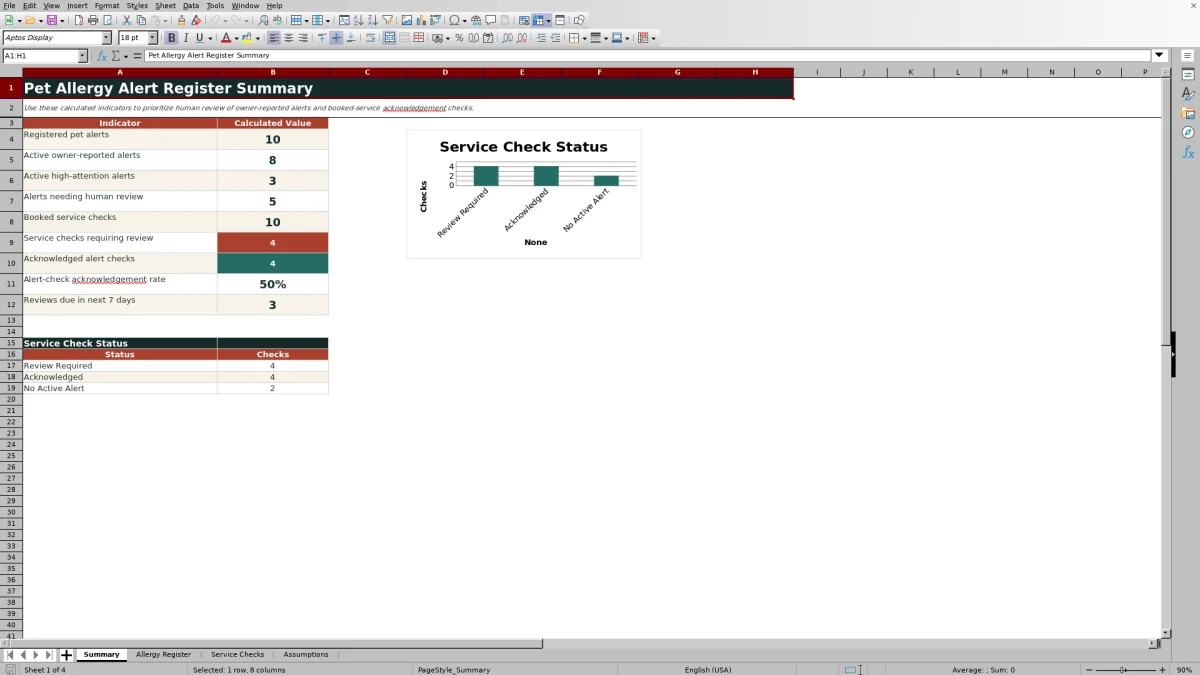
Calculated review flags and service check statuses help staff identify records that need attention, while the Summary sheet presents key counts, an acknowledgement rate, and a status chart. The workbook supports human review and does not provide veterinary guidance, send notifications, or update another system.
How this workbook can help
- Keeps one consolidated owner-reported allergy alert record per pet.
- Surfaces active alert details and handling notes for booked services.
- Highlights overdue reviews, upcoming reviews, incomplete dates, and acknowledgement gaps.
- Summarizes alert and service-check activity for faster human follow-up.
What is in the file
How to get started
1. Review the assumptions
Review the settings. Confirm the review interval, review-soon window, upcoming-service window, accepted date range, and dropdown choices on the Assumptions sheet.
2. Record each pet alert
Create one pet-level row. Enter the alert ID, pet ID, pet and client display names, owner-reported alert, handling note, alert level, status, Date Reported, and Last Confirmed on the Allergy Register sheet. The workbook calculates the Next Review Date and Review Flag.
3. Add each booked service
Add each booked service. Enter its check ID, date, service type, pet ID, and assigned team role on the Service Checks sheet. The formulas retrieve the pet name and applicable active-alert information from the register.
4. Complete and review the check
Resolve exceptions. Review the retrieved alert, select the appropriate acknowledgement, and enter the acknowledging person, date, and notes when required. Use Check Status and the Summary sheet to prioritize records marked Review Required.
Situation: Owner-Reported Alerts Need a Consistent Record
A pet-service business may receive allergy or sensitivity information at different times and in different wording. The Allergy Register provides one place to retain each owner-reported alert, the related service handling note, its attention level, whether it is active, and when it was last confirmed. The sheet explicitly directs users to keep one consolidated alert row per pet and to confirm reported details with the owner.
Action: Maintain the Pet-Level Allergy Register
Each prepared register row includes an Alert ID, Pet ID, Pet Name, Client Display Name, Owner-Reported Allergy Alert, Service Handling Note, Alert Level, Status, Date Reported, and Last Confirmed. The workbook adds the configured review interval to Last Confirmed to calculate Next Review Date, then classifies the record as Current, Review Soon, Review Overdue, Check Dates, or Inactive.
Action: Check the Alert for Every Booked Service
The Service Checks sheet is organized around one row per booked service. After a user enters the Pet ID, formulas look for that ID in the Allergy Register and return the pet name, whether an active alert exists, its level, the owner-reported alert, and the service handling note. Staff then record the acknowledgement selection, acknowledging person, acknowledgement date, and any check notes.
Practical Example: From Pending Check to Documented Acknowledgement
Situation: the included fictional CHK-002 daycare booking uses PET-002, whose active Caution-level register entry reports salmon-based food and treats as an allergy alert. Action: the team reviews the retrieved alert and handling note, but the example acknowledgement remains Pending. Result: the service check displays Review Required. Interpretation: an active alert has been found, but the required human acknowledgement is incomplete. Next decision: before treating the check as complete, select Acknowledged and enter both the acknowledging person and a valid acknowledgement date; when those conditions are met, the calculated status becomes Acknowledged.
Result and Interpretation: Read the Calculated Statuses
An active-alert service check becomes Acknowledged only when Acknowledgement is set to Acknowledged, Acknowledged By is not blank, and Acknowledged Date is a valid date. A service for a pet without an active alert becomes No Active Alert when Not Needed is selected. Missing pet information, an unrecognized Pet ID, or an incomplete or inconsistent acknowledgement produces Review Required, which is a prompt for human follow-up rather than an automated notification.
Comparison: Register, Service Checks, Summary, and Assumptions
The four sheets serve related but distinct purposes. The comparison below shows where information belongs and prevents the Summary or service workflow from being mistaken for the underlying pet-level record.
| Sheet | Record level | Primary role | Key output |
|---|---|---|---|
| Allergy Register | One consolidated row per pet alert | Stores owner-reported alert details, handling notes, levels, statuses, and dates | Next Review Date and Review Flag |
| Service Checks | One row per booked service | Surfaces the matching alert and records acknowledgement details | Review Required, Acknowledged, or No Active Alert |
| Summary | Calculated workbook overview | Supports prioritization through counts, a rate, and a chart | Alert and service-check indicators |
| Assumptions | Workbook configuration | Stores timing, date limits, and stable dropdown choices | Rules used by validations and calculations |
The Allergy Register is the source record, Service Checks applies that information to bookings, Summary aggregates the results, and Assumptions controls supported settings and choices.
Common Errors, Solutions, and Next Decisions
If Pet Not Found appears, confirm that the Service Checks Pet ID exactly matches an ID in the Allergy Register. If an allergy record shows Check Dates, verify Last Confirmed and the applicable Assumptions values are valid dates or numbers. If an active-alert service remains Review Required, set Acknowledgement to Acknowledged and complete both Acknowledged By and Acknowledged Date. If no active alert exists but the row remains Review Required, use Not Needed where appropriate. After changing a stable dropdown choice, recheck existing entries. Next decision: prioritize unresolved service checks and alerts marked Review Overdue, Review Soon, or Check Dates.
Frequently asked questions
What does the pet allergy alert register track?
It tracks owner-reported pet allergy alerts, service handling notes, alert levels, active or inactive status, reported and confirmed dates, and calculated review timing.
How does the Excel workbook check a booked service?
The Service Checks sheet uses the entered Pet ID to retrieve the corresponding pet name and active-alert information from the Allergy Register. Staff then document the acknowledgement and any related notes.
When is a service check marked Acknowledged?
For a pet with an active alert, Acknowledgement must be set to Acknowledged, Acknowledged By must be completed, and Acknowledged Date must contain a valid date.
What does Review Required mean?
It means the row needs human attention because pet information is missing or not found, an acknowledgement is incomplete, or the selected acknowledgement does not match the active-alert result. It does not trigger an automatic message.
Can the alert review timing be changed?
Yes. The Assumptions sheet contains editable settings for the review interval, review-soon window, and upcoming-service window, along with accepted date limits.
How many rows are prepared for records?
The Allergy Register contains 100 prepared alert rows, and the Service Checks sheet contains 100 prepared booked-service rows, covering rows 5 through 104 on each working sheet.
Editorial responsibility

Tessa MarloweClient records and service workflows

Caleb HensleyWorkbook QA and operating controls