This pet appointment cancellation tracker is an Excel workbook for recording canceled appointments and no-shows, including appointment and cancellation times, services, pets, assigned staff, reasons, fee decisions, fee amounts, and administrative notes.
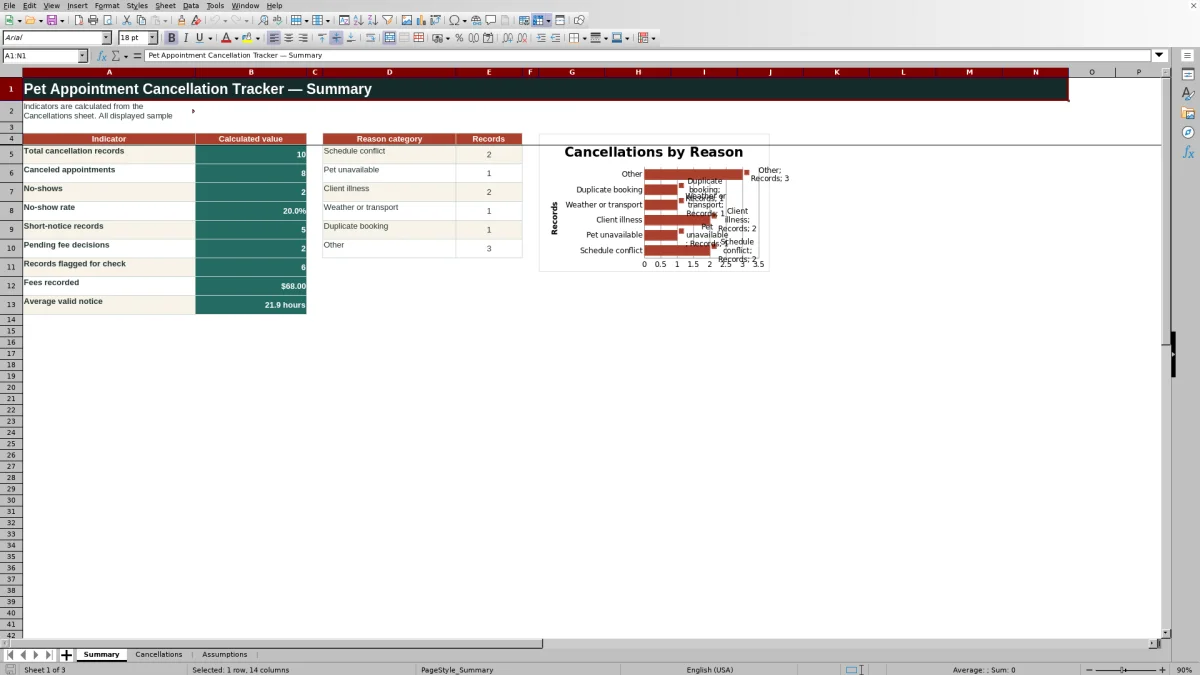
The XLSX calculates notice hours, identifies records that need review, and summarizes cancellation volume, no-show rates, short-notice activity, pending fee decisions, recorded fees, average valid notice, and reason-category counts. Editable assumptions support consistent data entry without establishing business pricing or cancellation policy.
How this workbook can help
- Keeps cancellation and no-show details in one structured record instead of scattered notes.
- Calculates notice time automatically from the entered appointment and cancellation dates and times.
- Supports trend analysis through summary indicators, reason-category counts, and a chart.
- Prompts human review when required information, timing, or fee details may need correction.
What is in the file
How to get started
1. Configure the assumptions
Review the short-notice threshold, maximum entered fee, allowed date range, services, reason categories, cancellation types, fee decisions, and assigned-to list on the Assumptions sheet.
2. Enter each cancellation
Add one record per row on the Cancellations sheet. Complete the ID, appointment and cancellation dates and times, service, pet, assigned staff member, cancellation type, reason, fee decision, fee amount when applicable, and administrative notes.
3. Check the calculated fields
Review Notice Hours and the Review Flag. Correct missing fields, negative notice time, pending fee decisions, missing charged amounts, or positive amounts attached to waived fees.
4. Review the summary
Use the Summary sheet to examine record totals, no-shows, short-notice records, fee activity, average notice, flagged records, and the distribution of reason categories before deciding whether an operational follow-up is needed.
What the Excel cancellation tracker records
The Cancellations sheet stores a cancellation ID, appointment date and time, cancellation date and time, service, pet name, assigned staff member, cancellation type, reason category, fee decision, fee amount, and administrative notes. Cancellation Type distinguishes Canceled records from No-show records, while the standardized reason and fee fields make later review more consistent.
How notice time and review flags work
Notice Hours is calculated from the difference between the scheduled appointment date and time and the recorded cancellation date and time. The default short-notice threshold is 24 hours, and it can be changed on the Assumptions sheet. The Review Flag checks for missing required fields, negative timing, pending fee decisions, charged fees without amounts, waived fees with positive amounts, and records that fall below the configured threshold.
Practical example: interpreting a short-notice cancellation
Situation: a fictional bath-and-brush appointment is scheduled for 2:00 PM and canceled at 8:00 AM on the same date. Action: the user records the appointment and cancellation times, selects Canceled and Client illness, and marks the fee Waived with an amount of $0. Result: the workbook calculates 6.0 notice hours. Interpretation: 6.0 hours is below the default 24-hour threshold, so the record represents short-notice activity even though the fee was waived. Next decision: the user can confirm that the waiver is correct, retain an explanatory note, and later assess whether similar short-notice reasons are recurring.
Common errors and solutions
A blank required field produces a missing-fields message, while a cancellation entered after the appointment can produce a timing warning. A Pending decision remains open for review; a Charged decision without a fee amount requests an amount; and a Waived decision paired with a positive amount signals an inconsistency. Fix the source entry rather than overwriting calculated cells: complete the missing value, verify the dates and times, finalize the fee decision, or correct the amount.
Comparison: Excel tracker versus calendar notes
The workbook is designed for structured cancellation records and trend review, while ordinary calendar notes are generally better suited to informal appointment context. This is an operational recordkeeping comparison, not a claim that the workbook replaces scheduling software.
| Aspect | Excel cancellation tracker | Calendar or free-form notes |
|---|---|---|
| Notice time | Calculates hours from entered dates and times | Usually requires manual calculation |
| Categories | Uses controlled lists for key fields | Wording may vary between entries |
| Review checks | Flags specified missing, timing, and fee conditions | Depends on manual review |
| Trend summary | Provides calculated indicators and reason counts | May require separate compilation |
| Live scheduling functions | Does not send reminders or manage bookings | A calendar may support scheduling and reminders |
Use the Excel tracker when consistent cancellation analysis matters; retain a calendar or scheduling system for live appointment management.
Using the summary for trend analysis
The Summary sheet reports total cancellation records, canceled appointments, no-shows, no-show rate, short-notice records, pending fee decisions, records flagged for review, fees recorded, and average valid notice. It also counts records across the six reason categories and displays those counts in a chart. These outputs help identify patterns, but they should be interpreted alongside record volume, administrative notes, and the business context.
Configuring assumptions without treating them as policy
The Assumptions sheet contains the default 24-hour short-notice threshold, a $500 maximum entered fee, an allowed date range from January 1, 2025 through December 31, 2027, and the lists used for validated selections. These are editable administrative controls. They should reflect the organization’s approved practices, but the workbook itself does not create pricing, contractual terms, or a cancellation policy.
Frequently asked questions
How many cancellation records can the prepared workbook hold?
The Cancellations sheet provides 100 prepared record rows, from row 5 through row 104.
Does the workbook calculate cancellation notice automatically?
Yes. Notice Hours is calculated when the appointment date and time and the cancellation date and time are present and valid.
Can the short-notice threshold be changed?
Yes. The Assumptions sheet contains an editable short-notice threshold, which is set to 24 hours by default.
How should a no-show be entered?
Select No-show as the cancellation type and record the administrative entry date and time used by the business, as directed in the workbook.
Does this Excel workbook set cancellation fees or policy?
No. It records fee decisions and amounts within editable administrative limits, but it does not establish pricing, cancellation policy, or contractual terms.
What does the Review Flag column check?
It checks for missing required fields, negative timing, pending fee decisions, charged fees without amounts, waived fees with positive amounts, and notice time below the configured threshold.
Editorial responsibility

Tessa MarloweClient records and service workflows

Caleb HensleyWorkbook QA and operating controls