This pet client intake spreadsheet is an Excel workbook for recording owner contact details, requested services, linked pets, onboarding items, follow-up dates, and intake statuses.
Separate Clients and Pets sheets preserve one-to-many relationships through Intake IDs, while formulas surface incomplete records and the Summary sheet provides workload indicators for human review. The included records are clearly labeled as fictional examples.
How this workbook can help
- Keeps owner, service, pet, and onboarding information organized in one workbook while preserving separate client and pet records.
- Links multiple pet profiles to the appropriate client intake without repeatedly entering the owner's name.
- Surfaces missing fields, duplicate IDs, date-sequence issues, unmatched records, and follow-ups that need attention.
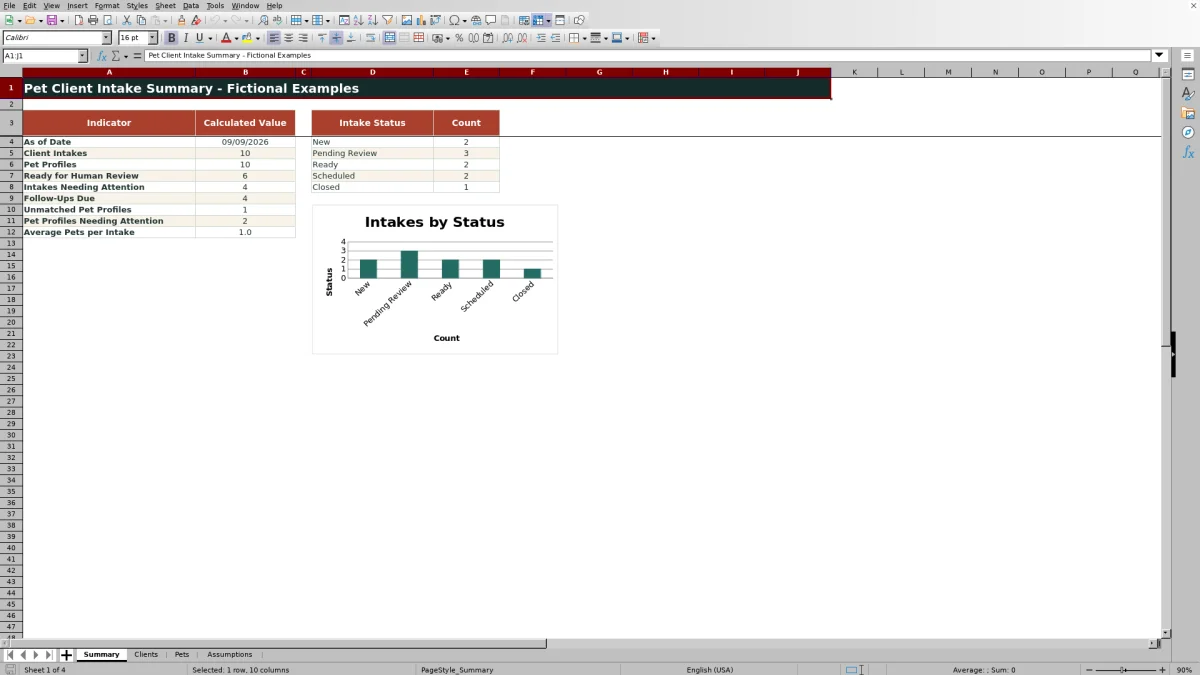
- Provides summary counts and a status chart to support workload review and the next onboarding decision.
What is in the file
How to get started
1. Configure the assumptions
Open the Assumptions sheet and review the accepted date limits, future planning window, pet-weight entry limit, onboarding requirements, and dropdown choices. Update the editable settings to match the business process.
2. Enter the client intake
Replace the fictional examples on the Clients sheet. Assign a unique Intake ID, then enter the intake date, owner name, at least one contact method, service interest, relevant planning dates, onboarding selections, and intake status.
3. Add and link each pet
Create a separate row on the Pets sheet for every pet. Use the matching client Intake ID, then complete the pet identity, species, service scope, record selection, profile status, and any owner-supplied care notes.
4. Review results and decide what happens next
Read the Intake Check, Profile Check, and Follow-Up Alert columns before consulting the Summary sheet. Correct the source entries, complete the human review, and then update the applicable client or pet status.
How the Excel Workbook Organizes Intake Records
The Clients sheet records Intake ID, intake date, owner name, phone, email, preferred contact method, service interest, assigned staff, target start date, consent selection, emergency-contact selection, follow-up date, and intake status. The Pets sheet holds the corresponding Pet ID, Intake ID, pet details, service scope, owner-supplied notes, vaccination-record selection, and profile status. This structure keeps owner-level information separate from pet-level details while retaining a clear relationship between them.
Configure Administrative Rules Before Data Entry
The Assumptions sheet controls the earliest accepted intake date, future planning window, maximum pet-weight entry value, and lists used for contacts, services, staff, statuses, species, and record selections. Its limits are administrative entry controls rather than medical guidance. Reviewing these settings first helps ensure that dropdowns and formula checks reflect the actual intake process.
Link Clients and Pets with Intake IDs
Each pet profile uses an Intake ID that should match a record on the Clients sheet. The workbook counts linked pets for each intake and uses a lookup to display the associated owner name on the Pets sheet. An incorrect or missing Intake ID produces a check instead of silently assigning the pet to the wrong owner, so staff can reconcile the relationship before proceeding.
Practical Pet Intake Example
Situation: The fictional INT-26002 record requests Dog Daycare for Sample Pet - Clover, but the consent selection and vaccination-record selection are both No. Action: A reviewer confirms that PET-26002 uses the same Intake ID and checks whether those onboarding items are enabled in Assumptions. Result: The workbook counts Clover under the client, retrieves Fictional Owner - Jordan Vale on the pet row, and uses its check formulas to keep unresolved items visible. Interpretation: The client-to-pet link is working, while the attention state concerns onboarding information rather than a missing relationship. Next decision: Staff can obtain or review the relevant item, correct an inaccurate selection, or change an assumption when the requirement does not apply, then complete the human review and update the status.
Common Intake Errors and Solutions
Fix the source entry: For a duplicate Intake ID or Pet ID, assign a unique identifier; for a required-field warning, complete the fields used by the applicable check; for a date-sequence warning, verify that the target start or follow-up date is not earlier than the intake date; for Add pet profile, create a linked pet row; and for Check Intake ID, correct the pet's Intake ID so it matches a client record. A Follow up due alert is resolved by reviewing the client, recording the appropriate next date or status, and confirming the outcome through the normal human process.
Pet Client Intake Spreadsheet Comparison
The workbook's linked two-table design is most useful when one owner intake can include multiple pets. Simpler alternatives can require less setup, but they provide less built-in reconciliation.
| Approach | Record structure | Automated support | Practical trade-off |
|---|---|---|---|
| This Excel workbook | Separate Clients and Pets tables linked by Intake ID | Pet counts, owner lookup, record checks, follow-up alerts, summary metrics, and a status chart | Supports multi-pet intakes, but alerts remain inside the workbook and still require human review |
| Single flat intake sheet | Owner and pet details share one row | Depends on formulas added by the user | Simple for one-pet cases, but owner details may be duplicated when several pets share an intake |
| Separate unlinked sheets | Client and pet lists are maintained independently | No relationship check unless the user builds one | Flexible, but matching owners to pets and identifying unmatched records is more manual |
The best choice depends on record volume and relationship complexity. This workbook favors structured linking and visible administrative checks rather than external messaging or automatic approval.
Turn Summary Indicators into the Next Decision
The Summary sheet reports client intakes, pet profiles, records ready for human review, intakes and pet profiles needing attention, follow-ups due, unmatched pet profiles, average pets per intake, and counts by intake status. Treat these figures as a triage view: investigate exceptions on the source sheets, determine why they were flagged, correct or complete the record, and then decide whether to advance, schedule, follow up on, or close the intake.
Frequently asked questions
How many records can the workbook hold?
The prepared entry ranges provide 100 client rows and 100 pet rows, covering rows 5 through 104 on the Clients and Pets sheets.
Can one client intake include multiple pets?
Yes. Enter a separate Pets row for each animal and use the same matching Intake ID. The Clients sheet counts every pet profile linked to that intake.
What does Ready for human review mean?
It means the applicable formula checks did not find the conditions they are designed to flag. It is not an automatic approval and should still be confirmed by a person.
Does the follow-up alert send a notification?
No. Follow up due is a formula result shown inside the Excel workbook when the follow-up date is on or before the current date and the intake is not Closed.
Can the dropdown choices and limits be changed?
Yes. The Assumptions sheet contains the editable choices and administrative entry limits used by the workbook's validation rules and selected checks.
Editorial responsibility

Tessa MarloweClient records and service workflows

Caleb HensleyWorkbook QA and operating controls