This Excel workbook tracks whether pet photos may be considered for business media use. It records each client’s permission decision, channel-specific approval for social media, websites, and print, written restrictions, expiration dates, document references, and review details.
The XLSX also connects release records to planned image uses. Its formulas check the selected channel, permission decision, and expiration date, while a separate human-check field ensures that staff still review the supporting release and any restrictions before deciding whether an image is ready to use.
How this workbook can help
- Centralizes pet photo permission records, channel approvals, restrictions, expiration dates, and supporting document references.
- Reduces the risk of planning an image use for a channel that the recorded release does not allow.
- Surfaces pending decisions, upcoming expirations, incomplete records, holds, and uses that should not proceed.
- Keeps human review in the workflow because written restrictions and source documents still require interpretation.
What is in the file
How to get started
1. Enter the release record
Open the Releases sheet and add a unique Release ID, client reference, pet name, received date, permission decision, and supporting document reference. Record the reviewer and last review date when available.
2. Record channels, restrictions, and expiration
Mark Social Media, Website, and Print as Allowed or Not Allowed. Add all written usage restrictions and enter an expiration date when the release includes one.
3. Evaluate each planned image use
In the Usage Log, enter the use date, linked Release ID, media channel, campaign or image description, and assigned staff member. Review the calculated Permission Check against the referenced release and its restrictions.
4. Complete the human check and act on the result
Select Checked, Pending, or Hold after reviewing the source record. Use the calculated Use Status and Summary indicators to decide whether the image is ready, needs further review, must remain on hold, or should not be used.
What the pet photo release tracker records
The Releases sheet serves as the central permission register. Each row can capture a Release ID, client reference, pet name, received date, overall permission decision, separate approval for social media, website, and print use, written restrictions, expiration date, document reference, reviewer, last review date, and calculated release status.
This structure distinguishes general approval from channel-specific approval. An approved release is not automatically suitable for every medium, and a restriction such as removing staff faces or cropping out a client address still requires a person to inspect the proposed image.
From release record to planned use
The Usage Log applies a release record to a specific planned use. Staff enter the planned date, Release ID, media channel, description, and assignee. The Permission Check then compares those inputs with the linked release’s decision, permitted channel, and expiration date.
The workflow does not stop at the formula result. A reviewer selects Pending, Checked, or Hold and records a review note. The final Use Status can then indicate Ready, Human check needed, Do not use, or Hold, helping the team move from a recorded situation to an explicit next decision.
Practical example: an approved social media post
Situation: Fictional release REL-001 is approved for social media, website, and print, expires March 8, 2027, and states that no staff faces may appear. A social media use is planned for September 16, 2026.
Action: The planned use is linked to REL-001 in the Usage Log, the reviewer checks the referenced form and confirms that the selected image contains no staff faces, and Human Check is set to Checked.
Result: Because the release is approved, the selected channel is allowed, the planned date is before expiration, and the human review is complete, the use can return Ready.
Interpretation: Ready means the structured checks passed and the reviewer confirmed the restriction for that particular image. It does not erase or automate the written restriction.
Next decision: Proceed only with the reviewed image or crop. If a different version includes a staff face, revise the asset or place the use on Hold rather than relying on the earlier result.
Common errors and solutions
A missing planned date, Release ID, or media channel can produce a Check inputs result; complete those fields before reviewing the use. An incorrect Release ID prevents a reliable match, so verify that it exactly matches an entry in the Releases sheet. If a release shows Check decision or Check entries, correct the underlying decision or invalid data instead of overriding the status.
No channel approved means the release is marked Approved but none of the three media channels is set to Allowed; confirm the source document and update only what it authorizes. Expired or Expiring soon calls for review of the expiration date and, when necessary, a renewed release. Human check needed is resolved by examining the document and restrictions, recording a review note, and selecting Checked only when the proposed use is acceptable. Do not use or Hold should remain in place until the underlying permission issue is legitimately resolved.
Comparison: structured tracker versus a basic media list
A basic asset list can identify a photo and its location, but it may not connect that asset to a permission decision, approved channel, expiration date, and documented human review. This workbook is more suitable when the operational question is whether a particular pet image may be considered for a particular business use. It remains a tracker rather than a substitute for the signed release or professional guidance.
| Review area | Pet photo release tracker | Basic media list |
|---|---|---|
| Permission scope | Records the overall decision and separate social media, website, and print permissions. | May record that an image exists without distinguishing authorized channels. |
| Timing | Checks the planned use date against the recorded expiration date. | Usually requires a separate manual date check. |
| Restrictions | Provides a dedicated restrictions field and review note, but interpretation remains manual. | May offer only a general notes field or no restriction record. |
| Human review | Separates calculated permission checking from Pending, Checked, or Hold review choices. | May not document whether someone reviewed the release before use. |
The practical advantage is traceability across a release and its planned use. The tradeoff is that staff must maintain consistent Release IDs, preserve the supporting documents, and read restrictions rather than treating the spreadsheet as automatic authorization.
How calculated statuses support decisions
On the Releases sheet, formulas can classify populated records as Active, Expiring soon, Pending, Not approved, Expired, No channel approved, or a data-check condition. The expiration warning uses the configurable number of days in Assumptions and the workbook’s current date, so the displayed release status can change as time passes.
On the Usage Log, the Permission Check evaluates the linked decision, selected channel, and expiration relative to the planned use date. The Use Status then incorporates the human-check selection: Hold takes priority, a permission result other than Permission found leads to Do not use, and a valid permission result becomes Ready only after the human check is marked Checked.
Maintenance, assumptions, and review boundaries
The Assumptions sheet contains the 30-day expiration-warning window, valid entry dates from January 1, 2016 through December 31, 2031, and the stable labels used by formulas and dropdowns. Those labels should be changed cautiously because validation rules and formulas refer to their cells.
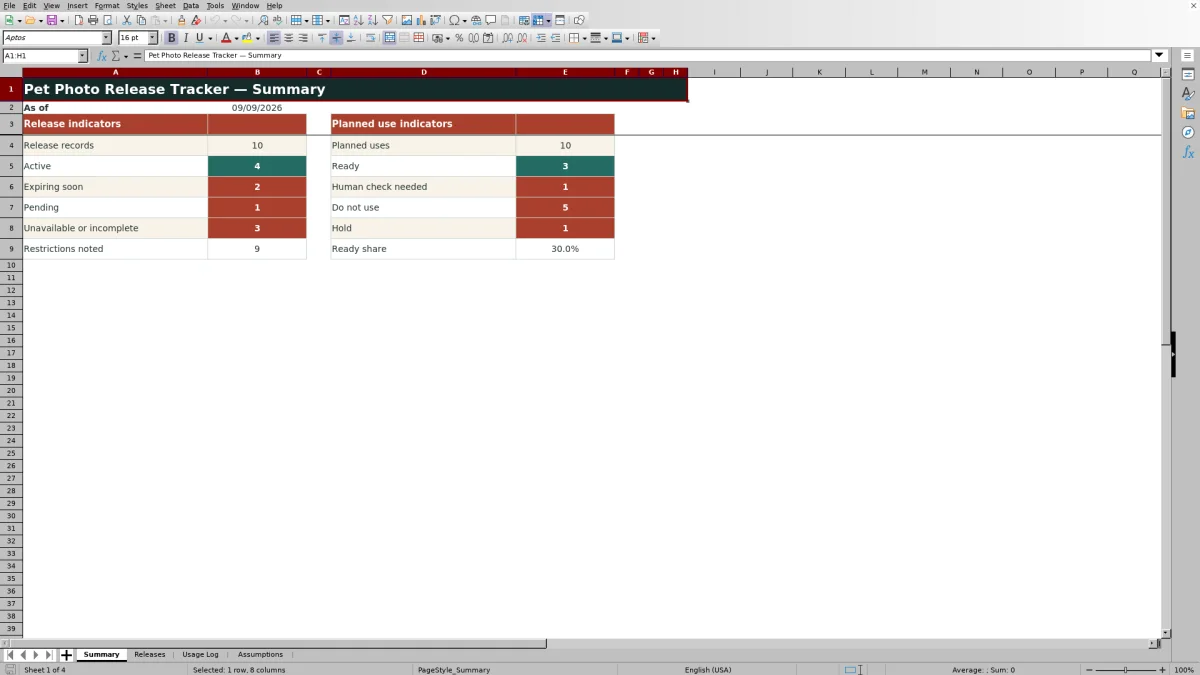
Use the Summary sheet to monitor release counts, active and expiring records, pending or unavailable permissions, noted restrictions, planned uses, readiness, human checks, holds, and the ready share. Treat these indicators as a review queue: investigate exceptions, update source-backed records, and decide whether the next action is approval for use, correction, renewal, continued hold, or rejection.
Frequently asked questions
Does a Ready status replace reviewing the release document?
No. Ready indicates that the structured permission check passed and Human Check was marked Checked. The reviewer must still examine the referenced release and confirm that the exact image and planned use comply with all written restrictions.
Which media channels can the workbook track?
The workbook provides channel choices for Social Media, Website, and Print. Each release records Allowed or Not Allowed separately for those three channels.
How does the tracker handle expiration dates?
The Releases sheet can flag a record as Expired or Expiring soon, using the current date and the warning window in Assumptions. The Usage Log also compares the planned use date with the linked release’s expiration date.
What should I do when a planned use says Human check needed?
Review the supporting release, selected media channel, planned date, image, and written restrictions. Add a review note and select Checked only when the proposed use complies; otherwise select Hold or do not proceed.
Can the workbook automatically enforce written usage restrictions?
No. It stores restrictions and review notes, but free-text conditions such as cropping an address or excluding staff faces require human interpretation and inspection of the specific image.
Editorial responsibility

Tessa MarloweClient records and service workflows

Caleb HensleyWorkbook QA and operating controls