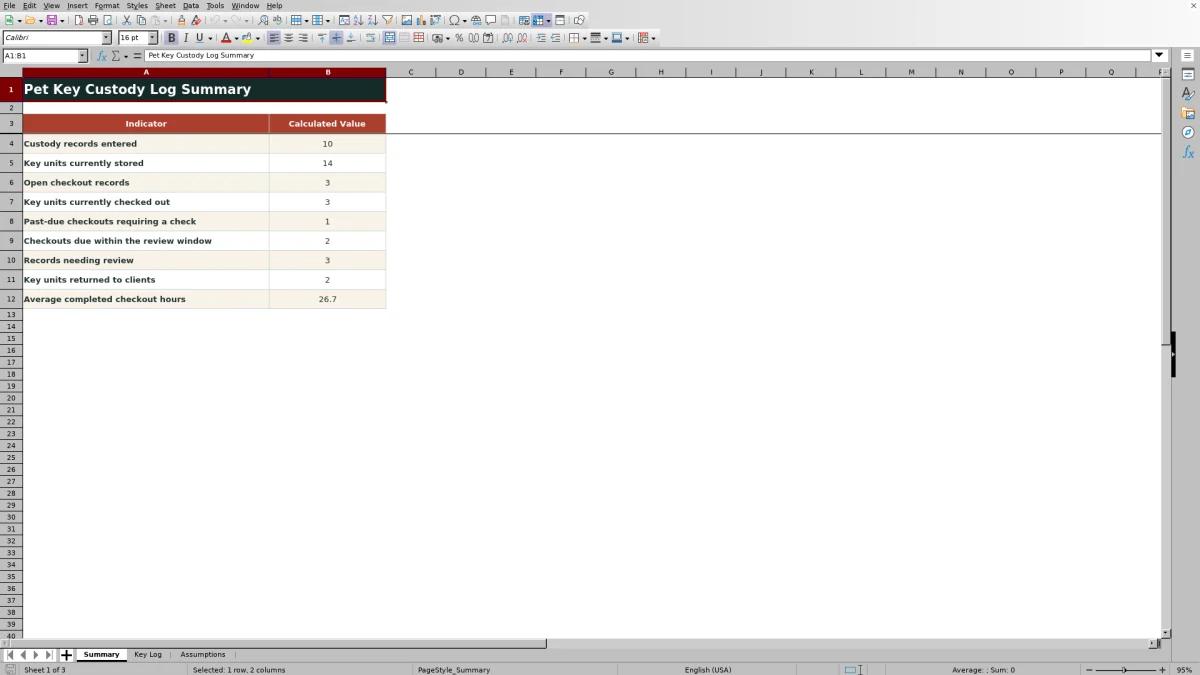
The Pet Key Custody Log is an Excel workbook for coded custody tracking across the receipt, storage, checkout, check-in, and release of client keys used during home visits. Its Key Log provides 100 entry rows, while the Summary turns those records into operational counts.
The XLSX keeps key code, client ID, storage code, assignee, timing, quantity, and administrative notes in one record. Formula-driven status, hours-out calculations, and alerts provide review cues rather than proof, so staff should verify the physical key and follow internal custody procedures.
How this workbook can help
- Centralizes receipt, coded storage, checkout, check-in, and client-release details in one log.
- Surfaces open, due-soon, and past-due checkout records for staff review.
- Reduces inconsistent entries through quantity, date, assignee, and storage-code validation.
- Supports privacy-conscious handling by using coded key, client, and storage references instead of household access details.
What is in the file
How to get started
1. Configure the controls
Open Assumptions and update the maximum keys per record, upcoming-due window, allowed date range, assignee list, and storage-code list before operational use.
2. Record receipt and storage
In Key Log, assign a unique custody ID and enter the key code, client ID, pet name, quantity, received time, and approved storage code. Use Administrative Notes only for suitable internal context.
3. Document each checkout
Enter the checkout time, due-back time, and assignee when a key leaves storage for a home visit. Review Current Status, Hours Out, and Review Alert rather than overwriting those formula cells.
4. Close or escalate the record
Enter Checked In At when the key is physically returned to storage, or Released to Client At when custody ends with the client. Investigate alerts and confirm the next action through the organization’s custody process.
Workbook scope and custody trail
The workbook creates a single custody trail from initial receipt through coded storage, home-visit checkout, return to storage, and final release to the client. Each row can hold a custody ID, key code, client ID, pet name, key quantity, relevant timestamps, storage code, assignee, and administrative notes. The workbook is designed for coded references; it does not provide dedicated fields for addresses, alarm codes, or entry instructions.
How status, timing, and alerts work
The Current Status formula reads the recorded events in sequence. A client-release time produces Returned to Client; a check-in time without release produces Stored; a checkout time without either return event produces Checked Out; and receipt alone also produces Stored. Hours Out starts with the checkout timestamp and uses check-in, client release, or the current time as the endpoint. Review Alert checks required fields, duplicate custody IDs, date order, and overdue conditions that need human attention.
Practical example: interpreting a past-due record
Situation: fictional record FIC-CUST-003 contains one key received on July 31, 2026, checked out on September 6, and due on September 8, with no check-in or client-release time. Action: a reviewer checks its calculated columns and the Summary after the due timestamp has passed. Result: the status remains Checked Out, Hours Out continues to increase, and the record can display Past due — check while contributing to the past-due summary count. Interpretation: the entry requires follow-up, but it does not prove that the key is missing or mishandled. Next decision: verify custody with the listed assignee and enter the check-in time only after the key is physically received.
Common errors and solutions
A blank key code, client ID, quantity, or received time can produce Check required fields; correct the source entry instead of editing the alert formula. A repeated custody ID can produce Duplicate custody ID — check, which should be resolved by assigning a unique identifier. A due-back time without a checkout, or a check-in earlier than checkout, can produce Check date order; confirm and repair the timestamps. If validation rejects a quantity, date, assignee, or storage code, either correct the entry or update the corresponding approved value on Assumptions when policy permits.
Comparison with simpler key logs
This Excel workbook offers structured controls that a basic paper sheet may not provide, but it does not replace locked storage, identity checks, staff training, or a formal custody policy.
| Criterion | Pet Key Custody Log workbook | Simple paper log | Generic spreadsheet |
|---|---|---|---|
| Custody structure | Sixteen defined fields covering receipt through client release | Depends on the printed form and handwriting | Depends on fields created by the user |
| Status and follow-up | Formula-driven status, hours out, alerts, and summary counts | Requires manual review and calculation | Available only if formulas are configured |
| Entry controls | Quantity, date, assignee, and storage-code validation | No automatic validation | Possible, but not guaranteed |
| Best fit | Repeat home visits needing coded operational tracking | Low-volume or temporary manual use | Teams prepared to design and maintain their own controls |
The workbook is the stronger alternative when consistent fields and automated review cues matter; a simpler log may be sufficient when volume is low and manual oversight is reliable.
Assumptions and entry boundaries
The Assumptions sheet centralizes editable operating limits. The supplied maximum is six keys per custody record, and the upcoming-due review window is two days. The supplied entry-date range runs from January 1, 2024, through December 31, 2029. Assignee choices come from cells E4:E13, while storage-code choices come from F4:F13. These settings should be reviewed against internal practices before real records are entered.
Reading the Summary and choosing the next action
The Summary reports custody records entered, key units stored, open checkout records, units checked out, past-due checkouts, items due within the configured window, records needing review, units returned to clients, and average completed checkout hours. Read each value as a prompt for the next operational decision: investigate alerts, prepare for due returns, follow up on overdue records, or close completed custody activity. Because some calculations use the current time, results can change as an open checkout ages. Clear or replace the fictional sample inputs before relying on operational totals, while preserving the formula columns.
Frequently asked questions
How many custody records can the Excel log hold?
The Key Log provides 100 prepared entry rows, from row 5 through row 104.
Should home addresses or access codes be entered in this workbook?
No dedicated fields are provided for addresses, alarm codes, or household entry instructions. The worksheet directs users to enter coded key custody details, so sensitive access information should remain in an appropriately secured system governed by internal policy.
What does Stored mean after a key has been checked in?
If Checked In At contains a timestamp and Released to Client At is blank, the status formula returns Stored. If a client-release timestamp is later entered, the status becomes Returned to Client.
Does a past-due alert prove that a key is lost?
No. Past due — check is a review prompt based on the due-back time and current workbook time. Staff must verify the key’s physical location and custody status.
Can the assignee and storage-code drop-down lists be customized?
Yes. Edit the Assignee List and Storage Code List on the Assumptions sheet, keeping entries within the ranges used by the Key Log validations.
Are the existing names and records real client data?
No. The included names and sample records are explicitly fictional and are provided to demonstrate statuses, calculations, and alert behavior.
Editorial responsibility

Tessa MarloweClient records and service workflows

Caleb HensleyWorkbook QA and operating controls