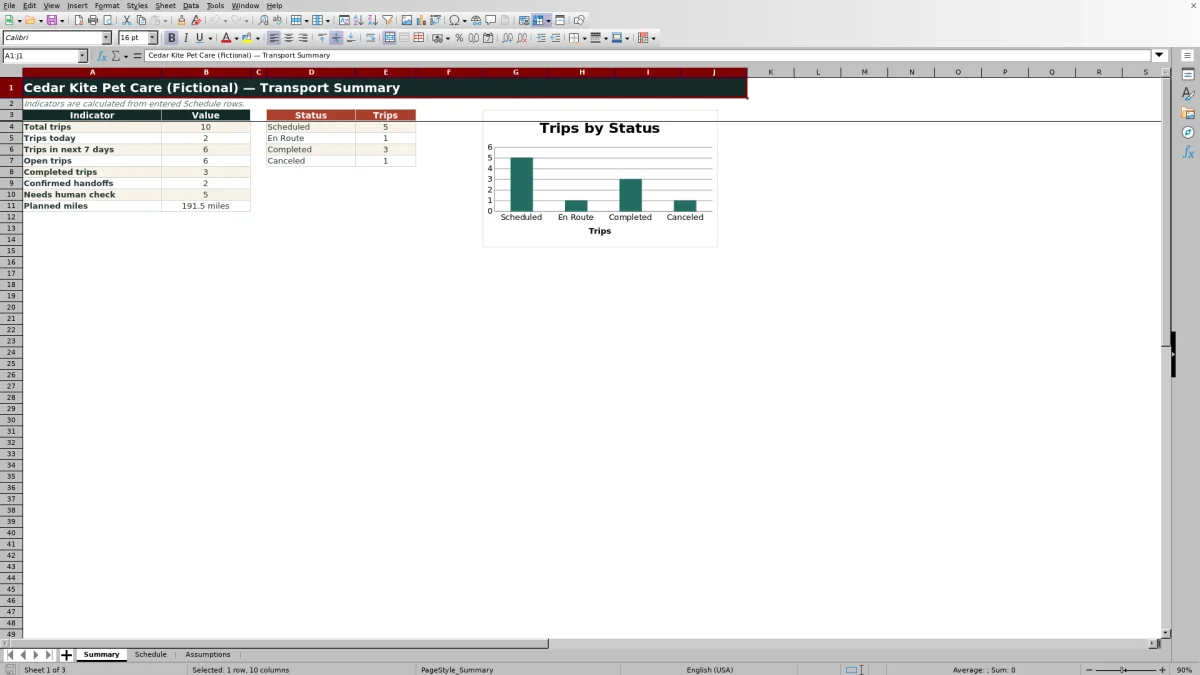
This Excel workbook is a pet pickup and dropoff schedule for coordinating transport dates, service addresses, time windows, drivers, vehicles, mileage, trip status, and handoff confirmation. The Schedule sheet provides 100 trip rows, while the Summary sheet turns entered records into operational counts and a status chart.
Editable assumptions set the maximum transport-window length and planned-route mileage used by calculated checks. These checks support human review; they do not guarantee that a route is feasible, a handoff occurred, or every operational requirement has been met.
How this workbook can help
- Keeps transport windows, addresses, assignments, mileage, status, and handoff details in one schedule.
- Summarizes total, current, upcoming, open, completed, and review-needed trips.
- Prompts staff to review missing information, invalid window order, and routes exceeding configured planning limits.
- Uses controlled lists and input validation to support more consistent schedule entries.
What is in the file
How to get started
1. Configure the planning settings
Open the Assumptions sheet and review the maximum window hours, maximum planned miles, driver list, vehicle list, directions, and statuses. Replace the fictional driver and vehicle entries with the options used by your operation.
2. Enter each transport request
On the Schedule sheet, add a unique trip ID, service date, pickup or dropoff direction, pet, client, address, window start and end, planned miles, assigned driver, vehicle, and status in an editable row.
3. Review calculated prompts
Check Window Hours and the Schedule Check result. Correct missing required fields, an end time that is not later than the start time, or a route that exceeds the limits configured on the Assumptions sheet.
4. Confirm the handoff and monitor results
After the transfer, enter the person completing the handoff and the handoff date and time, then update the trip status. Use Schedule filters and the Summary sheet to review workload, status counts, confirmed handoffs, planned miles, and records needing attention.
Situation: Coordinating Pet Transport Requests
Pet transport requests can become difficult to manage when dates, addresses, assignments, and handoff details are stored in separate messages or calendars. This workbook places each transport window beside the corresponding pet, client, address, driver, vehicle, mileage estimate, and trip status so staff can review the complete plan in one row.
Action: Build and Maintain the Schedule
Begin by setting the maximum window length and planned mileage on the Assumptions sheet. Enter each request on the Schedule sheet, select standardized direction and status values, assign a driver and vehicle, and complete the handoff fields after the transfer. Filters across the schedule help isolate records by date, direction, assignment, or status.
Result: Review Workload and Exceptions
The Summary sheet calculates total trips, trips scheduled for today, trips in the next seven days, open trips, completed trips, confirmed handoffs, planned miles, and records marked Needs human check. Status counts and the accompanying chart provide a concise view of Scheduled, En Route, Completed, and Canceled records.
Practical Example and Interpretation
The fictional SAMPLE-001 row records a completed pickup for Comet on September 6, 2026, with an 8:00 to 9:00 AM window, 12.5 planned miles, an assigned driver and vehicle, and a handoff entered at 8:48 AM. The practical interpretation is that the documented handoff occurred within the planned window and both handoff fields were completed. It does not independently prove route conditions or service quality; it tells the coordinator that this record is documented well enough to move from active dispatch review to completed-trip follow-up.
Next Decision: Dispatch, Correct, or Close the Trip
After reviewing a row, decide whether it is ready for dispatch, requires correction, should remain open, can be marked completed, or needs to be canceled. Upcoming Scheduled and En Route trips generally call for assignment and timing checks, while completed trips without both handoff entries call for documentation follow-up.
Common Errors and Solutions
If required fields are blank, complete the service date, direction, pet, client, address, time window, and status before relying on the schedule. If the end time is equal to or earlier than the start time, correct the window order. If window hours exceed the configured limit, verify the times or revise the planning assumption. If planned miles exceed the mileage limit, confirm the route estimate or adjust the threshold. Treat every calculated message as a review prompt rather than an automatic dispatch decision.
Comparison With Scheduling Alternatives
This Excel schedule is designed for structured pet transportation rather than general appointment keeping. The comparison below shows where it differs from simpler alternatives.
| Capability | This Excel workbook | Basic calendar | Generic trip log |
|---|---|---|---|
| Transport windows | Separate start and end fields with calculated duration | Usually represented as an appointment time or event duration | May record times but not provide a planning-window calculation |
| Driver and vehicle assignments | Dedicated validated fields | Usually entered as unstructured event text | Often available as record fields, depending on the log |
| Handoff confirmation | Dedicated handoff person and date-time fields | Requires notes or a separate process | May capture completion details but not necessarily both fields |
| Operational overview | Calculated indicators and a four-status chart | Strong visual date view but limited structured rollups | Useful for historical records but may lack upcoming-trip indicators |
| Review prompts | Checks required fields, window order, and configured planning limits | Depends on manual review | Depends on the fields and formulas included in the log |
Choose this workbook when structured transport details, handoff documentation, and spreadsheet-based review are more important than a calendar-style visual layout. A calendar may remain useful for reminders, while a more specialized dispatch platform may be preferable when live routing, notifications, or multiuser workflow controls are required.
Frequently asked questions
How many pet transport trips can the Excel schedule hold?
The Schedule sheet provides 100 prepared trip rows, covering rows 5 through 104.
What information can I record for each pickup or dropoff?
You can record a trip ID, service date, direction, pet, client, address, time-window start and end, planned miles, assigned driver, vehicle, status, handoff person, and handoff date and time.
Can I change the driver and vehicle dropdown options?
Yes. Edit the driver and vehicle lists on the Assumptions sheet so the Schedule dropdowns reflect the resources used by your operation.
What does the calculated schedule check review?
It reviews required-field completion, time-window order, window length against the configured maximum, planned mileage against its configured maximum, and other status or date conditions built into the workbook.
How is a confirmed handoff counted?
The Summary sheet counts a confirmed handoff when a trip is marked Completed and both Handoff By and Handoff Time contain entries.
Do the dashboard figures update automatically?
The Summary indicators are formula-driven and recalculate from Schedule entries. Metrics for today and the next seven days use the spreadsheet application's current date through TODAY-based formulas.
Editorial responsibility

Tessa MarloweClient records and service workflows

Caleb HensleyWorkbook QA and operating controls