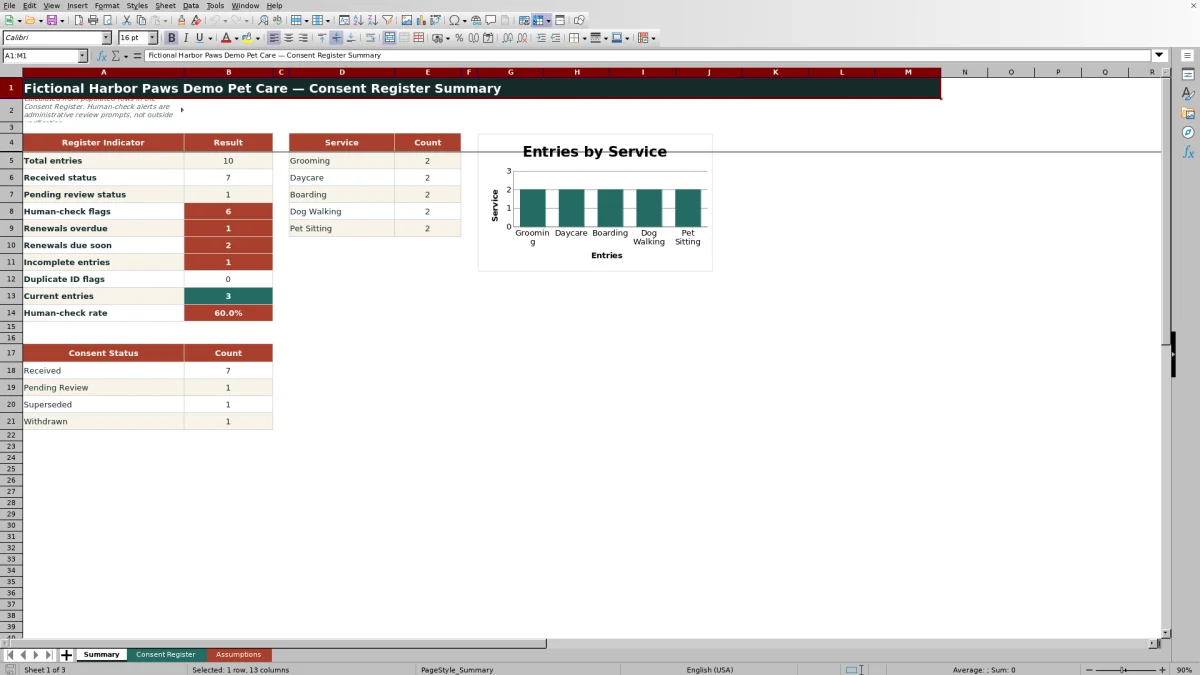
This Excel workbook is a pet service consent register designed to organize pet service consent records by consent ID, client ID, pet ID, service, scope, received date, renewal requirement, assigned team member, and status.
The XLSX calculates renewal due dates, summarizes register activity, and produces administrative review prompts for entries that may be incomplete, duplicated, inconsistent, overdue, or approaching renewal. These prompts support human follow-up; they do not verify external records or establish legal compliance.
How this workbook can help
- Centralizes consent scope, receipt details, renewal requirements, assignments, statuses, and administrative notes in one register.
- Calculates renewal due dates from the received date and entered renewal interval when renewal is required.
- Surfaces administrative review prompts for incomplete entries, duplicate consent IDs, renewal timing, and inconsistent renewal settings.
- Summarizes total entries, consent statuses, service counts, current records, and human-check activity for operational review.
What is in the file
How to get started
1. Configure the review settings
Open the Assumptions sheet and confirm the Review as-of date, due-soon window, accepted date range, maximum renewal interval, and available choices.
2. Enter each consent record
Use one row per consent in the Consent Register. Complete the consent, client, and pet IDs; select the service; describe the consent scope; enter the received date; and provide the renewal, assignment, status, and note details.
3. Review calculated fields
Do not replace the formulas in Renewal Due or Review Flag. Check each populated row for a calculated due date or an administrative prompt requiring follow-up.
4. Use the summary to prioritize work
Review the Summary sheet for status totals, service counts, overdue or upcoming renewals, incomplete entries, duplicate IDs, current entries, and the overall human-check rate. Filter the register to investigate the underlying records before deciding what to update.
Situation: Consent Details Are Spread Across Client Records
Pet care teams may receive consent for grooming, daycare, boarding, dog walking, or pet sitting at different times and with different scopes. A single operational register makes it easier to see which client and pet a consent relates to, what service it covers, when it was received, whether renewal is required, and who is assigned to review it.
Action: Record the Scope and Renewal Terms
Enter a unique consent ID, the related client and pet IDs, the applicable service, and a concise description of the authorized scope. Add the received date, choose Yes or No for renewal, enter renewal months only when required, assign a team member, select a consent status, and use the administrative note for relevant internal context. The workbook then applies its date calculation and review logic to the completed row.
Result: Interpret a Practical Renewal Example
In the fictional example, consent CON-DEMO-002 covers overnight boarding services, was received on August 20, 2025, and requires renewal every 12 months. The formula calculates August 20, 2026, as the renewal due date. With the review as-of date set to September 9, 2026, the row is identified for a renewal overdue human check. The result means the recorded due date has passed relative to the workbook setting; it does not independently prove that consent is absent or invalid.
Interpretation: Read Statuses and Review Flags Separately
Consent Status records the administrative state selected by the user, such as Received, Pending Review, Superseded, or Withdrawn. Review Flag is formula-driven and evaluates data completeness, duplicate IDs, renewal consistency, and timing. A record can therefore retain a Received status while also carrying a renewal-related review prompt. Staff should interpret both fields together and confirm the underlying record before making a change.
Comparison: Excel Consent Register vs. a Basic List
The workbook provides more structure than a basic list, but the appropriate option depends on the size and complexity of the workflow.
| Area | Excel consent register | Basic list |
|---|---|---|
| Record structure | Uses consistent fields for IDs, service, scope, dates, renewal terms, assignment, status, flags, and notes. | May be faster to start but can become inconsistent if fields are not standardized. |
| Input controls | Includes dropdown, date, and whole-number validation for designated fields. | Usually relies on manual entry unless controls are added separately. |
| Renewal review | Calculates due dates and generates administrative review prompts from entered data and assumptions. | Requires users to calculate dates and identify follow-up records manually. |
| Reporting | Provides status totals, service counts, register indicators, and a chart. | Requires separate formulas, filters, or reporting work. |
| Best fit | Useful when recurring review, consistent entry, and summary visibility are needed. | May be sufficient for a very small, infrequently updated list. |
Neither approach verifies an external consent document. The Excel register adds calculation and review support, while a basic list favors simplicity.
Errors and Solutions: Resolve Common Entry Problems
An incomplete-row prompt can be addressed by filling the required identification, service, scope, date, renewal, assignment, and status fields. A duplicate-ID prompt calls for checking whether two rows use the same consent ID and correcting the identifier where appropriate. If renewal is Yes but the interval is blank, enter the applicable number of months; if renewal is No but an interval remains, clear it. Date or interval validation errors should be resolved by checking the accepted limits on the Assumptions sheet. Every human check should lead to a review of the underlying administrative record rather than an automatic conclusion.
Next Decision: Document the Follow-Up
After reviewing the source record, the assigned person can make the next decision: leave the entry unchanged, correct missing or inconsistent data, obtain renewed consent, change the status, or record a new uniquely identified consent according to the organization’s procedure. Update the administrative note when useful, then return to the Summary sheet to see how the correction affects totals and review indicators.
Frequently asked questions
What information does the pet service consent register track?
It tracks consent, client, and pet IDs; service; consent scope; received date; renewal requirement and interval; calculated renewal due date; assigned team member; consent status; review flag; and an administrative note.
How is the renewal due date calculated?
When Renewal Required is set to Yes and both the received date and renewal months are present, the formula adds the entered number of months to the received date. When renewal is No, the due-date cell remains blank.
What does a human-check flag mean?
It is an administrative prompt generated from the workbook’s entered data and assumptions. It may indicate an incomplete row, duplicate ID, inconsistent renewal entry, overdue renewal, or upcoming renewal, but it does not verify outside records.
Can the service, team, status, and renewal choices be changed?
Yes. The provided choices are stored on the Assumptions sheet and supply the dropdowns used in the Consent Register. Edit the listed choice cells carefully so entries remain consistent.
What should I enter when a consent does not require renewal?
Select No under Renewal Required and leave Renewal Months blank. The Renewal Due formula will remain blank, while an unnecessary interval can trigger a prompt to clear it.
Editorial responsibility

Tessa MarloweClient records and service workflows

Caleb HensleyWorkbook QA and operating controls