This pet sitting visit schedule Excel workbook organizes home visits by date, pet, household alias, assigned sitter, visit type, status, and completion details. Its four sheets separate the operational visit list, pet directory, configurable assumptions, and summary metrics.
Use it to document promised time windows, planned hours, actual start and end times, and visit notes for up to 150 visits. Built-in formulas calculate actual hours, identify timing concerns, check overlapping sitter assignments, and help direct attention to records that need a human decision.
How this workbook can help
- Keeps promised visit windows, sitter assignments, pet details, statuses, and completion records in one coordinated schedule.
- Reduces avoidable scheduling conflicts by flagging overlapping active visits assigned to the same sitter on the same date.
- Connects each visit to a pet directory so pet names and client aliases populate from the selected Pet ID.
- Provides a current operational view of upcoming work, planned hours, completed hours, unassigned visits, review flags, and completion rate.
What is in the file
How to get started
1. Configure the scheduling rules
Open the Assumptions sheet and update the permitted date range, maximum planned and actual hours, note-length limit, near-term look-ahead period, and stable choice lists. Make changes only in the designated yellow cells.
2. Build the pet directory
Add each pet to the Pets sheet with a unique Pet ID, pet name, client alias, species, and active or inactive record status. The Visits sheet uses the Pet ID to retrieve the corresponding name and household alias.
3. Schedule each visit
On the Visits sheet, enter a unique Visit ID, visit date, Pet ID, promised start and end times, planned hours, sitter, visit type, and status. Add concise administrative notes where useful.
4. Record completion and resolve alerts
After service, enter the actual start and end times and update the status. Review Actual Hours, Timing Check, Assignment Check, and any red review alerts; then correct input errors or make an operational scheduling decision.
Scheduling Situation: Coordinating Promised Home Visits
Pet sitting operations require more than a calendar date. Each appointment may involve a specific pet, household, sitter, service type, promised arrival window, planned duration, completion status, and follow-up note. The workbook separates these details into Visits, Pets, Assumptions, and Summary sheets so recurring reference information does not have to be retyped into every appointment.
Action: Entering a Complete Visit Record
Each scheduled appointment begins with a unique Visit ID, visit date, and Pet ID. After a valid Pet ID is entered, formulas retrieve the pet name and client alias from the Pets sheet. The user then records the promised window, planned hours, sitter, visit type, and status. Validated date, time, decimal, list, uniqueness, and note-length rules help prevent common entry problems before they affect the schedule.
Result: Monitoring Workload and Completion
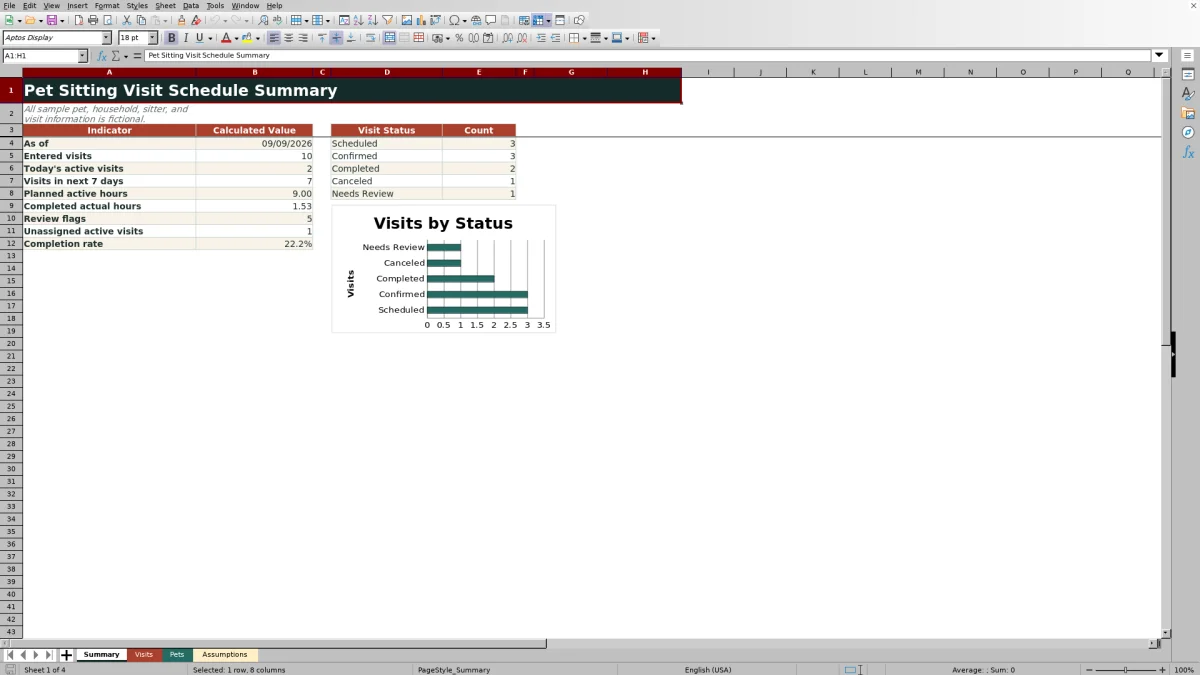
The Summary sheet counts entered visits, active visits scheduled for the current date, and non-canceled visits within the configurable near-term period. It also totals planned hours for active records, actual hours for completed visits, unassigned active visits, review flags, status counts, and completion rate. Because several metrics use TODAY(), the displayed operational picture changes when Excel recalculates the workbook on a different date.
Interpretation: Understanding Timing and Assignment Checks
The Timing Check distinguishes pending records, valid completed timing, canceled appointments, invalid windows, and actual visits that need review because they fall outside the promised window or exceed the configured maximum actual duration. The Assignment Check looks for overlapping non-canceled windows assigned to the same sitter on the same date. These messages are review prompts rather than proof that service failed or that an assignment must be changed.
Practical Example: From Visit Record to Next Decision
Situation: Sample visit V-260909-02 is a completed meal visit for pet P-1002, assigned to Jordan Lee, with a promised window from 12:00 PM to 1:00 PM and 0.75 planned hours. Action: The actual start is entered as 12:10 PM and the actual end as 1:05 PM. Result: The workbook calculates approximately 0.92 actual hours and returns Review timing because departure occurred five minutes after the promised window. Interpretation: The duration itself is below the six-hour maximum, so the relevant issue is the late end time rather than an excessive visit length. Next decision: Confirm whether 1:05 PM is accurate; if it is, retain the record and review the operational reason, or correct the time if it was entered incorrectly.
Common Errors and Solutions
An unknown Pet ID produces Check Pet ID; resolve it by correcting the identifier or adding the pet to the Pets sheet. A missing date, promised time, or sitter can produce Check fields; complete the required scheduling inputs. An end time that is not later than its start produces Check window; correct the same-day window because the formulas do not treat an overnight interval as valid. Review overlap indicates another active visit for the same sitter and date intersects the promised window; inspect both rows and change the sitter, window, or status when appropriate. Review timing calls for checking the actual timestamps, promised window, and maximum actual-hours assumption.
Comparison: Excel Visit Schedule and Common Alternatives
The best scheduling method depends on whether the priority is a visual appointment reminder, structured operational checks, or broader dispatch automation.
| Consideration | This Excel workbook | Basic calendar | Blank spreadsheet |
|---|---|---|---|
| Pet and household reference | Looks up pet name and client alias from Pet ID | Usually stored manually in event text | Requires custom formulas or repeated entry |
| Promised visit windows | Separate validated start and end fields | Shown as event times but not independently checked | Possible, but checks must be built |
| Timing review | Checks actual times against the promised window and duration limit | Not normally calculated | Requires custom formulas |
| Sitter overlap review | Flags intersecting active windows for the same sitter and date | May be visually noticeable but is not evaluated by these workbook rules | Requires custom logic |
| Operational summary | Includes workload, hours, status, review, assignment, and completion metrics | Primarily provides calendar views | Must be designed separately |
| Routing and travel optimization | Not included | Not generally included | Not included unless separately developed |
This workbook is a practical alternative when structured visit tracking and review flags are needed without a dedicated scheduling platform. A specialized field-service system is more appropriate when automatic routing, travel-time calculations, mobile dispatch, client messaging, or invoicing is required.
Next Decision: Prioritizing the Schedule Review
Begin with review flags and unassigned active visits, then inspect appointments inside the near-term reporting window. Resolve invalid identifiers and missing fields before evaluating genuine timing or assignment conflicts. After corrections, use the status counts, planned active hours, completed actual hours, and completion rate to decide whether upcoming work is adequately staffed or whether visit windows and sitter assignments need adjustment.
Frequently asked questions
How many pet sitting visits can the workbook track?
The Visits sheet provides 150 scheduling rows, from row 5 through row 154.
How are pet names and client aliases added to visits?
Enter a Pet ID that exists on the Pets sheet. Lookup formulas then populate the matching pet name and client alias on the Visits sheet.
What causes a Review timing message?
When actual start and end times are present, the workbook flags timing if the actual start is before the promised window, the actual end is after it, the end is not later than the start, or actual hours exceed the configured maximum.
Does the workbook detect double-booked sitters?
It flags overlapping promised windows for non-canceled visits assigned to the same sitter on the same date. The user must inspect the affected records and decide how to resolve them.
Can the sitter, visit type, and status choices be changed?
Yes. The editable lists on the Assumptions sheet supply the dropdown choices used on the Visits sheet.
Does this Excel workbook optimize routes or travel time?
No. It organizes visit records and checks time-window overlaps, but it does not calculate distance, travel time, or an optimized sitter route.
Editorial responsibility

Tessa MarloweClient records and service workflows

Caleb HensleyWorkbook QA and operating controls