This Excel workbook provides a structured late pet pickup tracker for recording service details and comparing promised versus actual pickup times. Staff can log pickup status, assigned team, handling action, and notes across 100 prepared entry rows.
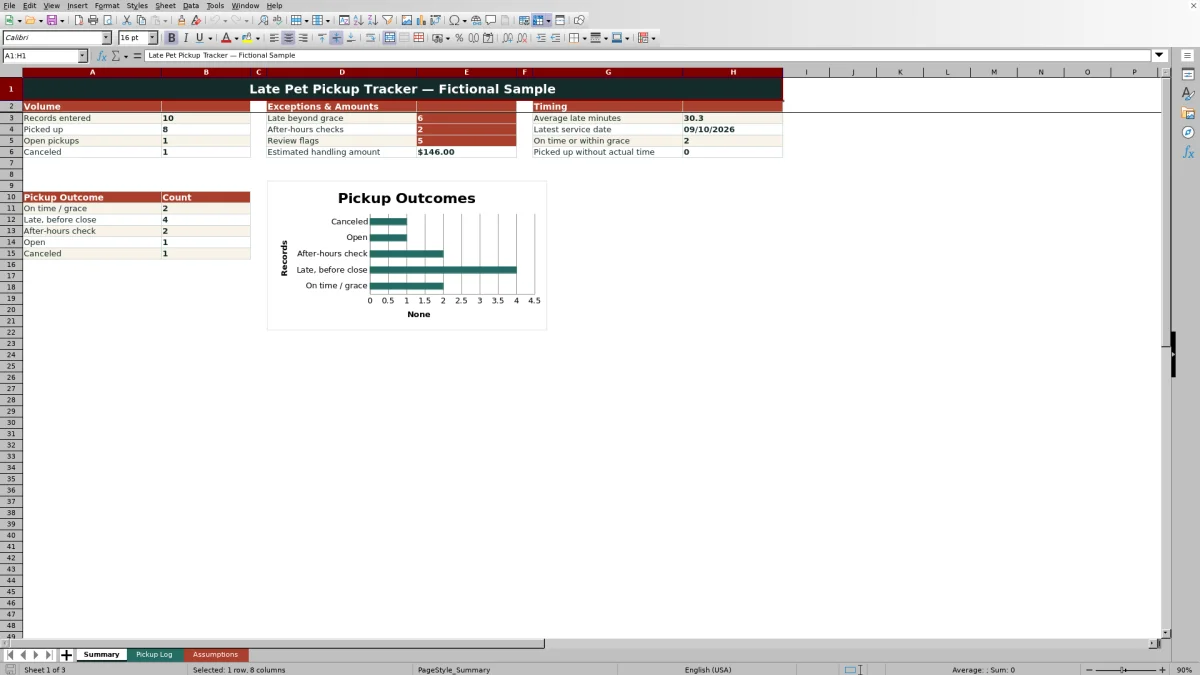
The XLSX calculates late minutes, billable increments, estimated handling amounts, and after-hours handling checks using editable operational settings. Its Summary sheet presents pickup volume, timing results, exceptions, and outcome counts, while review flags identify records that need human attention.
How this workbook can help
- Creates a consistent record of promised and actual pet pickup times.
- Separates completed, open, canceled, late, and after-hours pickup outcomes.
- Highlights incomplete or inconsistent records that require staff review.
- Provides summary metrics for monitoring pickup volume, timing, exceptions, and estimated handling amounts.
What is in the file
How to get started
1. Set the operating assumptions
Open the Assumptions sheet and review the editable assumptions for the grace period, daily closing time, billing increment, planning amounts, follow-up threshold, and permitted service dates.
2. Enter each pickup record
Use the yellow cells on the Pickup Log sheet to enter the pickup ID, service date, client reference, pet name, service type, assigned team, and promised pickup time.
3. Record the outcome and response
Add the actual pickup time when the pet is collected, select the correct pickup status, choose any handling action taken, and enter relevant notes.
4. Review the calculated results
Check the calculated late minutes, after-hours result, billable increments, estimated handling amount, and review flags. Then use the Summary sheet to monitor overall pickup outcomes and exceptions.
Situation: When Pickup Timing Slips
A busy daycare, boarding, or grooming operation may need to distinguish a pickup that was early, within the grace period, late before closing, or completed after hours. The workbook turns that late-pickup situation into a consistent record by keeping the promised time, actual time, status, handling response, and notes together.
Action: Capture the Pickup Record
Staff enter the service date and pickup details on the Pickup Log sheet, then select standardized values for service type, assigned team, pickup status, and handling action. Recording the actual time only when appropriate and keeping the status current gives the formulas the information needed to evaluate the pickup correctly.
Result: Read the Calculated Outcome
For a completed pickup with the required times, the workbook produces a calculated result showing nonnegative minutes late. It compares lateness with the editable grace period, calculates billable increments beyond that grace period, checks the actual time against the daily closing time, and estimates a handling amount from the configured planning values.
Interpretation: Practical Example
In the fictional Comet example, the promised pickup is 6:00 PM and the actual pickup is 6:11 PM. The result is 11 minutes late. With a 10-minute grace period and a 15-minute billing increment, the workbook calculates one increment and an estimated $8 handling amount. Because 6:11 PM is before the configured 7:00 PM closing time, it is not an after-hours pickup. The useful interpretation is that being one minute beyond grace can start an increment without also creating an after-hours exception.
Next Decision: Choose the Follow-Up
The figures support a human decision rather than making one automatically. Staff can verify the recorded times, inspect any review flag, confirm the handling action, and decide whether follow-up is appropriate. Estimated handling amounts are planning calculations and should be checked against the organization’s actual policy before billing or customer communication.
Comparison: Excel Tracker and Informal Alternatives
This workbook is more structured than calendar notes or a paper log, but each option has practical tradeoffs.
| Capability | Excel tracker | Calendar notes | Paper log |
|---|---|---|---|
| Promised and actual times | Dedicated fields keep both times in one record. | Possible, but updates depend on manual note-taking. | Possible when staff consistently complete both fields. |
| Late and after-hours evaluation | Formulas calculate late minutes and check closing time. | Usually requires manual comparison. | Requires manual comparison. |
| Standard statuses and actions | Dropdown lists encourage consistent entries. | Wording may vary between users. | Wording depends on the printed form and handwriting. |
| Summary reporting | Provides calculated metrics and an outcome chart. | May offer reminders, but not these workbook calculations. | Requires manual counting. |
| Practical limitation | The prepared log is limited to 100 rows unless extended carefully. | Better suited to reminders than structured exception analysis. | Works without software but offers no automated calculations. |
The Excel option is the strongest fit when staff need repeatable calculations and summary reporting; informal alternatives may be sufficient when only a basic reminder or handwritten record is required.
Common Errors and Solutions
A promised pickup whose calendar date differs from the service date produces a date-check flag; correct the service date or promised timestamp after verifying the source record. A Picked Up status without an actual time produces an actual-time check; enter the time or correct the status. An actual time paired with a status other than Picked Up produces a status check; update whichever value is inaccurate. Scheduled and Awaiting Pickup records remain open items; follow up or change the status when the outcome is known. An after-hours check means the actual pickup exceeded the configured closing time; verify the timestamp and document the handling action. If a date entry is rejected, confirm that it falls between the earliest and latest dates configured on the Assumptions sheet.
Frequently asked questions
What does the late pet pickup tracker calculate?
For completed pickups with promised and actual times, it calculates nonnegative minutes late, billable increments beyond the grace period, an estimated handling amount, and whether the actual pickup occurred after the configured closing time.
Can I change the grace period and closing time?
Yes. The Assumptions sheet contains editable values for the grace period and daily closing time, along with the billing increment, planning amounts, follow-up threshold, and permitted service-date range.
Does the estimated handling amount create a final customer charge?
No. It is a planning estimate based on the configured amount per increment and the after-hours planning amount. Staff should review organizational policy and the individual record before using it for billing or customer communication.
Which pickup statuses are available?
The validated status list includes Scheduled, Awaiting Pickup, Picked Up, and Canceled. The Summary sheet uses those values to count completed, open, and canceled pickups.
What should staff do when a review flag appears?
Verify the service date, promised and actual times, pickup status, and handling action. The flag may identify a promised-date mismatch, missing actual time, inconsistent status, open item, after-hours pickup, or another condition requiring human review.
Editorial responsibility

Tessa MarloweClient records and service workflows

Caleb HensleyWorkbook QA and operating controls