This Excel workbook organizes unscheduled pet-service requests in a 100-row queue. Staff can record the client, pet, requested service, arrival time, priority, assignment, quote, decision time, follow-up date, and notes for each walk-in request.
Automatic formulas calculate wait minutes and surface records that need review, while the Summary sheet reports requests that are pending, accepted, deferred, or declined. The workbook supports queue management and decision tracking rather than scheduled appointment booking.
How this workbook can help
- Centralizes walk-in pet-service requests in one filterable queue.
- Makes pending work, completed decisions, priorities, assignments, and follow-up dates easier to review.
- Calculates decision wait times and identifies incomplete or inconsistent records for human review.
- Summarizes request outcomes, acceptance rate, quoted value, date range, and average decision wait.
What is in the file
How to get started
1. Review the operating assumptions
Open the Assumptions sheet and confirm the service, status, priority, and staff choices. Review the limits for service units, quoted amounts, wait alerts, and request dates before entering live records.
2. Record each walk-in request
Enter a unique request ID, request date, arrival time, client and pet identifiers, service, units, quoted amount, priority, assignment, and notes in an available row on the Requests sheet.
3. Record the queue decision
Select Pending, Accepted, Deferred, or Declined. For a decided request, enter the decision time; for a deferred request, also enter a follow-up date that is on or after the request date.
4. Review results and exceptions
Check the calculated wait minutes and the Queue Check message, correct records needing attention, and then use the Summary sheet to assess workload, outcomes, wait time, and quoted value.
What the Walk-In Request Log Tracks
The Requests sheet captures a request ID, request date, arrival time, client ID, pet ID, service requested, service units, quoted amount, priority, assigned staff member, status, decision time, calculated wait minutes, queue check, follow-up date, and notes. Its four decision states are Pending, Accepted, Deferred, and Declined, so the queue can distinguish unresolved demand from completed decisions.
Practical Example: From Arrival to Next Decision
Situation: A fictional high-priority bath-and-brush request arrives at 10:15 AM with a $45 quote. Action: Fictional Staff B reviews it, marks it Deferred at 11:00 AM, and enters September 5 as the follow-up date. Result: The workbook calculates a 45-minute wait and includes the request in the deferred total. Interpretation: The decision took 15 minutes longer than the default 30-minute wait-alert assumption, indicating that this request required a slower review than the operating target. Next decision: Staff should confirm the follow-up on the recorded date and update the request outcome when capacity becomes clear.
Common Entry Errors and Solutions
A duplicate request ID conflicts with the uniqueness validation, so assign a distinct ID. A request date outside the editable date limits should be corrected or the limits should be intentionally revised on the Assumptions sheet. If a decided request lacks a decision time, add that time; if the decision time is earlier than arrival, correct the inconsistent time entry. A deferred request without a follow-up date needs one, while a “still pending” message means the request intentionally remains unresolved or requires a status decision.
Comparison with Calendars and Simple Notes
This workbook is designed for unscheduled demand and decision tracking. The comparison below clarifies when it is a better fit than an appointment calendar or an unstructured notes list.
| Tool | Best use | Decision tracking | Timing and quality checks | Primary limitation |
|---|---|---|---|---|
| Walk-in request log | Queuing unscheduled requests | Pending, accepted, deferred, and declined | Calculated decision wait and queue prompts | Does not provide a scheduled appointment calendar |
| Appointment calendar | Placing confirmed services into time slots | Usually centered on booked or canceled appointments | May track appointment timing but not walk-in decision wait | Less suitable for unresolved walk-in demand |
| Simple notes list | Capturing informal details quickly | Depends on manually written labels | No built-in calculations or validation | Harder to summarize and audit consistently |
Use the walk-in log before or alongside a separate scheduling system: it records whether a request can proceed, but it does not assign a confirmed service date and time.
Reading the Summary Metrics
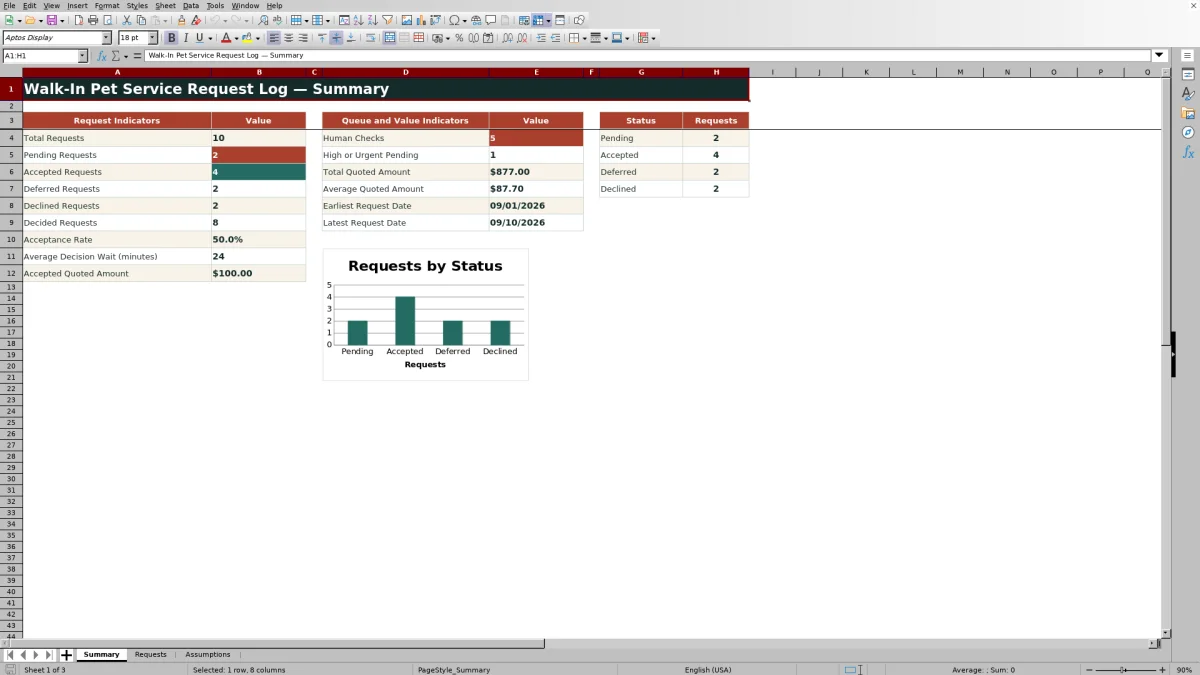
The Summary sheet counts total, pending, accepted, deferred, declined, and decided requests. It also calculates the acceptance rate, total and average quoted amounts, accepted quoted value, average decision wait, earliest and latest request dates, human-check count, and high-or-urgent pending count. The status chart provides a visual distribution of pending and decided outcomes.
Editable Choices and Input Limits
The Assumptions sheet supplies the service, status, priority, and assignment lists used by validated cells. It also stores minimum and maximum service units, the maximum quoted amount, the wait-alert threshold, and the earliest and latest allowable request dates. Changing these values affects future entry checks, so existing records should be reviewed separately after a change.
Using the Queue for Daily Decisions
Filter the Requests sheet by Pending status to focus on unresolved demand, then use priority, assignment, arrival time, and the queue-check message to guide review. Deferred requests should be examined by follow-up date, while accepted and declined records provide a history of completed decisions. The workbook supports operational judgment by organizing the evidence; it does not make capacity or service decisions automatically.
Frequently asked questions
What is the Walk-In Pet Service Request Log used for?
It queues unscheduled pet-service requests and records whether each request is pending, accepted, deferred, or declined.
How many requests can the Excel workbook hold?
The Requests sheet provides 100 entry rows, from row 5 through row 104.
How are wait minutes calculated?
When the request date, arrival time, decision time, and a non-pending status are present, the workbook calculates the elapsed minutes from arrival to decision.
What should I enter for a deferred request?
Select Deferred, enter the decision time, and add a follow-up date on or after the request date so the record does not produce an avoidable review prompt.
Can I change the available services, priorities, statuses, and staff assignments?
Yes. Those editable choices are stored on the Assumptions sheet and feed the validated lists on the Requests sheet.
Does this workbook schedule confirmed appointments?
No. It manages incoming walk-in requests and their decisions; a separate appointment calendar or scheduling system is needed to place accepted services into confirmed time slots.
Editorial responsibility

Tessa MarloweClient records and service workflows

Caleb HensleyWorkbook QA and operating controls