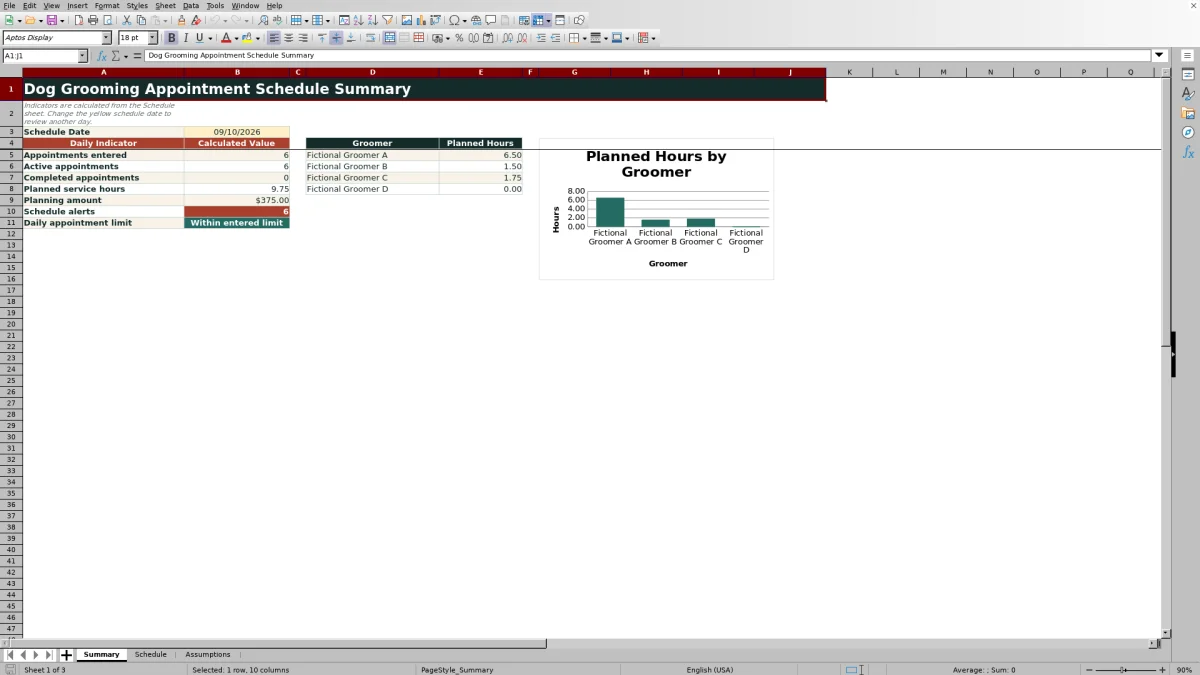
This Dog Grooming Appointment Schedule Excel workbook organizes appointments by date, service duration, groomer, and workstation. Enter client, pet, service, resource, and status details on the Schedule sheet; formulas then retrieve planned hours and planning amounts, calculate end times, and display schedule alerts.
The XLSX also includes editable assumptions and a date-driven Summary sheet. Together, its three sheets provide an operational planning tool for reviewing active bookings, completed appointments, planned service hours, planning amounts, alerts, and groomer workload before the schedule is confirmed.
How this workbook can help
- Reduce manual work by retrieving default service hours and calculating appointment end times automatically.
- Review planned workload by date and groomer before confirming the daily schedule.
- Identify duplicate IDs, incomplete records, business-hour issues, and other schedule alerts that require attention.
- Adapt opening hours, date limits, service defaults, groomer names, workstations, statuses, and the daily appointment limit.
What is in the file
How to get started
1. Configure the assumptions
Open the Assumptions sheet and replace the fictional planning data with the business's opening and closing times, active-appointment limit, allowable dates, service durations, planning amounts, groomers, workstations, and statuses.
2. Enter the appointments
Use the yellow cells on the Schedule sheet to enter each unique appointment ID, date, start time, client, pet, service, groomer, workstation, and status. Choose list-based values from the validated options.
3. Resolve schedule alerts
Review the calculated planned hours, end time, planning amount, and Schedule Alert for every populated row. Correct duplicate IDs, missing fields, out-of-hours appointments, or conflicting assignments before confirming the schedule.
4. Review the day and decide
Select the date on the Summary sheet. Use its appointment counts, planned hours, planning amount, alert count, daily-limit message, and groomer workload chart to decide whether bookings should be retained, moved, or reassigned.
Situation: Coordinating a Grooming Day
A grooming appointment involves more than placing a client on a calendar. Each booking consumes a service-specific amount of time and requires both a groomer and a workstation. The workbook captures these dependencies in one row, creating a resource-aware daily schedule rather than an unstructured list of names and times.
Action: Set the Rules Before Scheduling
The Assumptions sheet establishes the planning rules used elsewhere in the Excel workbook. Its editable values include opening and closing times, the maximum number of active appointments per day, earliest and latest schedule dates, six service records with default hours and planning amounts, four groomers, four workstations, and six statuses. Updating these inputs first gives the schedule business-specific planning defaults instead of relying on the fictional examples.
Result: Interpreted Practical Example
Consider the first three sample bookings for September 10, 2026. A Bath & Brush beginning at 8:00 AM uses 1.5 planned hours and ends at 9:30 AM; a Nail Trim beginning at 8:30 AM uses 0.5 hour and ends at 9:00 AM; and a Full Groom beginning at 9:00 AM uses 2.5 hours and ends at 11:30 AM. Among these records, the formulas produce 4.5 planned service hours and $165 in planning amounts. They also assign 4.0 planned hours to Fictional Groomer A and 0.5 hour to Fictional Groomer B. Because Groomer A's first booking runs until 9:30 AM while the next begins at 9:00 AM, the entries indicate a 30-minute workload overlap that should be resolved by moving a time or changing the groomer.
Interpretation: Read Totals as Planned Demand
The Summary sheet counts entered, active, and completed appointments for the selected date while excluding canceled records from active totals, planned hours, planning amounts, and groomer-hour calculations. These figures represent planned demand, not proof of feasible capacity. For example, four assigned hours may still be impractical if two appointments overlap, so totals should be interpreted together with row-level alerts, start and end times, and workstation assignments.
Errors and Solutions
The Schedule Alert column provides actionable messages. “Check duplicate appointment ID” means an ID appears more than once and should be replaced with a unique value. “Complete schedule fields” means required appointment details are missing and should be filled in before confirmation. “Check business hours” means the start time is earlier than opening or the calculated end time is later than closing; move the appointment or correct the applicable assumption. The Summary sheet also compares active appointments with the configured daily limit. Treat every message as a correction step before confirmation, not merely as a visual notice.
Comparison: Excel Schedule vs. Simpler Alternatives
This workbook occupies the middle ground between a basic calendar and an unstructured spreadsheet. The most useful alternative depends on the scheduling task, so the comparison should focus on what each format actually handles.
| Criterion | This Excel workbook | Basic calendar | Blank spreadsheet |
|---|---|---|---|
| Service duration | Looks up editable default hours by service and calculates end time | Usually requires the user to set each event's end time | Requires custom formulas or manual entry |
| Groomer and workstation planning | Stores both assignments in each appointment row | Can store details, but resource structure depends on setup | Can store details without built-in scheduling logic |
| Entry controls | Uses date, time, uniqueness, and list validations | Depends on the calendar application | None unless the user builds them |
| Daily analysis | Provides date-driven counts, planned hours, planning amounts, alerts, and groomer workload | Primarily presents events in calendar views | Requires formulas, filters, or pivots created by the user |
| Automation boundary | Supports planning inside the XLSX but does not provide client messaging or online booking | May support reminders or sharing, depending on the application | Provides no external workflow unless separately developed |
The Excel option is therefore appropriate when structured duration and resource planning matter, while a calendar may be preferable when notifications and shared event access are the primary need.
Next Decision: Confirm, Move, or Reassign
After correcting alerts, compare active appointment count with the daily limit and review planned hours by groomer. Then inspect simultaneous start and end times for shared groomers and workstations. The next decision should be explicit: confirm a workable booking, move an overlapping appointment, or reassign its resource. Recheck the Summary sheet after changes because its formulas recalculate the selected day's workload.
Frequently asked questions
How many appointments can the Excel schedule hold?
The Schedule sheet provides 100 appointment rows, from row 7 through row 106. The editable maximum active appointments per day is a separate assumption and defaults to 12.
How are planned hours and end times calculated?
The selected service looks up its default hours from the Assumptions sheet. The end-time formula adds those hours to the entered start time.
Are planning amounts guaranteed service prices?
No. The workbook identifies them as editable planning defaults rather than guaranteed prices. Update them for the business before using the schedule.
How are canceled appointments handled?
Canceled records remain in the schedule but are excluded from active-appointment counts, planned service hours, planning amounts, and groomer planned-hour totals on the Summary sheet.
What should I do when a schedule alert appears?
Read the message in the affected row and correct its cause, such as a duplicate appointment ID, missing required field, or appointment outside configured business hours. Review every alert before confirming the schedule.
Does the workbook replace an online booking system?
No. It is an Excel-based internal planning workbook. The manifest does not show client reminders, online booking, payment processing, or calendar synchronization.
Editorial responsibility

Tessa MarloweClient records and service workflows

Caleb HensleyWorkbook QA and operating controls