This Excel pet service staff availability planner collects employee dates, time windows, service preferences, coverage areas, pet capacity, and confirmation status before pet care bookings are assigned.
The XLSX separates staff records from availability entries and provides a summary for human review before booking assignment. Formulas calculate window hours, retrieve staff names, summarize coverage, and flag records that may need correction or follow-up.
How this workbook can help
- Centralizes staff details and dated availability windows in one scheduling workbook.
- Helps reviewers distinguish available, tentative, unavailable, draft, confirmed, and needs-review entries.
- Summarizes confirmed hours and availability entries within a configurable planning window.
- Surfaces incomplete, duplicate, invalid, or out-of-limit records before booking decisions are made.
What is in the file
How to get started
1. Configure the planning period
Open Assumptions and set the planning start date and horizon. The horizon accepts 1 through 31 calendar days; this date range controls the Summary calculations and Availability date validation.
2. Maintain the staff list
Enter each employee on Staff with a unique Staff ID, display name, role, primary service, daily hour limit, status, and any scheduling notes. Resolve messages in Record Check before relying on the record.
3. Collect availability
On Availability, add a unique availability ID, valid staff ID, date, start and end times, service area, maximum pets, notes, and the appropriate availability status and confirmation. The workbook retrieves the staff name and calculates valid window hours.
4. Review before assigning bookings
Use the Summary indicators, service-level totals, and the Review Alert and Record Check columns to identify entries that require attention. Confirm details with staff and use the reviewed information to guide the next scheduling decision; the workbook does not assign bookings automatically.
Situation: Collect Availability Before Assigning Pet Services
Pet care teams need to know who can work, when they can work, which service they prefer, where they can operate, and how many pets they can support before accepting or assigning appointments. This workbook records those details without presenting availability as a completed booking. Staff data remains on the Staff sheet, while each dated time window is entered separately on Availability.
Action: Configure Staff and Planning Controls
The Assumptions sheet controls the planning start date, a horizon of 1 through 31 days, the general daily availability-hours limit, and the maximum pets allowed per window. It also supplies standardized choices for availability, confirmation, service, role, and staff status. The Staff sheet then records identifiers, roles, primary services, home areas, individual daily limits, statuses, and scheduling notes.
Result: Calculate Hours and Summarize Coverage
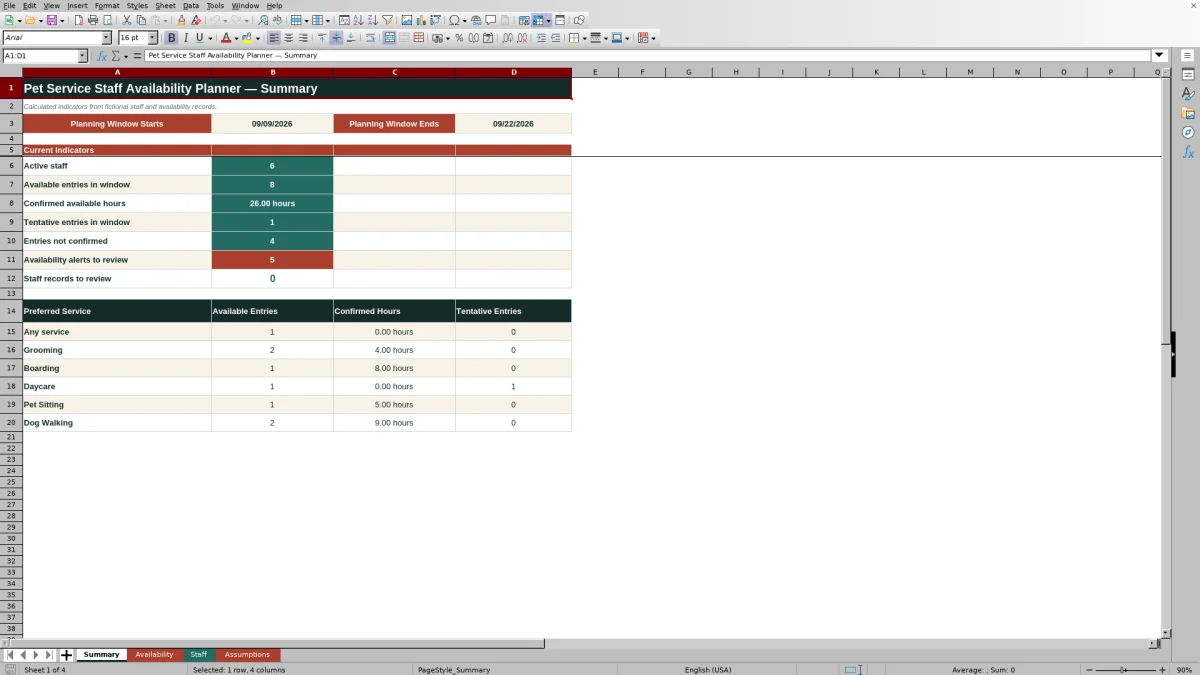
For a complete time window with an end time later than its start time, the Availability sheet calculates the duration in hours. The Summary sheet reports active staff, available entries, confirmed available hours, tentative entries, entries not confirmed, availability alerts, and staff records requiring review. It also breaks out available entries, confirmed hours, and tentative entries by preferred service within the configured date range.
Practical Example: Interpret a Confirmed Grooming Window
Situation: A fictional groomer needs to report a morning window before grooming appointments are assigned.
Action: The reviewer enters staff ID FX-001 on availability record AV-001 for September 9, 2026, from 8:00 AM to 12:00 PM, selects Available and Grooming, records North Zone with a four-pet maximum, and marks the entry Confirmed.
Result: The workbook retrieves the fictional staff name and calculates four confirmed hours. Because the entry is available, confirmed, and inside the planning window, those hours contribute to the applicable Summary totals.
Interpretation: The record indicates a reviewed four-hour grooming window in the North Zone with an administrative capacity of four pets. It does not prove that four appointments should be placed there.
Next decision: A scheduler can compare actual booking requirements with the employee's service, area, time window, and capacity, then assign work outside this planner only after human review.
Errors and Solutions
Duplicate availability ID: Replace the repeated value with a unique availability ID. Staff ID not found: Add or correct the matching Staff record, then verify that the retrieved name is correct. Complete entry or complete record: Fill the required fields indicated by the row before using it for planning. Invalid time window: Enter an end time later than the start time so Window Hours can be calculated. Hours-limit warning: Compare the employee's daily limit with the general limit on Assumptions and correct the value or confirm the intended policy. A review message is a prompt for a person to investigate; it is not an automated booking decision.
Comparison: Availability Planner vs. Booking Assignment Calendar
These tools may both support scheduling, but they serve different stages of the workflow. This Excel workbook focuses on availability collection and review, while a booking calendar normally records appointments that have already been proposed or assigned.
| Criterion | Excel availability planner | Booking assignment calendar |
|---|---|---|
| Primary question | When and where can staff work? | Which booking is assigned to whom and when? |
| Core records | Staff profiles and dated availability windows | Customer appointments, service bookings, and assigned staff |
| Calculated output | Window hours, review messages, planning indicators, and service-level totals | Typically scheduled appointments and assignment status |
| Decision status | Supports review before assignment | Usually represents proposed or completed assignment decisions |
| Automatic assignment | No | Depends on the separate calendar or scheduling system |
Use the planner when the immediate task is gathering and checking availability. Use a booking calendar or scheduling system after the team is ready to place specific customer work against that reviewed availability.
Next Decision: Review Alerts and Choose Suitable Coverage
After correcting incomplete or questionable records, review confirmed hours and available or tentative entries by service. Then consider the employee's role, preferred service, service area, daily limit, maximum pets, confirmation state, and scheduling notes. The workbook supplies structured evidence for that decision, but a person remains responsible for confirming details and deciding whether a booking fits.
Frequently asked questions
Does the Excel planner automatically assign pet service bookings?
No. It collects, checks, and summarizes staff availability for human review before bookings are assigned.
How many staff and availability records can the workbook hold?
The supplied Staff and Availability entry ranges each run from row 5 through row 104, providing space for up to 100 records on each sheet.
What information can each availability entry capture?
Each row can capture an availability ID, staff ID, date, start and end times, availability state, preferred service, service area, maximum pets, confirmation state, and scheduling notes. Staff name, window hours, and the review alert are formula-driven.
What does a Review Alert mean?
It indicates that a person should check the row for issues such as missing information, a duplicate availability ID, an unrecognized staff ID, or another scheduling inconsistency. It does not confirm or reject a booking.
Can the planning window and limits be changed?
Yes. The Assumptions sheet contains editable values for the planning start date, a 1-to-31-day horizon, the general daily availability-hours limit, and the pets-per-window limit.
Editorial responsibility

Tessa MarloweClient records and service workflows

Caleb HensleyWorkbook QA and operating controls