The 2026 Pet Service Capacity Planner is an Excel workbook for comparing forecast pet-service booking hours with weekly staff and facility capacity. It organizes booking forecasts, capacity inputs, assumptions, and weekly results across four connected worksheets.
The workbook converts forecast hours into status-adjusted counted hours, calculates utilization and headroom, and identifies weeks that are within capacity, near the configured limit, over capacity, or missing required capacity inputs.
How this workbook can help
- Reveals whether labor availability or facility space is likely to constrain a booking week.
- Shows weekly utilization and remaining headroom before scheduling decisions are made.
- Adjusts forecast demand using editable factors for planned, confirmed, on-hold, and canceled bookings.
- Centralizes booking, capacity, and assumption inputs for a more consistent weekly review.
What is in the file
How to get started
1. Set the review period and alert threshold
Open Assumptions and review the start date, number of weeks, and near-limit threshold. The supplied settings begin September 7, 2026, display 12 weeks, and use a 90% near-limit threshold. Confirm the status factors before relying on counted hours.
2. Enter or update booking forecasts
Use Bookings to record each booking ID, week start, service, forecast staff hours, forecast facility hours, assigned team, status, and planning note. Keep the week-start dates aligned with the weekly dates used on Capacity.
3. Enter weekly availability
On Capacity, enter available staff hours and available facility hours for each applicable week. Add a lead assignment and capacity note when they help explain staffing plans, space restrictions, or unusual operating conditions.
4. Review alerts and choose an action
Use Summary and the calculated columns on Capacity to read the capacity alerts alongside utilization and headroom. Investigate missing inputs first, then adjust bookings, staffing, facility availability, or the operating plan when a week is near or over a limit.
The Weekly Planning Situation
The central planning situation is a week with forecast pet-service demand but two different limits: available labor hours and available facility hours. Grooming, daycare, boarding care, pet sitting, and dog walking can consume those resources differently, so reviewing only the number of bookings would not show which resource may become constrained.
Action: Configure Demand and Capacity Inputs
Begin with Assumptions, where the review start date, weeks to review, near-limit threshold, prepared date horizon, maximum hours per entry, and forecast factors are maintained. Then record booking forecasts on Bookings and weekly availability on Capacity. The default status factors count Planned and Confirmed at 100%, On Hold at 50%, and Canceled at 0%, but the editable factors should be reviewed for the local planning method.
Result: Weekly Utilization, Headroom, and Alerts
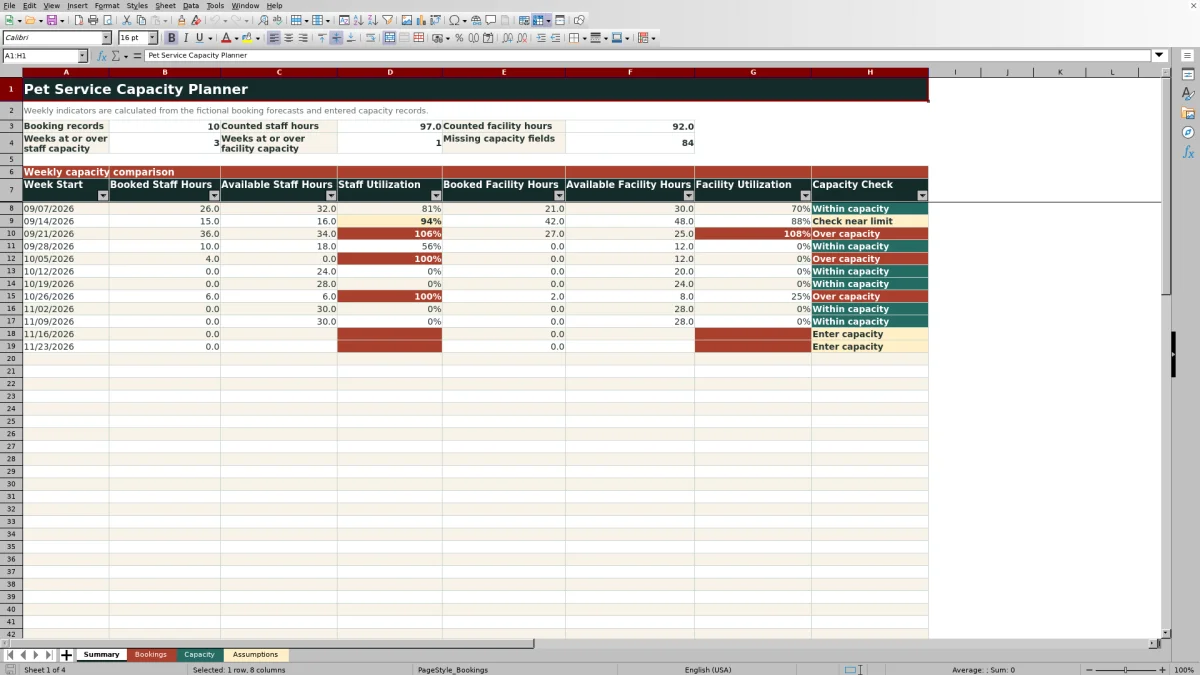
The workbook sums counted booking hours by exact week-start date. Staff utilization is counted staff hours divided by available staff hours, while facility utilization uses the corresponding facility values. Capacity calculates headroom as available hours minus booked hours. Summary also reports booking records in the active review period, total counted hours, weeks at or over each capacity type, and missing capacity fields.
Practical Example and Interpretation
If the two visible September 7, 2026 sample bookings are the only records considered for that week, their Confirmed and Planned factors both equal 1.0. They therefore produce 26 counted staff hours and 21 counted facility hours. Against 32 available staff hours and 30 available facility hours, the result is 81.25% staff utilization, 70% facility utilization, 6 staff hours of headroom, and 9 facility hours of headroom. The interpreted result is “Within capacity” at the default 90% threshold: staff is the tighter resource, but neither measure has reached the near-limit trigger. The next decision could be to retain the schedule while monitoring new labor-intensive bookings.
Staff and Facility Capacity Comparison
The planner treats labor and space as two separate constraints. One measure is not a substitute for the other, and a week can require review when either side reaches its limit.
| Planning element | Staff capacity view | Facility capacity view |
|---|---|---|
| Forecast demand | Counted Staff Hours derived from forecast staff hours and the booking status factor | Counted Facility Hours derived from forecast facility hours and the booking status factor |
| Availability input | Available Staff Hours entered for the week | Available Facility Hours entered for the week |
| Calculated result | Staff utilization and Staff Headroom | Facility utilization and Facility Headroom |
| Operational meaning | Indicates whether sufficient labor time is planned | Indicates whether sufficient occupied pet-space time is planned |
| Typical next decision | Reassign work, add labor hours, or reduce labor-intensive demand | Change space allocation, timing, or facility-dependent demand |
The combined Capacity Check becomes “Over capacity” when positive booked hours meet or exceed either available measure. Otherwise, it becomes “Check near limit” when either utilization reaches the configured threshold.
Common Errors and Solutions
When results appear incomplete or unexpected, fix the inputs first. Error: a booking date does not exactly match a Capacity week-start date. Solution: use aligned weekly dates so the SUMIFS calculations can match the records. Error: the alert says “Enter capacity.” Solution: supply both available staff and facility hours for that active week. Error: counted hours appear too high or low. Solution: verify the selected booking status and its factor on Assumptions. Error: a positive booking total is paired with zero capacity. Solution: confirm whether zero is intentional, because the workbook will treat positive demand at zero availability as over capacity.
Interpret the Alert and Make the Next Decision
Use “Within capacity” as a signal that the entered demand remains below both limits, not as a guarantee of operational availability. Treat “Check near limit” as a prompt to inspect assignments, timing, and assumptions before accepting more work. Treat “Over capacity” as a reason to revise demand or availability, and resolve “Enter capacity” before interpreting the week. The appropriate next decision may be to add staff hours, change facility allocation, move a booking, revise a forecast status, or document why the current plan remains acceptable.
Frequently asked questions
How are forecast booking hours counted?
Each booking’s forecast staff and facility hours are multiplied by the factor assigned to its selected status. The supplied factors are 1.0 for Planned, 1.0 for Confirmed, 0.5 for On Hold, and 0 for Canceled.
What causes a near-limit alert?
A week is labeled “Check near limit” when staff or facility utilization reaches the threshold on Assumptions without meeting the over-capacity condition. The supplied threshold is 90%.
What causes an over-capacity alert?
A week is labeled “Over capacity” when positive counted staff hours meet or exceed available staff hours, or positive counted facility hours meet or exceed available facility hours.
What should I do when the workbook says Enter capacity?
Enter both available staff hours and available facility hours for the affected week. The planner does not issue a complete capacity interpretation when either required availability field is blank.
Does a Within capacity result guarantee that a booking can be accepted?
No. The result reflects the entered weekly forecasts, factors, and availability values. It is a planning prompt and should be reviewed alongside actual staffing, space, timing, service requirements, and local operating constraints.
Editorial responsibility

Tessa MarloweClient records and service workflows

Caleb HensleyWorkbook QA and operating controls