The Pet Vaccination Expiry Tracker Excel workbook is an administrative spreadsheet for logging owner-supplied proof, recorded expiry dates, and renewal follow-up for pets. It provides prepared ranges for up to 100 pets and 150 proof records.
The XLSX links each proof row to a Pet ID, calculates date-based statuses using TODAY(), and highlights records that need human review. It supports document tracking and follow-up planning but does not determine vaccination requirements, medical validity, or veterinary care.
How this workbook can help
- Keeps pet details, proof dates, expiry dates, and administrative follow-up information in one workbook.
- Prioritizes missing, expired, due-soon, and follow-up records through calculated status fields.
- Reduces identification errors by linking proof records to the Pet ID directory and flagging unmatched IDs.
- Allows teams to adjust notice and due-soon windows without rewriting the status formulas.
What is in the file
How to get started
1. Review the tracking settings
Open the Assumptions sheet and confirm the notice window, due-soon window, and allowable date range. The default alert windows are 45 days for upcoming records and 14 days for due-soon records.
2. Add each pet
Enter a unique Pet ID, pet name, household code, species, and active status on the Pets sheet. The Proof Rows Entered column calculates the number of linked records automatically.
3. Record the supplied proof
On Vaccination Records, enter a Record ID, select the Pet ID and proof type, and transcribe the received and expiry dates from the owner's documentation. Add the follow-up status, assigned role, follow-up date, and administrative note when applicable.
4. Review and follow up
Use Date Status, Days to Expiry, and the Review Prompt to prioritize work. Check the Summary sheet for missing dates, expired or approaching records, reached follow-up dates, and unmatched Pet IDs, then document the next administrative action.
What the Excel Tracker Records
The workbook treats owner-supplied documentation as the source for its administrative entries. Each proof row can contain a Record ID, Pet ID, proof type, received date, expiry date, follow-up status, assigned role, follow-up date, and note. The related pet name is retrieved from the Pets sheet, while an unknown identifier produces the message “Pet ID not found.”
How Expiry Statuses Are Calculated
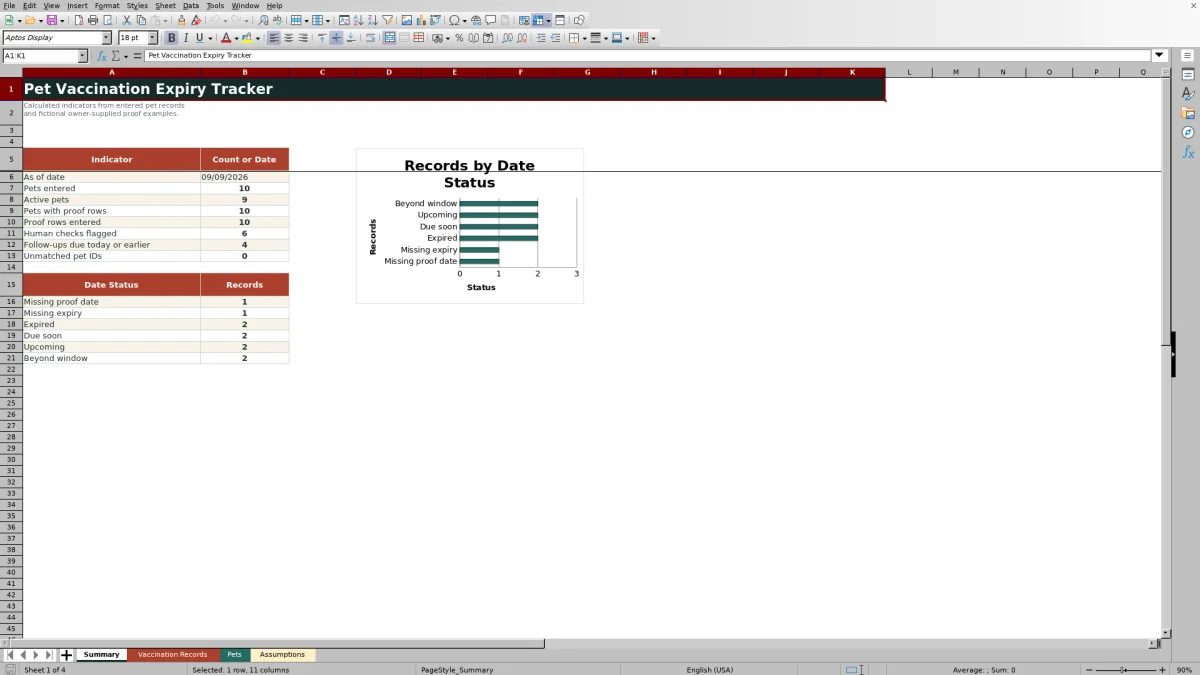
The Date Status formula uses TODAY() and the editable windows on the Assumptions sheet. A row can be labeled Missing proof date, Missing expiry, Expired, Due soon, Upcoming, Beyond window, or Check dates. With the default settings, an unexpired record within 14 days is Due soon, one within 45 days is Upcoming, and one outside that notice window is Beyond window.
Practical Example: From Situation to Next Decision
Situation: an owner supplies proof with a valid received date and an expiry date 10 days from today. Action: the user selects the correct Pet ID, enters the proof type and both dates, assigns a role, and records a planned contact date. Result: with the default 14-day threshold, the workbook classifies the row as Due soon and displays Human check needed. Interpretation: the record deserves administrative attention because its entered expiry is close; the result is not a medical judgment. Next decision: the assigned team member can contact the owner, record the follow-up status, and replace the dates only when updated owner-supplied proof is received.
Common Errors and Solutions
A mistyped or pasted Pet ID can return “Pet ID not found.” Solution: select an existing ID from the validated list or add the pet to the Pets sheet before recording proof. Dates stored as invalid values can lead to Check dates or blank calculations. Re-enter them as Excel dates within the allowable range.
If the due-soon window is greater than the notice window, or the earliest allowed date is later than the latest date, the Assumptions sheet reports Review settings. Solution: restore a due-soon window no larger than the notice window and place the date boundaries in chronological order. When updated proof arrives, update the proof fields rather than relying only on a follow-up label.
Comparison With Calendars and Practice Systems
The Excel tracker is designed for structured proof and expiry administration. It offers more record context than a calendar reminder, but it is not a substitute for veterinary records, clinical interpretation, or a dedicated practice-management platform.
| Option | Best use | Strengths | Limitations |
|---|---|---|---|
| Pet Vaccination Expiry Tracker Excel workbook | Owner-proof logging and renewal follow-up | Linked Pet IDs, calculated statuses, editable alert windows, notes, and summary indicators | Requires manual entry, human review, and responsible file management |
| Calendar reminders | Simple date prompts | Fast scheduling and familiar notifications | Limited proof details, status logic, and record matching |
| Veterinary or practice-management system | Clinical or organization-wide record workflows | May connect records with broader professional processes | Availability, permissions, configuration, and capabilities vary by system |
Choose the workbook when the situation calls for a portable administrative register. Choose a calendar for minimal reminders, and use the appropriate veterinary or practice system when clinical records or professional interpretation are required.
Review Workflow and Accountability
The Summary sheet consolidates pet counts, proof-row totals, human checks, reached follow-up dates, unmatched Pet IDs, and totals for each date status. Staff can filter Vaccination Records, review the assigned role and follow-up date, document contact progress, and revisit the summary to confirm the result. A reached date indicates that follow-up work should be reviewed; it does not confirm that contact occurred or that new proof was received.
Administrative Scope and Record Care
The sample pets, household codes, and proof entries are fictional. For operational use, store the XLSX according to the organization's privacy, access, retention, and backup practices. Keep notes administrative and relevant, verify transcribed dates against the supplied proof, and refer questions about vaccination needs or medical interpretation to an appropriate veterinary professional.
Frequently asked questions
What does the Pet Vaccination Expiry Tracker Excel workbook track?
It tracks pet identifiers, owner-supplied proof types, proof received dates, recorded expiry dates, follow-up details, assigned roles, and administrative notes. It also calculates expiry-related statuses and review prompts.
Does the workbook provide veterinary advice?
No. It organizes dates and information transcribed from owner-supplied proof. It does not determine required vaccinations, confirm medical validity, or replace advice from a veterinary professional.
How are Due soon and Upcoming statuses determined?
The formulas compare the entered expiry date with TODAY() and the editable windows on the Assumptions sheet. The defaults are 14 days for Due soon and 45 days for the broader Upcoming window.
Can the alert windows be changed?
Yes. The notice and due-soon values are editable on the Assumptions sheet. The settings check indicates Review settings if the due-soon window exceeds the notice window or the date boundaries are reversed.
What should I do when a review prompt appears?
Check the Pet ID, proof dates, expiry status, and follow-up information against the supplied documentation. Correct entry errors or record the appropriate administrative follow-up without interpreting the prompt as veterinary guidance.
How many entries are prepared in the workbook?
The prepared input ranges support up to 100 pet rows on the Pets sheet and 150 proof rows on the Vaccination Records sheet.
Editorial responsibility

Tessa MarloweClient records and service workflows

Caleb HensleyWorkbook QA and operating controls