The Pet Feeding Preference Sheet is an Excel workbook for recording recurring meal instructions for client pets during scheduled stays or visits. It keeps pet and client identifiers, service dates, meal timing, target time, portion details, food supplied, owner directions, staff assignment, status, and confirmation dates together.
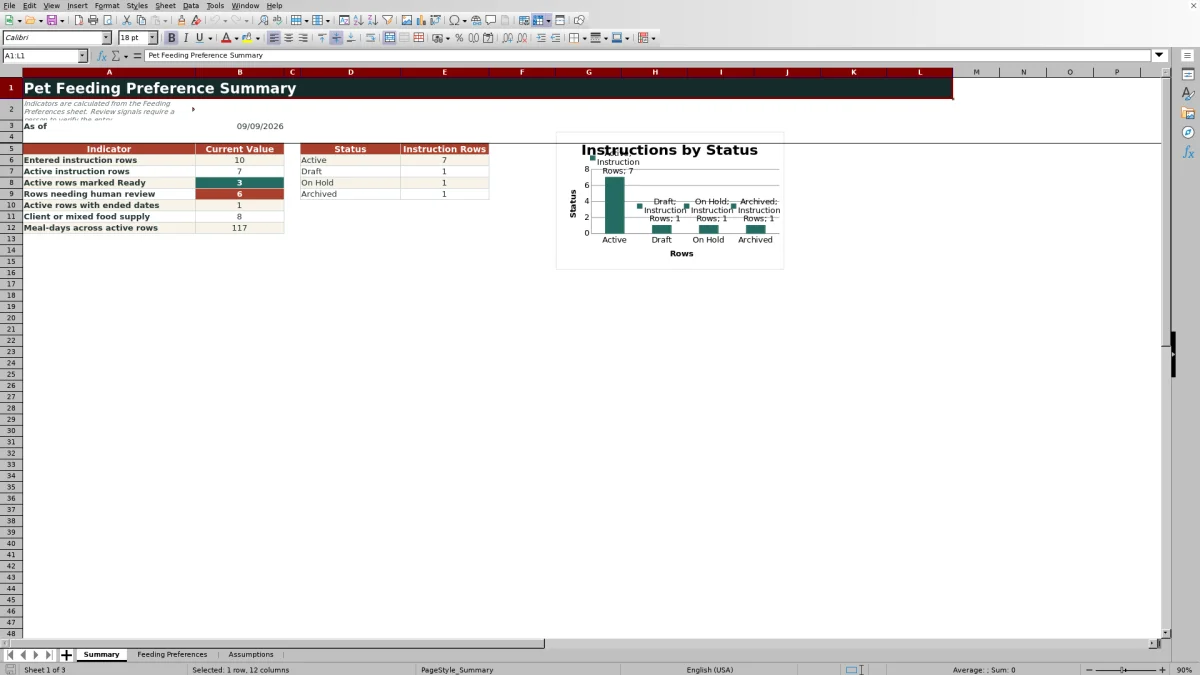
The XLSX includes a 100-row Feeding Preferences sheet, a formula-driven Summary, and an editable Assumptions sheet. Calculated fields show inclusive days covered, planned quantity, and review flags, while validation rules and dropdown choices support more consistent entries without replacing personal verification.
How this workbook can help
- Keeps recurring feeding instructions organized by pet, meal, and service date range.
- Connects portion details and owner directions with food-supply and staff-assignment information.
- Calculates days covered and planned quantity to support preparation for stays or visits.
- Surfaces incomplete, outdated, or inconsistent entries for human review.
What is in the file
How to get started
1. Enter the pet and service details
Add a preference ID, pet ID, pet name, client ID, and service start and end dates. Use one row per recurring daily meal within the applicable date range.
2. Record the feeding instructions
Select the meal timing, enter the target time and portion, identify the food or item, and indicate whether it is supplied by the client, the business, or both. Add the owner's preparation and feeding directions.
3. Assign and confirm the instruction
Choose the assigned staff member and status, then enter the date on which the instructions were last confirmed. Available statuses are Active, Draft, On Hold, and Archived.
4. Review the calculated output
Check Days Covered, Planned Quantity, and the Review Flag. Resolve any prompt that identifies missing information, date concerns, an ended active service period, or a configured review condition before relying on the row.
Situation: Feeding Details Spread Across a Stay
A pet may have multiple meals with different times or instructions during the same service period. When portions, food sources, owner directions, and assignments are kept in disconnected notes, staff must reconstruct the plan before each visit. This workbook places those details in consistent columns while retaining a separate row for every recurring daily meal.
Action: Build a Complete Feeding Record
Start with the identifying and service information, then complete the editable feeding fields for timing, target time, portion quantity, portion unit, food or item, supply source, owner instructions, assignment, status, and last-confirmed date. Dropdowns provide defined choices for several fields, and validation rules restrict dates, times, and numeric portion entries according to the workbook's assumptions.
Result: An Interpreted Practical Example
The fictional sample records Maple's breakfast and dinner from September 8 through September 12, 2026, with 0.75 cups entered for each meal. Each row therefore represents five days covered and calculates 3.75 cups as its planned quantity; together, the two rows imply 7.50 cups for that food across the service period. The practical result is not merely two meal notes: it is a dated preparation estimate that staff can compare with the client-supplied food and the owner's instruction to use the labeled scoop and add water.
Interpretation: Read Calculations as Review Signals
Days Covered measures the inclusive service span, while Planned Quantity multiplies that span by the portion entered on the row. The Review Flag can identify concerns such as missing identifiers or status, invalid date entries, reversed dates, or active instructions whose service dates have ended. These outputs support human review rather than automatic approval, so a calculated quantity or Ready result should still be checked against the owner's current directions.
Comparison: Excel Feeding Sheet vs. Informal Alternatives
The workbook is more structured than a freeform note but remains a feeding-preference record rather than a visit-completion log or automated dispensing system.
| Method | Organization | Calculations and checks | Best use |
|---|---|---|---|
| Pet Feeding Preference Sheet | Separate fields and one row per recurring meal | Days covered, planned quantity, validation, and review flags | Managing repeat feeding instructions across service date ranges |
| Freeform client note | Flexible narrative without fixed columns | No built-in calculations or standardized entry checks | Capturing brief context that does not require structured tracking |
| Generic calendar | Organized primarily by date and time | May support reminders but does not inherently calculate food quantities | Scheduling visits after feeding preferences have been confirmed elsewhere |
This comparison shows why the spreadsheet is useful when consistency and quantity planning matter, while an informal note may remain appropriate for supplementary context.
Common Errors and Solutions
Missing or mismatched dates: enter valid Excel dates and confirm that Service End is not earlier than Service Start. Missing pet, client, or status information should be completed when the Review Flag requests it. Unconfirmed instructions: verify the directions with the owner and update Last Confirmed instead of dismissing an age-related prompt. If a portion is rejected, use a positive numeric value within the Maximum portion entry configured on the Assumptions sheet.
Next Decision: Confirm Readiness Before Service
After correcting flagged rows, use the Summary to review entered rows, active instructions, active rows marked Ready, rows needing review, ended active service dates, client or mixed food supply, and meal-days across active rows. The next decision is whether each instruction is current and usable for the upcoming stay or visit, should remain Draft or On Hold, or should be Archived after a responsible person verifies the underlying information.
Frequently asked questions
How many feeding instructions can the workbook hold?
The Feeding Preferences sheet provides 100 instruction rows, from row 5 through row 104.
Should breakfast and dinner be entered on the same row?
No. The workbook directs users to enter one row for each recurring daily meal during a service date range, so breakfast and dinner should use separate rows.
How is Planned Quantity calculated?
Planned Quantity multiplies the numeric portion quantity by Days Covered. Days Covered is the inclusive difference between valid service start and end dates.
What supply options are available?
The Supplied By dropdown includes Client, Business, and Mixed.
Does a Ready review flag replace checking with the owner?
No. Review signals and validation rules help identify entry conditions, but the workbook states that they do not replace a person's review or confirmation of the owner's instructions.
Editorial responsibility

Tessa MarloweClient records and service workflows

Caleb HensleyWorkbook QA and operating controls