This Excel pet emergency contact spreadsheet organizes owner-supplied emergency details for up to 100 pets, including primary and backup contacts, phone numbers, preferred clinics, plan status, and a three-step escalation sequence.
The XLSX also calculates contact, escalation-order, and review-date checks. These indicators support human review; they do not verify phone numbers, contact anyone, send notifications, or replace instructions confirmed directly with a pet owner.
How this workbook can help
- Keeps each pet’s primary contact, backup contact, clinic, and escalation order in one structured record.
- Surfaces missing contact information, pending owner approval, repeated escalation steps, and duplicate pet IDs.
- Calculates upcoming review dates and distinguishes current, due-soon, and overdue plans.
- Summarizes active-plan readiness while leaving verification and emergency decisions to a person.
What is in the file
How to get started
1. Set the review timing
Open the Assumptions sheet and keep or revise the 180-day review interval and 30-day due-soon window. The interval accepts 1 to 3,650 days, while the due-soon window must be a whole number from zero through the selected interval.
2. Enter the pet and household details
On Emergency Contacts, replace the fictional samples with owner-supplied information. Give every record a unique Pet ID, add the pet name and household, select Active or Inactive, and enter a valid Last Reviewed date.
3. Add the emergency contacts
Enter the primary contact, backup contact, preferred clinic, and all three phone numbers. For an active plan, leaving any of these six contact fields blank causes the Contact Check to request attention.
4. Confirm the escalation order
Select Primary contact, Backup contact, and Preferred clinic once each across Steps 1 through 3. Mark the order Approved by owner only after a person confirms the owner-confirmed sequence; otherwise, leave it Pending review.
5. Review the calculated results
Check Contact Check, Order Check, Review Check, Next Review, and Plan Check. Then use the Summary sheet to decide which active plans need missing information, owner confirmation, or a timely review.
What the Excel workbook records
Each Emergency Contacts row combines the pet ID, pet name, household, plan status, and last review date with the primary contact, backup contact, preferred clinic, and their phone numbers. Three separate step fields preserve the chosen escalation sequence, and Order Status records whether that sequence is Approved by owner or Pending review.
How plan readiness is calculated
An active record can display Ready only when its contact fields are complete, its three escalation steps are present and nonduplicated, its order is owner-approved, and its review is Current or Due soon. The overall check also flags repeated pet IDs and missing pet or household details. An inactive record is labeled Inactive rather than being treated as ready.
Practical example: from review date to next decision
Situation: An active pet plan was last reviewed on January 15, 2026, and the workbook retains its default 180-day interval and 30-day due-soon window. Action: A user enters complete contact details, assigns each of the three escalation options once, and records the sequence as Approved by owner. Result: The calculated next review is July 14, 2026; if the workbook is opened on June 20, the Review Check is Due soon because that date is 24 days away, and the complete plan can still display Ready. Interpretation: Ready means the row satisfies the workbook’s completeness and timing rules, while Due soon means the next human review is approaching. Next decision: Arrange confirmation with the owner before July 14 and update Last Reviewed only after that review actually occurs.
Common errors and solutions
A blank primary, backup, or clinic field produces Check contacts; the solution is to obtain and enter the missing owner-supplied detail. Pending review produces Approval needed; confirm the sequence with the owner before selecting Approved by owner. Reusing an escalation choice produces Duplicate step; select each available option once. Repeating a Pet ID produces Check duplicate ID; assign a distinct identifier. A future Last Reviewed date does not satisfy the date-validation rule; enter the actual review date, which must be today or earlier.
Comparison with simpler and more automated alternatives
This workbook provides more structure and review logic than a basic contact list, but it is not an automated emergency-notification service. The appropriate choice depends on whether the practical need is organized human reference or active communications.
| Option | Contact and escalation structure | Review support | Communication automation |
|---|---|---|---|
| This Excel workbook | Dedicated primary, backup, clinic, and three-step order fields | Formula-based completeness, approval, readiness, and date checks | None; a person must verify details and make contact |
| Basic unstructured contact list | Names and numbers may be recorded without a fixed escalation sequence | Usually depends on manual inspection | None |
| Automated notification platform | Varies by product and configuration | May include reminders or workflow controls | May send messages or alerts, depending on the service |
Review timing and assumptions
The Assumptions sheet controls two timing rules. Review interval adds a selected number of days to Last Reviewed to calculate Next Review. Due soon window determines when a future review changes from Current to Due soon. If the calculated date is today or earlier, the row shows Review due and requires attention from a person.
Using the summary for ongoing maintenance
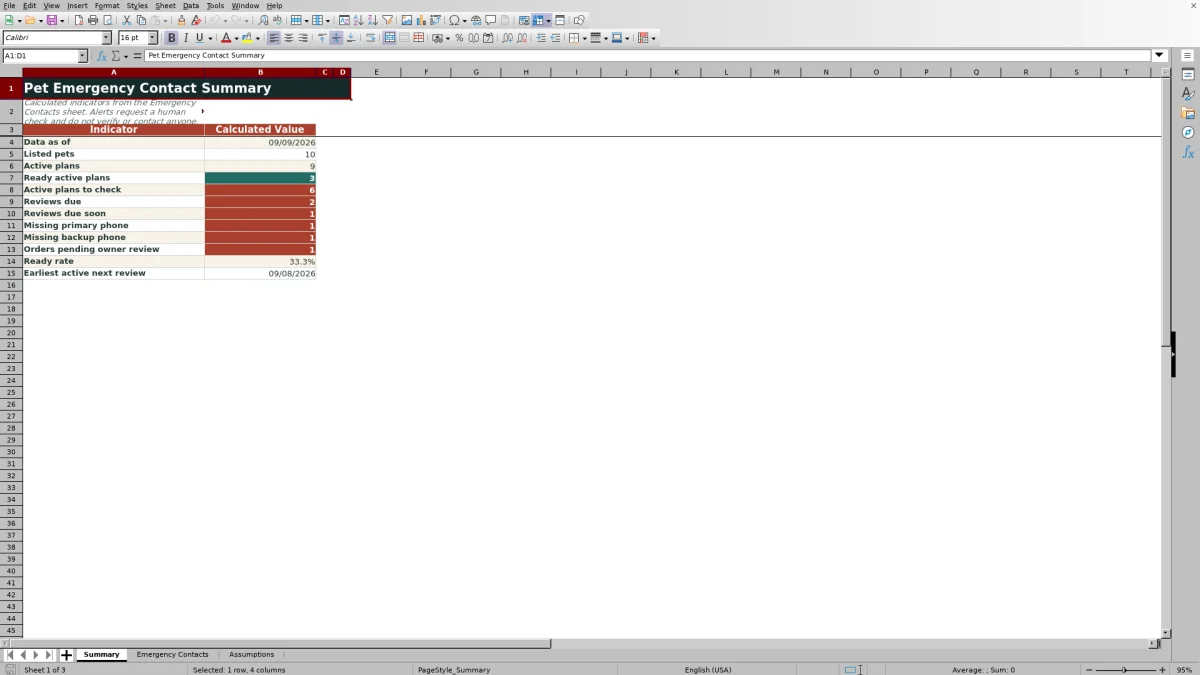
The Summary sheet counts listed pets, active plans, ready active plans, active plans requiring checks, reviews due or due soon, missing primary or backup phone numbers, and escalation orders pending owner review. It also calculates the ready rate and earliest active next-review date, helping users move from an overall situation to the records that need the next decision.
Frequently asked questions
Does the spreadsheet call contacts or send emergency alerts?
No. The workbook stores information and calculates checks, but it does not place calls, send messages, verify phone numbers, or contact emergency services.
What makes an active pet plan show as Ready?
The record needs a unique Pet ID, pet and household details, complete contact fields, an owner-approved and nonduplicated three-step escalation order, and a review status of Current or Due soon.
How are next review dates calculated?
For an active record with a Last Reviewed date, the workbook adds the Review interval from the Assumptions sheet. The default interval is 180 days, and the default due-soon window is 30 days.
Can the workbook retain inactive pet plans?
Yes. Select Inactive in Plan Status. The calculated checks label the record Inactive, and the Next Review formula remains blank because that date is calculated only for active plans.
How many pet records does the Excel spreadsheet support?
The Emergency Contacts entry and formula area runs from row 5 through row 104, providing space for 100 pet records.
Editorial responsibility

Tessa MarloweClient records and service workflows

Caleb HensleyWorkbook QA and operating controls