This Dog Daycare Attendance Tracker is an Excel workbook for recording expected and actual daily attendance, check-in and check-out times, service selections, visit statuses, groups, assigned teams, and attendance notes. It provides 100 attendance-entry rows and calculates hours, rates, potential charges, and review messages.
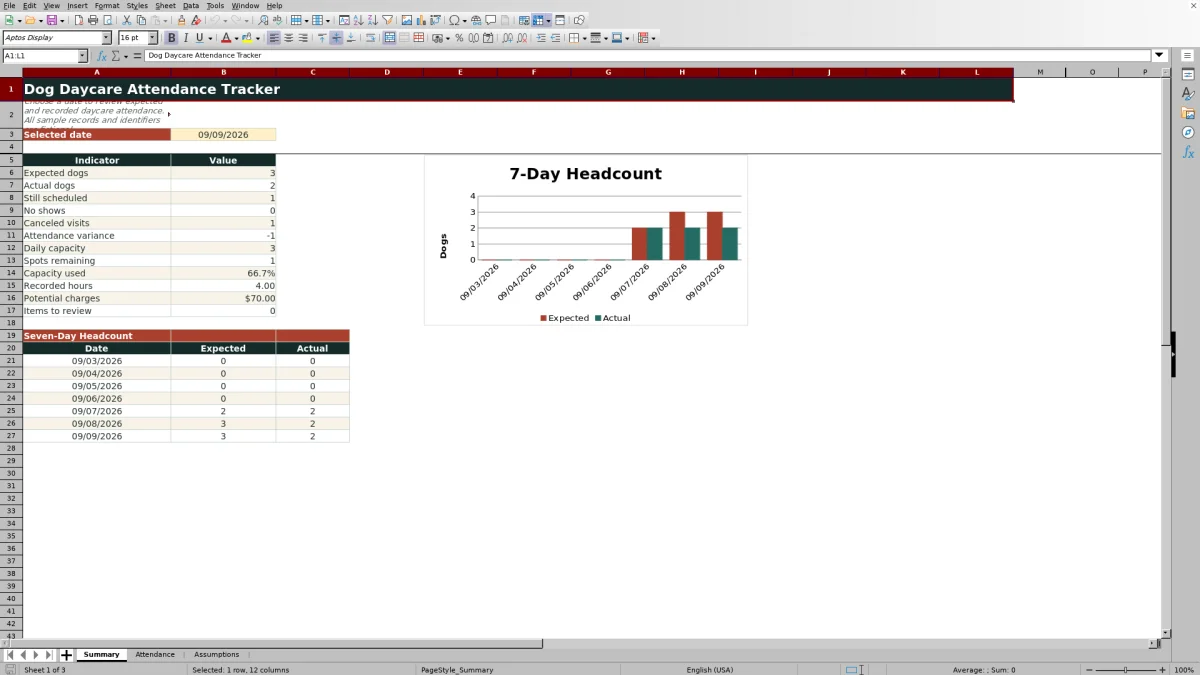
A date-driven Summary sheet turns the visit records into daily headcounts, capacity indicators, charge estimates, and a seven-day chart. An Assumptions sheet stores editable rates, operating limits, and dropdown choices, while fictional sample records demonstrate how the XLSX works.
How this workbook can help
- Reconcile expected dogs with checked-in and completed visits for a selected date.
- Monitor daily capacity, remaining spots, attendance variance, and seven-day headcount patterns.
- Standardize routine entries with validated dates, times, services, statuses, groups, and team choices.
- Support billing review with calculated rates and potential charges while keeping estimates separate from final invoices.
What is in the file
How to get started
1. Review the workbook assumptions
Open the Assumptions sheet and confirm the service rates, daily capacity, no-show fee percentage, maximum visit hours, entry-date limits, and editable list choices.
2. Enter each daycare visit
On the Attendance sheet, use one row for each visit. Enter the attendance ID, date, dog and client details, expected choice, service, status, group, assigned team, and any useful notes.
3. Record arrival and departure activity
Update the status as the visit progresses and enter valid check-in and check-out times. The workbook calculates visit hours, looks up the service rate, and estimates the potential charge when enough information is present.
4. Resolve flagged records
Read the calculated Review column and correct incomplete rows, duplicate IDs, duplicate dog visits, or invalid time sequences before relying on the totals.
5. Evaluate a selected date
Choose a date on the Summary sheet. Review expected and actual attendance, scheduled visits, no-shows, cancellations, capacity, recorded hours, potential charges, review-item counts, and the seven-day headcount chart.
Situation: Daily dog daycare attendance needs one reliable record
Reservations, arrivals, departures, cancellations, and no-shows can leave staff comparing several disconnected counts. This workbook establishes one visit per row so the selected date, dog, client, service, expected choice, status, times, group, team, and notes can be reviewed together. Expected attendance excludes canceled visits, while actual attendance is based on visits recorded as Checked In or Completed.
Action: Record visits and maintain operating assumptions
Staff enter attendance details in the yellow editable cells and use the supplied dropdown choices for consistent service, status, group, and team values. Service rates, daily capacity, the no-show percentage, maximum visit hours, and permitted entry dates remain editable on the Assumptions sheet. Calculated columns then determine hours, retrieve the matching rate, estimate a potential charge, and display a review message when a record needs attention.
Result: Read daily attendance, capacity, and billing indicators
After a date is selected, the Summary sheet counts expected dogs and treats visits marked Checked In or Completed as actual attendance. It also reports scheduled visits, no-shows, cancellations, attendance variance, available capacity, capacity usage, recorded hours, potential charges, and records requiring review. The seven-day chart provides context by comparing expected and actual headcounts for the selected date and six preceding dates.
Interpretation: A practical daycare headcount example
Suppose a selected date shows three expected dogs, two actual dogs, one visit still scheduled, and a daily capacity of three. The result would be an attendance variance of negative one, capacity usage of about 66.7%, and one remaining spot. The correct interpretation is not automatically that a dog is a no-show: the still-scheduled record may simply need a later status update. The next decision is to inspect that visit, confirm whether the dog arrived, and change its status before using the final attendance or charge totals.
Next Decision: Turn the summary into an operational follow-up
Use the indicators together rather than treating one number as conclusive. A negative attendance variance paired with a scheduled visit calls for a status check; a nonzero review count calls for record cleanup; and limited remaining capacity informs whether another booking can be accepted. Treat Potential Charge as a configurable estimate based on service rate and status, not as a finalized invoice.
Common Errors and Solutions
If the Review column says “Complete row,” fill the required attendance fields from Attendance ID through Status. For “Check duplicate ID,” assign or confirm a unique attendance ID; for “Check duplicate visit,” verify whether the same dog should have more than one row on that date. If a time warning appears, correct a check-out time that is not later than check-in. When calculated values do not immediately reflect an edit, recalculate the Excel workbook before reviewing the Summary sheet.
Comparison: Excel tracker versus a basic attendance list
The workbook offers more structure than a basic handwritten log or unvalidated spreadsheet, but it still depends on timely manual entry and workbook recalculation.
| Criterion | This Excel tracker | Basic attendance list |
|---|---|---|
| Entry consistency | Uses validated dates, times, and dropdown choices. | Usually relies on unrestricted text entry. |
| Daily headcounts | Calculates expected, actual, scheduled, no-show, and canceled counts by selected date. | Typically requires manual counting. |
| Capacity context | Calculates spots remaining and capacity used from an editable daily limit. | May record attendance without relating it to capacity. |
| Charge support | Estimates charges from configured service rates, status, and no-show percentage. | Usually requires a separate calculation. |
| Quality checks | Flags incomplete rows, duplicates, and invalid time order. | Depends mainly on visual review. |
| Practical limitation | Provides 100 entry rows and requires manual updates and recalculation. | Can be simpler to start but offers fewer controls and summaries. |
Choose the Excel tracker when consistent entries, date-based summaries, and review checks matter more than the minimal setup of a basic list.
Frequently asked questions
What does Expected dogs mean in the workbook?
Expected dogs counts rows for the selected date that are marked Yes in the Expected? column, excluding visits with a Canceled status.
Which statuses count as actual attendance?
The Summary sheet counts visits with a status of Checked In or Completed as actual dogs.
Is Potential Charge a final invoice amount?
No. It is an estimate based on the configured service rate and visit status. Checked In and Completed use the full rate, No Show uses the rate multiplied by the editable no-show percentage, and Canceled returns zero.
Can the service rates and daily capacity be changed?
Yes. The Assumptions sheet contains editable rates for Half Day, Full Day, and Extended Day services, along with the daily capacity and other operating assumptions.
How many attendance records can the worksheet hold?
The prepared Attendance area contains 100 entry rows, running from row 4 through row 103.
What should I do when the Review column displays a message?
Check the row for missing required values, a duplicated attendance ID, another visit for the same dog and date, or a check-out time that is not later than check-in, then correct the underlying entry.
Editorial responsibility

Tessa MarloweClient records and service workflows

Caleb HensleyWorkbook QA and operating controls