This Excel workbook is a dog grooming price list template for maintaining controlled grooming prices by service, pet size, base price, approved add-on, publication status, effective date, and review date.
The XLSX separates editable assumptions from price records, calculates add-on amounts and totals, and summarizes published, draft, retired, and review-due rows. It is designed to support price-list governance and sharing rather than appointment scheduling, customer billing, or payment collection.
How this workbook can help
- Keep grooming prices consistent by selecting services, pet sizes, add-ons, and statuses from maintained choice lists.
- Reduce manual arithmetic by looking up approved add-on amounts and calculating each entered row’s total.
- Separate draft, published, and retired prices so staff can filter the working list before sharing it.
- Use review dates, a reference date, and a configurable look-ahead period to identify published prices that need attention.
What is in the file
How to get started
1. Assess the current pricing situation
Open the Assumptions sheet and confirm the fictional business display name, reference date, and review look-ahead days. Review the existing service, pet-size, add-on, and status choices before entering live prices.
2. Maintain the approved choices
Edit the yellow assumption cells to match the services and pet sizes the business sells. Keep None as the zero-cost selection when no add-on applies, and verify the default amount assigned to every other approved add-on.
3. Enter controlled price rows
On the Price List sheet, enter a price ID, effective date, service, pet size, base price, approved add-on, status, review date, and optional note. The Add-On Amount and Calculated Total columns populate through formulas when the required inputs are valid.
4. Interpret the workbook results
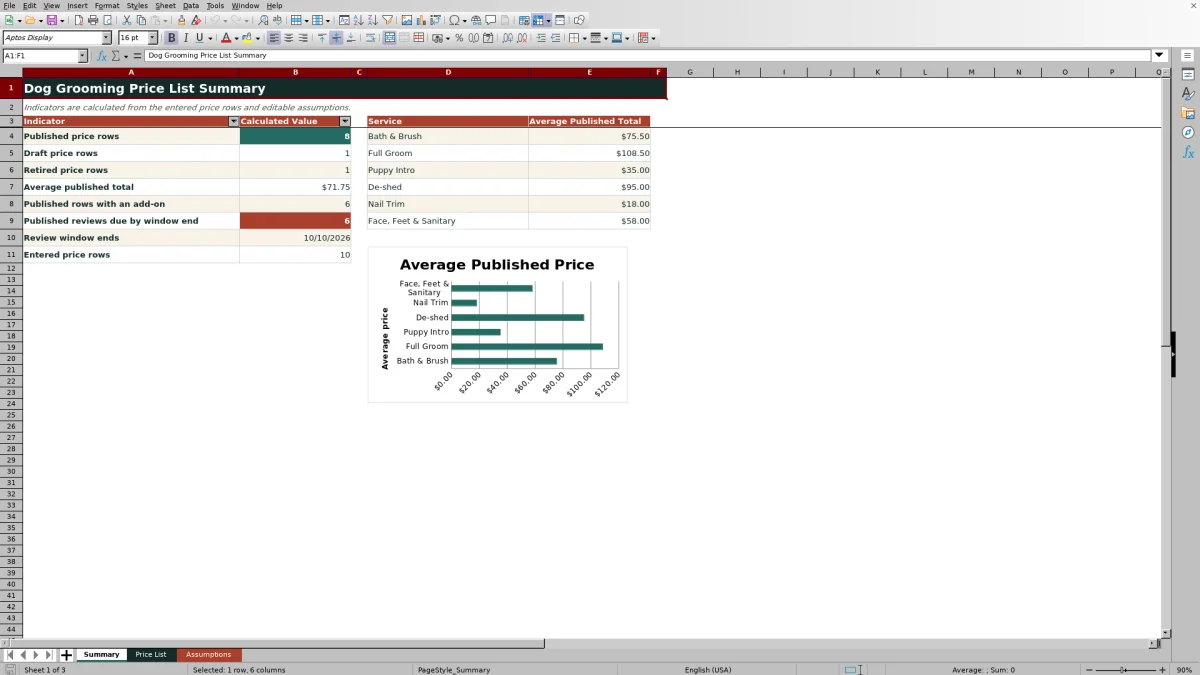
Review the Summary sheet for published, draft, and retired row counts, the average published total, add-on usage, reviews due within the window, and average published totals by service. Investigate highlighted conditions before relying on the figures.
5. Make the publishing decision
Filter the Price List by Published, verify every visible amount and note, and decide whether each row is ready to share. Keep unfinished prices as Draft and move obsolete prices to Retired rather than presenting them as current.
Create a Controlled Dog Grooming Price Sheet
A basic list of grooming prices can become unreliable when staff copy values into separate documents or apply unapproved surcharges. This workbook keeps each price record tied to a service, pet-size band, base price, approved add-on, effective date, status, and review date. The Assumptions sheet supplies the controlled choices used by the Price List, while the Summary sheet reports activity from entered rows.
Calculate Base Prices and Approved Add-Ons
Each populated price row can combine a numeric base price with one approved add-on. The workbook looks up the add-on’s default amount from the Assumptions sheet and then calculates the total. Selecting None returns a zero add-on amount, allowing the same structure to support prices with or without a surcharge. If a required value is missing or nonnumeric, the total remains blank instead of presenting an incomplete calculation as a usable price.
Practical Example: Review a Published Bath and Brush Price
Situation: A published Bath & Brush row for a small dog has a $42.00 base price, Teeth Brushing as the approved add-on, and a September 30, 2026 review date. Action: The workbook retrieves the $12.00 default Teeth Brushing amount from Assumptions and adds it to the base price. Result: The calculated total is $54.00. With a September 10, 2026 reference date and a 30-day look-ahead, the review window ends October 10, 2026. Interpretation: Because the row is Published and its review date falls on or before the window end, it contributes to the published review-due indicator; its $54.00 total also contributes to the published Bath & Brush average. Next decision: Verify that both amounts remain approved, then retain Published for sharing or change the status if the price needs revision.
Common Errors and Solutions
A blank calculated total usually means the price ID, base price, add-on selection, or add-on default amount is missing or invalid. A rejected service, pet size, add-on, or status usually indicates that the entry is not in the corresponding Assumptions list. An unexpected review-due count can result from a blank review date, a status other than Published, or an incorrect reference date or look-ahead period. Solution: Correct the maintained choice or numeric assumption first, complete the required row inputs, and then recheck the Summary instead of typing over the formula cells.
Comparison with Flat Price Lists and Scheduling Systems
This template is more controlled than a flat price document but narrower than a scheduling or invoicing platform. The comparison clarifies which tool fits the work being performed.
| Option | Controlled choices | Automatic add-on total | Status and review tracking | Best use |
|---|---|---|---|---|
| This Excel template | Yes, through Assumptions-based validation lists | Yes, for one selected approved add-on per row | Yes | Maintaining and reviewing a controlled price sheet |
| Flat document or simple spreadsheet | Usually manual | Usually manual | Limited or absent | Displaying a short, infrequently changed list |
| Scheduling or invoicing system | Varies by product | Varies by product | May use different approval workflows | Bookings, customer records, invoices, or payments |
Best fit: Use this workbook when the immediate task is controlling price rows and review decisions in Excel; use an operational platform when prices must connect directly to appointments, customers, invoices, or transactions.
Interpret Summary Indicators Before Sharing Prices
The Summary distinguishes Published, Draft, and Retired rows and reports the average total for published prices only. It also counts published rows using an add-on, calculates the review-window end, identifies published reviews due by that date, and shows average published totals for the maintained service choices. These indicators describe the entered price records; they are not sales, demand, profitability, or appointment metrics.
Make the Next Publication Decision
After resolving formula blanks, validation issues, and review alerts, filter the Price List to Published and inspect the visible effective dates, totals, review dates, and notes. Rows still awaiting approval should remain Draft, while obsolete rows should be marked Retired. The practical result is a cleaner working list, but every amount should still be checked against the business’s approved pricing before it is shared with customers or staff.
Frequently asked questions
What does the dog grooming price list template calculate?
For each entered row, it looks up the default amount for the selected approved add-on and calculates the total as base price plus add-on amount. The Summary also calculates status counts, published-price averages, add-on usage, the review-window end, and published reviews due within that window.
Can I change the grooming services, pet sizes, and add-ons?
Yes. The Assumptions sheet contains editable service choices, pet-size choices, approved add-ons, default add-on amounts, and status choices used by the Price List validation controls. Check existing price rows after changing a maintained choice.
How do I create a working published price list?
Complete and verify the price rows, assign Published only to approved entries, and filter the Status column on the Price List sheet to Published. Review the calculated totals, effective dates, review dates, and notes before sharing the filtered information.
What makes a published review appear due?
A row must be marked Published, contain a review date, and have that date fall on or before the reference date plus the configured review look-ahead days. The workbook’s supplied example settings use September 10, 2026 and 30 days, producing an October 10, 2026 window end.
Does this Excel template schedule appointments or create invoices?
No. The workbook controls and reviews grooming price records. It does not include customer records, appointment scheduling, invoicing, payment processing, or transaction reporting.
Editorial responsibility

Tessa MarloweClient records and service workflows

Caleb HensleyWorkbook QA and operating controls