This Excel workbook is a dog grooming size pricing matrix that connects weight-based size bands and coat types to editable base-price tiers. Its four worksheets cover assumptions, the pricing matrix, individual quotes, and a summary of pricing and quote activity.
The workbook is designed for internal planning rather than published market pricing. Staff can configure five weight bands, maintain active size-and-coat combinations, add quote-level charges or adjustments, and review formula-generated warnings before deciding whether a quote is ready.
How this workbook can help
- Applies consistent base-price logic to each configured size-band and coat-type combination.
- Identifies gaps, overlaps, duplicate labels, duplicate tiers, incomplete rows, and invalid pricing inputs.
- Separates the base grooming price from add-ons and manual adjustments for clearer quote review.
- Summarizes pricing readiness, quote exceptions, average prices, accepted totals, and quote volume by size band.
What is in the file
How to get started
1. Validate the weight-band assumptions
Review the minimum weight, size label, and maximum weight for Toy, Small, Medium, Large, and Giant dogs. Confirm that the checks in D5:D9 show Ready before relying on automatic size assignment.
2. Maintain the pricing matrix
Select a size band and coat type, enter a nonnegative base price, choose Yes or No for Active, and add a useful pricing description. Resolve every warning in the Check column so each active combination is complete and unique.
3. Repair the affected sample rows and enter quotes
The manifest shows quote-status text in Size Band cells I6:I8 and reports that size-band formulas begin only at I16. Restore the intended formulas in I6:I15 from a trusted workbook copy or carefully extend the intact formula pattern, place statuses in column M, and then enter the quote ID, date, aliases, weight, coat type, add-ons, adjustment, and status.
4. Review the result and make the next decision
Check the calculated size band, tier key, base price, estimated price, and row-level warning. Use the Summary sheet to monitor ready and review-needed records, then decide whether to correct inputs, activate a missing tier, revise an assumption, or advance the quote to the appropriate status.
How the size and coat pricing structure works
The Assumptions sheet defines Toy as 0.1–10 pounds, Small as 10.1–25, Medium as 25.1–50, Large as 50.1–80, and Giant as 80.1–150. The Pricing Matrix combines one of those labels with Smooth / Short or Plush / Long to create an exact tier key, such as Toy|Plush / Long. A quote receives a base price only when its key has a matching active row in the matrix.
The visible baseline examples range from $38 for Toy with a Smooth / Short coat to $102 for Large with a Plush / Long coat. These are described in the workbook as fictional, editable planning assumptions, not universal grooming rates.
Practical example: pricing a 10-pound long-coated dog
Situation: A 10-pound dog has a Plush / Long coat, an $8 add-on, and a -$3 manual adjustment. Action: The configured boundaries place 10 pounds in the Toy band, so the workbook builds Toy|Plush / Long and retrieves the visible $48 active base price. Result: The estimated price is $48 + $8 - $3, or $53. Interpretation: The $53 estimate preserves the standard tier while showing how optional services and a staff adjustment changed the total. Next decision: Staff should verify the quote’s Check result and required fields, document the reason for the adjustment, and then assign the appropriate Draft, Reviewed, Accepted, or Declined status.
Comparison: matrix pricing versus simpler alternatives
The workbook’s two-factor method is more structured than a size-only list, but it also requires complete assumptions and unique active tiers. The alternatives below may be simpler, although they do not provide the same size-and-coat lookup behavior.
| Approach | Pricing inputs | Consistency | Main trade-off |
|---|---|---|---|
| Workbook size-and-coat matrix | Weight band and coat type | High when assumptions and active tiers pass their checks | Requires complete, unique combinations and maintained weight boundaries |
| Size-only price list | Weight or size band | Consistent by size, but ignores the coat distinction represented in this workbook | Easier to maintain, but not equivalent to the workbook’s pricing model |
| Fully manual quoting | Staff judgment for each pet | Depends on the reviewer | Flexible, but lacks the workbook’s exact-key lookup and automated review chain |
Common errors and practical solutions
A weight-band Review warning can indicate missing values, duplicate labels, invalid bounds, overlap, incorrect order, or a gap. Correct the boundaries so each new minimum follows the previous maximum by 0.1 pound and keep every size label unique. A pricing-row warning can indicate missing fields, a nonnumeric or negative price, or a duplicate size-and-coat key; complete the row, use a valid nonnegative number, and retain only one row for each tier key.
On the Quotes sheet, missing required fields, invalid numeric inputs, an unresolved weight band, or a missing or inactive tier can prevent a usable result. The supplied manifest also exposes a concrete sample-data problem: I6:I8 contain Accepted, Reviewed, and Draft even though column I is Size Band, and formulas in that column are reported only for I16:I105. Restore the intended size-band formulas in I6:I15, place quote statuses in column M, recalculate, and verify the tier key, base price, estimated price, and Check result.
Quote calculations and review controls
Each complete quote uses its size band and coat type to build a tier key. An exact VLOOKUP retrieves the base price only when the corresponding Pricing Matrix row is active, and the estimated price then adds the values in Add-ons and Manual Adjustment. Weight and add-ons use nonnegative decimal validation, while the adjustment can be numeric or blank.
The Assumptions sheet sets the editable manual-adjustment review threshold to 25%. Staff should still inspect every flagged quote because the workbook describes the prices as internal assumptions and explicitly calls for quote-level review.
What the Summary sheet reveals
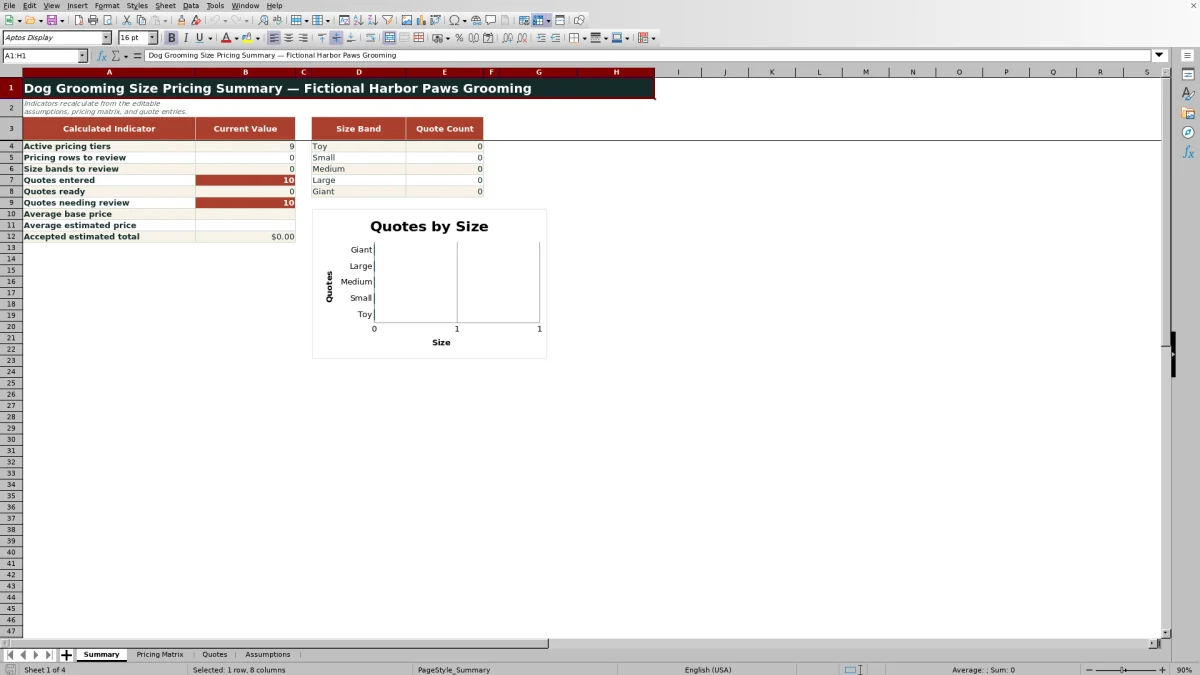
The Summary sheet counts active pricing tiers whose matrix checks are Ready, pricing rows and size bands that need review, entered quotes, ready quotes, and quotes requiring review. It also calculates average base price, average estimated price, and the sum of estimated prices for quotes marked Accepted.
A chart uses the five configured size-band labels and their quote counts. Because the sample rows have the documented column-I issue, those counts should be interpreted only after the affected formulas and statuses have been corrected and the workbook has recalculated.
Limits and the next pricing decision
The fixed pricing and quote ranges end at row 105, providing 100 working rows on each operational sheet. The configured weight structure ends at 150 pounds, and the coat list contains only Smooth / Short and Plush / Long. A dog outside those assumptions requires a reviewed change to the model rather than an improvised lookup.
After correcting current warnings, the next decision is whether the five weight bands, two coat categories, active tiers, and fictional baseline prices match the grooming business’s approved policy. If they do not, update the assumptions and prices first, confirm that all checks return the intended results, and only then use the calculated estimates in staff-reviewed quotes.
Frequently asked questions
How does the Excel workbook assign a dog’s size band?
The Quotes sheet uses the entered weight and the minimum and maximum boundaries maintained on the Assumptions sheet. The five configured labels are Toy, Small, Medium, Large, and Giant.
Why might a base price remain blank?
A blank base price can result when the size band or coat type is missing, the resulting tier key has no exact match, the matching Pricing Matrix row is inactive, or the affected quote row does not have a valid size-band formula.
Can a manual adjustment be negative?
Yes. The Manual Adjustment validation allows a numeric value or a blank, and the manifest includes a fictional -$3 example. The workbook also provides an editable 25% adjustment review threshold, so staff should review adjustments rather than treat them as automatic policy.
What do Ready and Review messages mean?
Ready indicates that the relevant formula checks did not detect the tested configuration or input problems. Review messages identify issues such as incomplete assumptions, gaps, overlaps, duplicate tiers, invalid prices, missing quote inputs, unresolved weight bands, or unavailable pricing tiers.
How many pricing tiers and quotes can the workbook hold?
The fixed working ranges run from row 6 through row 105, allowing 100 pricing rows and 100 quote rows. The workbook does not use Excel tables or defined names to expand those ranges automatically.
Are the included grooming prices recommended market rates?
No. The workbook labels its pricing values as fictional, editable internal planning assumptions. A business should replace them with approved prices and review each quote before use.
Editorial responsibility

Tessa MarloweClient records and service workflows

Caleb HensleyWorkbook QA and operating controls