This pet grooming instruction card Excel workbook turns an owner’s requests into a concise service specification for the assigned groomer. Each card records the appointment, pet, service, grooming details, care note, groomer, and current status.
The XLSX provides 100 card rows, generates a Groomer Brief, and displays a Review Flag when required information needs attention. A separate Summary sheet tracks workload and completion, while the Assumptions sheet controls validation limits and lists. All included owner, pet, groomer, and appointment examples are fictional.
How this workbook can help
- Creates a consistent handoff from owner requests to the assigned groomer.
- Identifies missing or potentially unclear instructions before a card is treated as ready.
- Reduces repeated rewriting by generating a concise Groomer Brief from the entered details.
- Helps staff monitor open, upcoming, completed, and review-needed cards from one summary.
What is in the file
How to get started
1. Review the assumptions
Open the Assumptions sheet and confirm the appointment-date range, upcoming window, weight limits, description-length limit, service list, status list, and assigned-groomer list.
2. Enter or replace instruction cards
Use rows 6 through 105 on the Instruction Cards sheet. Complete the card ID, appointment and pet details, requested service, grooming specifications, owner care note, assigned groomer, and status.
3. Resolve review prompts
Check column Q for missing required fields, an owner note containing “confirm,” or incomplete grooming details for a Full Groom or Trim & Tidy service. Clarify the request and update the applicable input cells.
4. Use the brief and update the status
Give the assigned groomer the generated brief in column R. Update the card from Draft or Scheduled to In Service, Completed, or Canceled as appropriate, then use the Summary sheet to review current totals.
Situation: Converting Owner Requests Into a Usable Card
Owner requests may arrive as separate comments about coat length, face shape, ears, tail, feet, nails, bathing products, or handling preferences. The workbook creates a structured handoff by placing those details beside the appointment, pet, owner reference, service, assigned groomer, and status.
Action: Complete and Review the Service Specification
Staff should complete the required fields first: Card ID, Appointment Date, Pet Name, Owner Ref, Service, Assigned Groomer, and Status. For a Full Groom or Trim & Tidy, the review formula also expects entries for Body / Length, Face / Head, Ears, Tail, and Feet / Nails. Optional coat, weight, bath, and care-note details can add useful context.
Result: A Concise Groomer Brief
Column R combines the pet name and service with any entered body, face, ear, tail, feet or nail, bath, and owner-note instructions. Column Q returns Ready when the applicable checks pass; otherwise, it identifies required fields, owner-note wording, grooming details, or entry problems that need review.
Interpretation: Practical Example
Practical example: the fictional Pepper Fiction card specifies Trim & Tidy, a one-inch wiry outline, short brows, a tidy muzzle, natural ear edges, a tidy-only tail, tidy feet, a nail trim, regular shampoo, and an owner request to preserve the natural coat outline. Because the required identifiers, assignment, status, and Trim & Tidy detail fields are populated, the card can return Ready. This indicates that the workbook’s completeness checks passed and that the generated brief gives the groomer a consolidated specification; it does not represent a separate quality or outcome assessment.
Next Decision: Move the Card Through Its Status
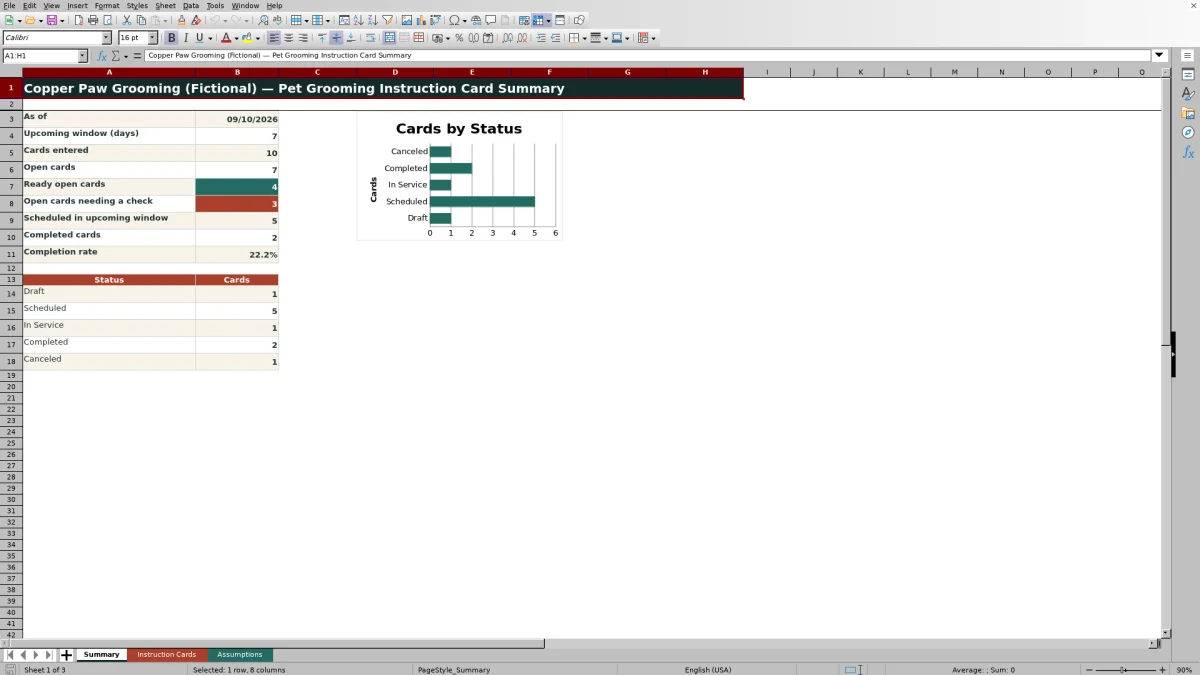
The next decision depends on the Review Flag and appointment stage. Resolve a check before relying on the brief, keep an accepted future card Scheduled, change it to In Service when work begins, and mark it Completed or Canceled when appropriate. The Summary sheet then updates its open-card, upcoming, completed, completion-rate, and status counts.
Comparison: Structured Card vs. Informal Alternatives
The Excel workbook is most useful when a salon needs consistent detail, review prompts, assignment, and status reporting. A free-form note may be faster for a simple request, while a calendar-only entry may be sufficient for basic scheduling, but neither alternative provides the same structured checks and generated brief.
| Approach | Best suited to | Primary strength | Practical limitation |
|---|---|---|---|
| Instruction card Excel workbook | Repeatable service handoffs and status monitoring | Structured inputs, Review Flags, generated briefs, validation, and summary metrics | Requires staff to maintain assumptions and enter the requested fields consistently |
| Free-form owner note | Quick capture of a simple request | Flexible and fast to write | Details can be inconsistent, omitted, or difficult to scan |
| Calendar-only entry | Basic appointment scheduling | Keeps the date and booking visible | Does not provide the workbook’s detailed grooming specification, review logic, or generated brief |
Common Errors and Solutions
Missing essentials: if the flag says “Check required fields,” complete the card ID, date, pet name, owner reference, service, assigned groomer, and status. Duplicate card IDs, out-of-range dates or weights, unsupported list entries, and overlength descriptions should be corrected or addressed through the editable Assumptions settings. Ambiguous or incomplete details: clarify owner-note text containing “confirm,” and complete Body / Length, Face / Head, Ears, Tail, and Feet / Nails when a Full Groom or Trim & Tidy card reports missing grooming details.
Frequently asked questions
How many pet grooming instruction cards can the workbook hold?
The Instruction Cards sheet provides 100 working rows, from row 6 through row 105.
What causes a Review Flag?
A flag appears for missing required fields, owner-note text containing “confirm,” incomplete grooming details for Full Groom or Trim & Tidy services, or certain entry problems. A completed applicable check returns Ready.
Can the service, status, and groomer choices be changed?
Yes. The lists are stored on the Assumptions sheet and should remain contiguous without blank rows because the Instruction Cards validations reference those ranges.
What does the Groomer Brief include?
The generated brief combines the pet name and service with any entered body, face, ear, tail, feet or nail, bath, and owner-note details.
What does the Summary sheet report?
It reports cards entered, open cards, ready open cards, open cards needing a check, scheduled cards within the upcoming window, completed cards, completion rate, and counts by status.
Editorial responsibility

Tessa MarloweClient records and service workflows

Caleb HensleyWorkbook QA and operating controls