This Excel workbook is a pet grooming service quote calculator that builds a client-specific grooming estimate from a selected service, as many as two add-ons, quantity, estimated hours, and an approved surcharge. It retrieves configured prices and included hours before calculating the base amount, add-on amount, time adjustment, estimated total, and expiration date.
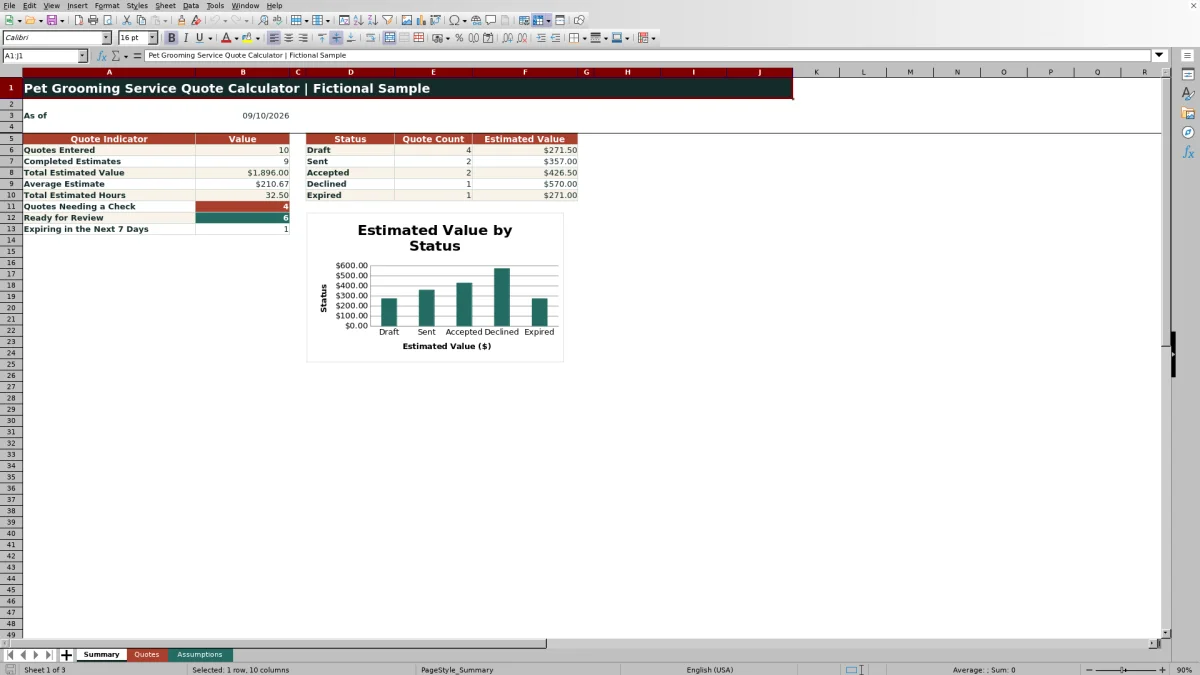
The XLSX includes space for 100 quotes, editable assumptions, field validation, review alerts, status tracking, and a summary of quote counts, values, hours, and upcoming expirations. Its included client, pet, groomer, service, and price data are fictional examples that should be replaced or verified before an estimate is shared.
How this workbook can help
- Builds consistent grooming estimates from centrally maintained service and add-on prices.
- Accounts for quantity, estimated time beyond included hours, and surcharges that have been explicitly approved.
- Flags missing information and configured quantity or hour limits for human review.
- Summarizes quote volume, estimated value, estimated hours, statuses, review readiness, and upcoming expirations.
What is in the file
How to get started
1. Configure the assumptions
Open the Assumptions sheet and replace the fictional assumptions with the business's services, base prices, included hours, add-ons, prices, hourly overage rate, validity period, limits, statuses, and groomer names.
2. Enter the quote request
On the Quotes sheet, use a unique quote ID and enter the date, client alias, pet or group, service, quantity, estimated hours, and status. Select as many as two add-ons and an assigned groomer when applicable.
3. Document and review any surcharge
Enter the surcharge reason and amount, then select Yes only when the charge is approved. Check the calculated base amount, add-on amount, time adjustment, approved surcharge, total, expiration date, and review alert.
4. Resolve alerts and manage the outcome
Correct missing or out-of-range entries until the alert reports Ready for review. Verify the estimate before sharing it, update its status as the client responds, and use the Summary sheet to monitor values and expirations.
Situation: A Grooming Request Needs a Consistent Estimate
When a client requests grooming for a pet or group, the price can depend on the primary service, optional add-ons, quantity, expected duration, and an approved surcharge. The workbook provides a consistent starting point by keeping those inputs in one quote row and sourcing standard prices and limits from the Assumptions sheet.
Action: Build the Quote From Controlled Inputs
Select a service and as many as two add-ons, then enter quantity and estimated hours. The workbook retrieves the service's base unit price and included hours, looks up add-on prices, charges the configured hourly overage rate only for time beyond the included allowance, and counts only approved surcharges in the estimate. The date, service, add-on, quantity, hour, groomer, approval, surcharge, and status fields use validation rules to reduce inconsistent entries.
Result: Interpreted Practical Example
Consider the fictional sample for one small Bath & Brush with a Nail Grind, 1.25 estimated hours, and no approved surcharge. The configured base price is $45, the add-on is $15, and the service includes one hour. The extra 0.25 hour at the $38 hourly overage rate adds $9.50, producing a $69.50 estimated total. Because the configured validity period is 14 days, a quote dated September 10, 2026 expires September 24, 2026. The result shows that the higher total comes from a selected add-on and time beyond the included hour, not from an unapproved charge.
Interpretation: Read the Total and Review Alert Together
The estimated total combines the base amount, add-on amount, time adjustment, and approved surcharge. It should be interpreted with the Review Alert rather than treated as automatic approval: missing required entries can prevent completion, while quantity or hour checks call for human review. The Summary sheet separately reports completed estimates, total and average estimated value, total estimated hours, quotes needing a check, quotes ready for review, and quotes nearing expiration.
Next Decision: Verify, Share, or Revise the Quote
After resolving alerts, confirm that the chosen service, expected duration, add-ons, and any surcharge reflect the actual request. The next decision is whether to revise the estimate or move it from Draft to Sent. Client outcomes can then be recorded as Accepted, Declined, or Expired, allowing the Summary sheet to group quote counts and estimated values by status.
Common Errors and Solutions
A duplicate quote ID can fail the uniqueness rule; assign a new ID. A blank calculated total can indicate that required inputs or lookup values are missing; complete the quote fields and select services or add-ons from the configured lists. If a pasted service or add-on does not exactly match an assumption, reselect it from the dropdown so its price can be retrieved. A surcharge marked No is excluded by design; record Yes only after approval. For a Check quantity or Check estimated hours alert, confirm the entry and revise it to comply with the configured limit when appropriate. If a date is rejected, use a date inside the range maintained on the Assumptions sheet.
Comparison: Excel Quote Calculator vs. a Manual Estimate
This workbook emphasizes formula-driven consistency, while a manual estimate offers more free-form flexibility. The appropriate method depends on whether the request fits the workbook's configured services and two add-on fields or requires an unusual pricing structure.
| Criterion | Excel quote calculator | Manual estimate |
|---|---|---|
| Price source | Retrieves configured service and add-on prices from the Assumptions sheet. | Requires the preparer to find and enter each price independently. |
| Time adjustment | Calculates overage from estimated hours, included hours, quantity, and the configured hourly rate. | Requires a separate calculation or judgment call. |
| Surcharge treatment | Includes a surcharge only when the approval field is Yes. | Depends on the preparer applying the approval policy correctly. |
| Review controls | Provides validations and alerts, but still requires human verification. | Can accommodate unusual cases but has no built-in control unless one is added. |
| Tracking | Tracks up to 100 quotes and summarizes statuses, values, hours, and expirations. | Usually requires a separate log or reporting process. |
Use the Excel calculator for repeatable quotes that fit its service structure. A manual estimate may be the better alternative for an exceptional request, provided its calculations and approvals are documented and independently checked.
Frequently asked questions
What does the pet grooming service quote calculator include?
It includes a Summary sheet, a 100-row Quotes sheet, and an Assumptions sheet containing service prices, included hours, add-on prices, settings, statuses, groomers, and approval choices.
How is the estimated total calculated?
The workbook adds the quantity-based service amount, quantity-based add-on amount, time adjustment for estimated hours beyond the included allowance, and any surcharge marked as approved.
Does every entered surcharge affect the quote total?
No. The surcharge amount is included only when Surcharge Approved? is set to Yes; otherwise the calculated approved surcharge is zero.
How does the workbook calculate time overage?
It subtracts the service's included hours multiplied by quantity from the entered estimated hours. Any positive remainder is multiplied by the hourly overage rate configured on the Assumptions sheet.
Can service prices and limits be changed?
Yes. The Assumptions sheet contains editable example prices, included hours, add-on prices, the overage rate, quote validity days, review thresholds, and validation limits.
Does a Ready for review alert approve the quote?
No. The workbook states that alerts prompt human review and do not approve a quote. Verify the scope, prices, time estimate, and surcharge before sharing it.
Editorial responsibility

Tessa MarloweClient records and service workflows

Caleb HensleyWorkbook QA and operating controls