This 2026 pet boarding reservation spreadsheet is an Excel workbook built to reserve arrival and departure dates against kennel or room availability. It organizes client, pet, room, rate, status, and stay-note details while calculating nights and estimated charges.
Use the workbook to manage arrival and departure dates, review daily occupancy, and identify capacity or assigned-room conflicts. It provides 150 reservation rows and a planning calendar of up to 120 days; its displayed records are fictional examples, and every alert requires staff review.
How this workbook can help
- See how many rooms are booked and open on each date within the planning horizon.
- Catch potential capacity problems and overlapping assigned-room bookings before confirming a stay.
- Estimate reservation value from the number of nights, rooms, nightly rate, and daily add-ons.
- Keep reservation records, daily availability, summary indicators, and operating assumptions in separate worksheets.
What is in the file
How to get started
1. Set the planning window and room inventory
Open Assumptions and set the planning window, room capacities, default rate guides, and input limits. The initial setup starts September 9, 2026, and supports a horizon of up to 120 days.
2. Enter each reservation
On Reservations, replace the fictional examples or add records in the available rows. Enter the reservation ID, client, pet, room type, dates, room quantity, rates, assigned room, status, and notes in the editable cells.
3. Review the calculated results
Confirm the calculated nights and estimated total, then review both checks for capacity and assigned-room overlap. Resolve any flagged dates or rooms before treating the reservation as accepted.
4. Use availability to make the next decision
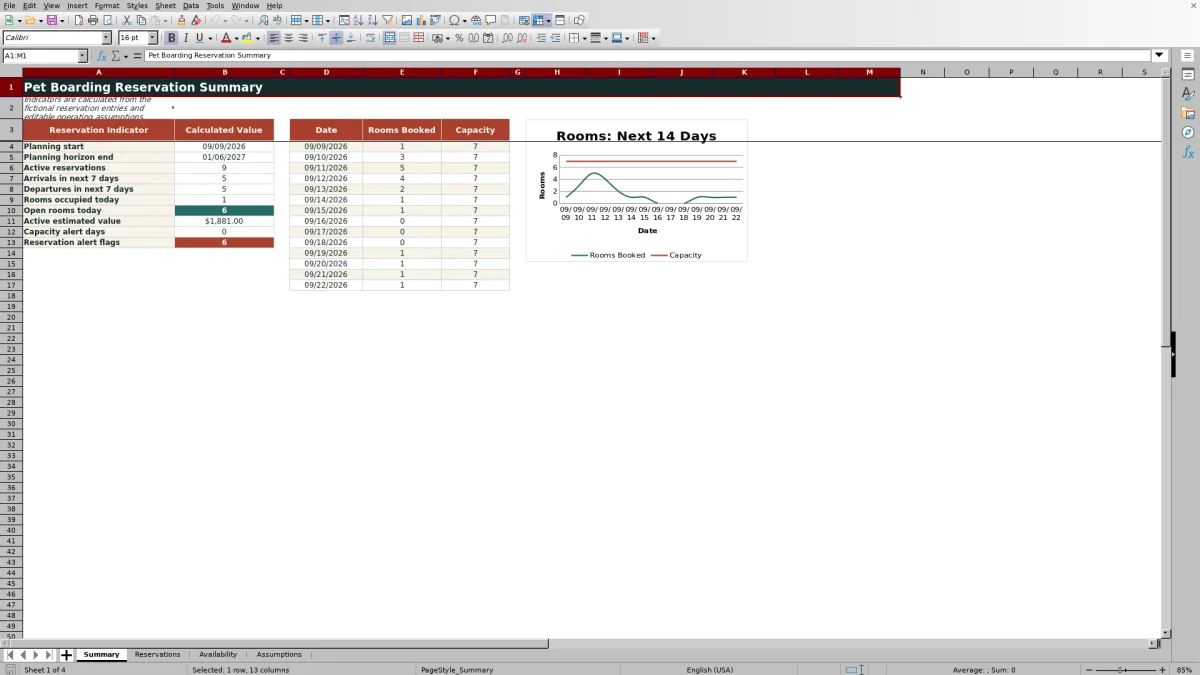
Check Availability for daily booked, open, full, or over-capacity results. Then use Summary to review active reservations, upcoming arrivals and departures, current occupancy, estimated value, alerts, and the booked-versus-capacity chart.
Situation: Planning Boarding Demand
The workbook begins with a planning start date, a horizon, and three configurable room categories. Its initial Standard, Suite, and Cat Condo settings provide a seven-room default capacity. Hold, Confirmed, and Checked In reservations count toward active use, while Completed and Cancelled records do not.
Action: Record the Complete Stay
Use one row per reservation to enter the client, pet, room type, arrival, departure, room count, nightly rate, daily add-ons, assigned room, status, and notes. Input validation limits room types and statuses to the configured choices and checks dates, quantities, rates, and add-ons against the assumptions.
Result: Review Availability and Charges
The Reservations sheet calculates nights and estimated totals. Availability then evaluates occupied room nights by room type and produces a daily open-room count with Open, Full, or CHECK CAPACITY status. Summary consolidates active bookings, near-term arrivals and departures, current occupancy, open rooms, estimated value, and alert totals.
Interpretation Through a Practical Example
Consider the three visible fictional stays. Avery reserves one Standard room from September 10 through September 13, Casey holds one Standard room from September 10 through September 12, and Jordan reserves one Suite from September 11 through September 16. On September 11, the workbook should show three rooms booked and four open: two of three Standard rooms, one of two Suites, and none of two Cat Condos. Because departure dates are treated as non-occupied dates, Casey's room becomes available on September 12. Their row-level estimates are $186, $118, and $390, respectively, for a combined $694. This result indicates available overall capacity for September 11, although staff should still confirm that each assigned room passes the overlap check.
Common Errors and Solutions
CHECK DATES means the departure is not later than the arrival; correct the dates before proceeding. CHECK CAPACITY means active room demand exceeds the configured capacity for at least one occupied date; verify the room quantity, room type, dates, and status, or offer a different stay. CHECK ROOM indicates that the same assigned-room code appears on overlapping active reservations; assign a different room or revise the booking. A blank check usually means a required field is missing or the reservation is Completed or Cancelled.
Workbook Sheet Comparison
Each worksheet answers a different operational question. The comparison below clarifies where to work and what each view does not replace.
| Sheet | Best used for | Primary result | Practical limitation |
|---|---|---|---|
| Reservations | Entering and reviewing individual stays | Nights, estimated totals, capacity checks, and room checks | Does not provide the clearest date-by-date view of all capacity |
| Availability | Comparing daily demand with room inventory | Booked, open, full, or over-capacity results by date | Does not display client, pet, or stay-note details |
| Summary | Monitoring high-level activity and alerts | Key indicators and a 14-date booked-versus-capacity chart | Is not intended for reservation entry |
| Assumptions | Maintaining planning controls and room settings | Dates, limits, capacities, rate guides, and status choices | Does not represent live reservation demand |
Use Reservations for transaction-level work, Availability for scheduling decisions, Summary for oversight, and Assumptions for controlled setup changes.
Next Decision: Confirm, Reassign, or Offer an Alternative
If capacity remains open and both reservation checks are clear, staff can move the booking to the appropriate active status. If a date is full or over capacity, offer another room type or date range. If only the assigned room conflicts, reassign the room while preserving the stay dates when possible. The workbook supports this decision process but does not automatically approve a reservation.
Frequently asked questions
Does the Excel workbook automatically prevent overbooking?
No. It calculates capacity and assigned-room alerts, but staff must review and resolve each warning before confirming a reservation.
Which reservation statuses count toward room availability?
Hold, Confirmed, and Checked In reservations count as active. Completed and Cancelled reservations are excluded from active capacity and room-overlap calculations.
How are nights and estimated charges calculated?
Nights equal the departure date minus the arrival date when departure is later. The estimated total equals nights multiplied by the sum of the room charge—rooms times nightly rate—and any daily add-ons.
Can I change the room types, capacities, and rates?
Yes. The Assumptions sheet provides three room-type rows where you can edit the labels, capacities, and default nightly rate guides. Update these settings before entering reservations that depend on them.
Why is a reservation check blank?
A check may remain blank when required fields such as dates, room type, quantity, status, or assigned room are missing. The checks also remain blank for Completed and Cancelled reservations.
Editorial responsibility

Tessa MarloweClient records and service workflows

Caleb HensleyWorkbook QA and operating controls