This pet appointment confirmation tracker is an Excel workbook for recording service dates, client and pet details, reminder attempts, response outcomes, and explicit appointment statuses. It provides 100 prepared rows and calculates the last contact attempt, days remaining, and follow-up alert for each entered appointment.
Use the workbook to coordinate manual confirmation work before each service date, identify records that need attention, and monitor upcoming status totals from the Summary sheet. Editable assumptions control reminder timing, the short-range reporting window, accepted date ranges, and the lists used by dropdown fields.
How this workbook can help
- Keeps appointment details, two reminder attempts, outcomes, confirmation status, and administrative notes together in one record.
- Helps staff identify pending responses, inconsistent entries, passed service dates, and other records that require review.
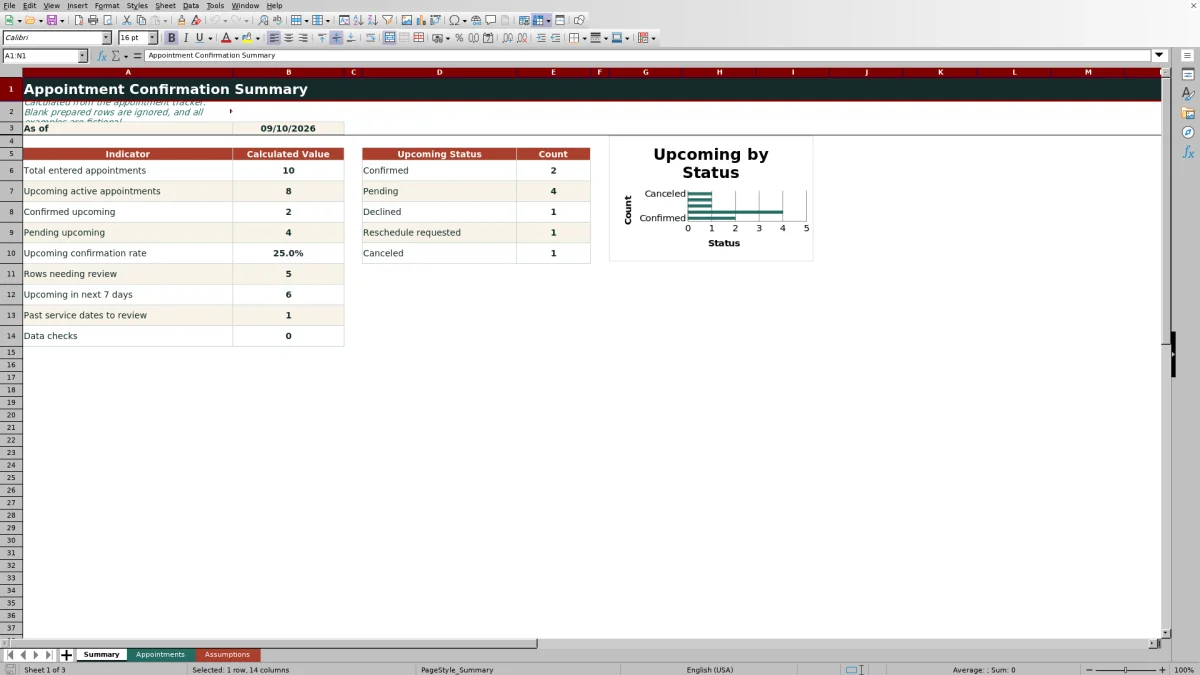
- Provides summary counts for entered appointments, active upcoming bookings, confirmed and pending appointments, confirmation rate, and data checks.
- Allows teams to adapt reminder timing, reporting windows, services, staff names, contact methods, outcomes, and statuses through editable assumptions and lists.
What is in the file
How to get started
1. Review the workbook settings
Open the Assumptions sheet and verify the first-reminder lead time, minimum interval between attempts, upcoming summary window, permitted date range, and dropdown-list values.
2. Enter the appointment details
On the Appointments sheet, use a prepared row to enter the appointment ID, service date and time, client, pet, service, assigned team member, preferred contact method, and any administrative notes. Replace the fictional examples when using the file operationally.
3. Record each reminder attempt
Enter the date and outcome of the first reminder. If another attempt is needed, complete the second reminder date and outcome as a matching pair.
4. Record the response
Select an explicit confirmation status such as Pending, Confirmed, Declined, Reschedule requested, or Canceled. Add the Confirmed On date when appropriate, and leave the calculated Last Attempt, Days to Service, and Follow-Up Alert cells unchanged.
5. Review results and decide what happens next
Filter the Follow-Up Alert column to find records needing action, then use the Summary sheet to assess upcoming confirmations, pending responses, past dates, and data checks before assigning the next follow-up task.
Situation: Confirmation Details Are Spread Across Multiple Contacts
Pet-service appointments may involve a text, voicemail, email, or phone conversation before the scheduled date. When those contacts are recorded in separate notes or calendars, staff can struggle to determine whether a reminder was sent, whether the client responded, and whether another attempt is appropriate. This Excel tracker creates a single operating view for the appointment, two reminder attempts, their outcomes, and the final confirmation status.
Action: Record Attempts and Explicit Responses
Each prepared appointment row separates the service date from Reminder 1 Date, Reminder 1 Outcome, Reminder 2 Date, Reminder 2 Outcome, Confirmation Status, and Confirmed On. That structure distinguishes an attempted contact from an actual client decision. Dropdown lists standardize common services, team members, contact methods, attempt outcomes, and statuses, while editable assumptions set the first-reminder lead time and minimum days between attempts.
Result: Turn Entries Into a Review Queue
The workbook calculates the most recent reminder date in Last Attempt, determines Days to Service relative to TODAY(), and generates a Follow-Up Alert. The Summary sheet then converts the entered rows into a current workload signal, including active upcoming appointments, confirmed and pending totals, confirmation rate, rows needing review, appointments inside the selected summary window, passed service dates, and data checks. Blank prepared rows are ignored.
Interpretation Through a Practical Appointment Example
Consider fictional record APT-26-001: a bath-and-brush appointment is scheduled for September 11, 2026 at 9:00 AM. A text was sent on September 6, followed by a September 8 contact recorded as Reached - confirmed; the status is Confirmed and the Confirmed On date is September 8. The calculated Last Attempt should therefore be September 8. Before the service date, this sequence indicates that the client gave an explicit response rather than merely receiving a message. The practical interpretation is to retain the booking, honor the note about the requested morning slot, and avoid an unnecessary additional confirmation attempt unless the alert identifies inconsistent or incomplete data. Because the workbook uses TODAY(), its days-to-service value and inclusion in upcoming summary totals change as time passes.
Next Decision: Prioritize the Appropriate Follow-Up
After reviewing the alert and status, staff can decide whether to send a first reminder, make a later follow-up attempt, review a decline or reschedule request, investigate an incomplete date-and-outcome pair, or examine a service date that has already passed. Confirmed records can remain scheduled, while Pending records inside the reminder window can be prioritized according to the configured lead time and minimum interval between attempts. Canceled appointments remain recorded but are excluded from the workbook's active upcoming count.
Comparison With a Calendar or Simple Contact List
The tracker complements rather than replaces scheduling or communication systems. Its strength is structured confirmation oversight; it does not send messages automatically or synchronize appointments with an external calendar.
| Capability | Excel confirmation tracker | Basic calendar | Simple call list |
|---|---|---|---|
| Service date and time | Recorded in validated appointment fields | Typically a core function | May be entered as unstructured text |
| Two reminder attempts | Separate dates and standardized outcomes | Usually requires notes or separate events | Possible, but often lacks consistent fields |
| Explicit confirmation status | Dropdown statuses including Pending, Confirmed, Declined, Reschedule requested, and Canceled | Depends on manual labels or notes | May be recorded without validation |
| Calculated follow-up guidance | Formula-driven alert based on dates, attempts, status, and assumptions | Generally limited to event reminders | Normally requires manual review |
| Management summary | Upcoming counts, confirmation rate, review totals, checks, and a chart | Calendar views rather than confirmation metrics | Usually no calculated dashboard |
| Automated message delivery | No; attempts are recorded manually | May provide event notifications, depending on the calendar | No |
Choose the Excel workbook when the immediate need is a transparent, editable confirmation log and review queue. Choose a dedicated scheduling platform when automatic messaging, customer self-service, real-time synchronization, or capacity beyond the 100 prepared rows is required.
Common Errors and Solutions
A rejected date may fall outside the allowed past or future window; enter a permitted date or deliberately adjust the corresponding limit on the Assumptions sheet. A missing dropdown choice usually means the value is not in the prepared source list; edit an existing list cell, or extend both the source area and validation if additional choices are required. A Check alert can result from a missing service date, blank confirmation status, reminder date without an outcome, or outcome without a valid date; complete the related fields as a pair and select the correct status. If Summary totals appear unexpected, remember that upcoming calculations use TODAY(), require an entered appointment ID, and evaluate service dates and statuses. Alerts support human review; they do not send reminders or make scheduling decisions automatically.
Frequently asked questions
Does the Excel tracker send appointment reminders automatically?
No. The workbook records manual reminder attempts and their outcomes. Its formulas identify follow-up needs, but it does not send texts, emails, or phone notifications.
How many appointments can the workbook track?
The Appointments sheet contains 100 prepared rows, covering rows 5 through 104. The supplied formulas, validation, filters, and summary references are configured for that prepared range.
What controls the Follow-Up Alert?
The alert evaluates the appointment ID, service date, reminder dates and outcomes, confirmation status, TODAY(), and timing settings from the Assumptions sheet. It can prompt actions such as sending a first reminder, following up, reviewing a passed service date, or checking incomplete data.
Can the dropdown choices be customized?
Yes. The Assumptions sheet contains editable lists for services, assigned team members, preferred contact methods, attempt outcomes, and confirmation statuses. If choices are added beyond the prepared source ranges, the related data-validation references may also need to be extended.
Why do the summary numbers change over time?
The Summary sheet uses TODAY() to determine which appointments are upcoming and which fall within the editable short-range window. Counts can therefore change when the workbook recalculates on a later date, even when no appointment record has been edited.
Editorial responsibility

Tessa MarloweClient records and service workflows

Caleb HensleyWorkbook QA and operating controls