This pet document expiry dashboard is an Excel workbook for consolidating owner-supplied pet documents and consent records, monitoring their expiry dates, and coordinating follow-up. It records client, pet, document, receipt, expiry, assignment, and status details for up to 100 entries.
The workbook calculates days remaining and classifies populated records as Expired, Due Soon, Upcoming, Current, Missing Expiry, or Check Date. Its summaries and alerts support human review; they do not independently verify whether a document is valid, complete, or acceptable.
How this workbook can help
- Brings owner-supplied document dates, client and pet references, staff assignments, and follow-up statuses into one register.
- Surfaces expired, near-expiry, missing-expiry, and questionable-date records for prioritized review.
- Shows workload by staff assignment and progress by follow-up status on a consolidated dashboard.
- Uses an editable dashboard date and alert windows so teams can apply a consistent administrative review point.
What is in the file
How to get started
1. Assess the current situation
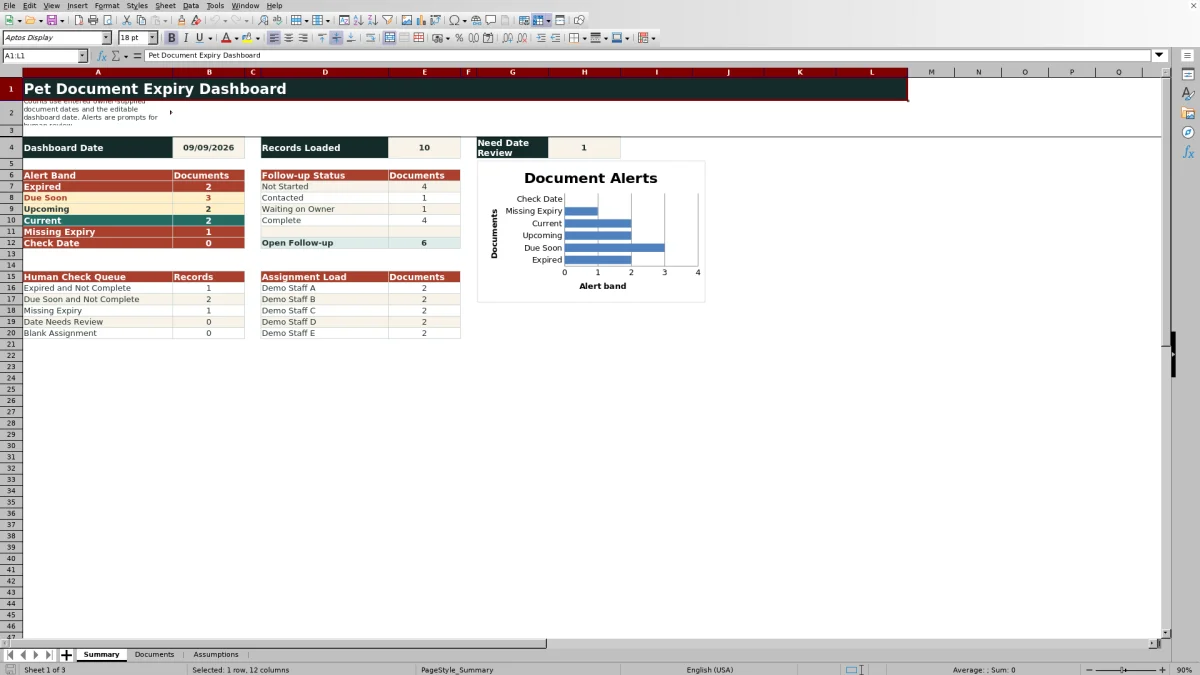
Open the Summary sheet and note the displayed record count, alert-band totals, follow-up totals, human-check queue, and assignment load. Remember that the included populated rows are fictional demonstration entries.
2. Set the review assumptions
On the Assumptions sheet, confirm the Dashboard Date, Due Soon Days, and Upcoming Days. Keep Due Soon Days less than or equal to Upcoming Days, and update the available document types, assignments, or follow-up statuses when needed.
3. Enter the document records
Replace the examples on the Documents sheet by entering data in columns A through H. Use a unique Document ID, choose supported list values where applicable, and enter Excel dates for received and expiry dates. Preserve the formulas in columns I and J.
4. Review the calculated result
Read the Days to Expiry and Alert columns, then return to Summary to review Expired, Due Soon, Upcoming, Current, Missing Expiry, and Check Date totals.
5. Interpret and make the next decision
Filter the Documents sheet by Alert, Follow-up Status, or Assigned To. Verify each source document manually, contact the owner when appropriate, update the follow-up status, and assign any record that lacks an owner.
Situation: Expiry Details Are Spread Across Client Records
Owner-supplied consents, agreements, vaccination record copies, and contact forms can have different receipt dates, expiry dates, assignees, and follow-up stages. When those details are reviewed separately, it is easy to overlook a missing expiry date or a time-sensitive record. This workbook creates one administrative register while retaining Client ID, Pet Name, and Document Type as practical references.
Action: Configure the Dashboard and Enter Records
The Assumptions sheet controls the reference date and alert windows. The supplied settings use September 9, 2026 as the dashboard date, seven days for Due Soon, and 30 days for Upcoming. After confirming those values, enter or replace records in rows 4 through 103 of the Documents sheet. List validation supports six supplied document types, five demonstration staff assignments, and four follow-up statuses.
Result: Read Alerts and Follow-Up Totals
For each populated Document ID, the workbook calculates the number of days between the expiry date and dashboard date and assigns an alert label. Summary counts show the six alert bands, documents by follow-up status, and workload by assignment. The Need Date Review total combines Missing Expiry and Check Date records so incomplete or questionable date information remains visible.
Interpretation: A Practical Expiry Example
Suppose the dashboard date is September 9, 2026 and an emergency contact form expires on September 16, 2026. The difference is seven days, so the workbook interprets the record as Due Soon because the seven-day boundary is inclusive. If its follow-up status is Waiting on Owner, it also belongs in the due-soon, not-complete queue. The practical interpretation is not that the form is invalid; it is that the assigned staff member should verify the source record and decide whether owner contact is needed.
Next Decision: Prioritize the Human-Check Queue
Begin with records that are both open and time-sensitive: Expired or Due Soon entries whose follow-up status is not Complete. Then review Missing Expiry, Check Date, and Blank Assignment totals. Use the Documents filter to find the underlying rows, confirm the owner-supplied information, assign responsibility, and update the status after the administrative action is taken.
Common Errors and Solutions
A blank expiry date on a populated record produces Missing Expiry; solve it by checking the source document and entering the confirmed date rather than estimating one. Check Date means a date or assumption is not being recognized as a usable numeric Excel value; confirm the date format and the dashboard thresholds. Duplicate Document IDs conflict with the custom uniqueness rule, so give each record its own identifier. A blank assignment leaves responsibility unclear, so select an assignee from the maintained list. Do not overwrite columns I and J, because those columns contain the repeated expiry and alert formulas.
Comparison: Dashboard Versus a Basic Document List
An ordinary list can store document details, but this Excel workbook adds formula-driven timing, standardized follow-up fields, and summary queues. The comparison below distinguishes those approaches without treating the dashboard as a substitute for source-document review.
| Criterion | Pet document expiry dashboard | Basic document list |
|---|---|---|
| Expiry timing | Calculates days to expiry and assigns one of six alert labels. | Requires users to compare dates manually unless separate formulas are added. |
| Follow-up workflow | Tracks assignment and standardized statuses, then summarizes their counts. | May store notes or names but has no built-in status or assignment summary. |
| Date review | Separates Missing Expiry and Check Date outcomes for human review. | Depends on someone noticing blank or questionable dates during a scan. |
| Capacity and flexibility | Uses a fixed 100-record range with editable assumptions and maintained lists. | Can be extended freely, but calculations and controls must be designed separately. |
The dashboard is the stronger alternative when structured follow-up and consistent alert rules matter; a basic list may be sufficient when only passive storage is required.
Frequently asked questions
What does the pet document expiry dashboard track?
It tracks Document ID, Client ID, Pet Name, Document Type, Received Date, Expiry Date, Assigned To, Follow-up Status, Days to Expiry, and Alert for owner-supplied administrative documents and consents.
How are the expiry alert bands calculated?
The workbook compares each usable expiry date with the editable dashboard date. Dates before it are Expired; dates from the dashboard date through the Due Soon window are Due Soon; dates after that window through the Upcoming window are Upcoming; and later dates are Current.
What do Missing Expiry and Check Date mean?
Missing Expiry means a Document ID exists without an expiry date. Check Date means an entered date or relevant assumption is not being treated as a usable numeric Excel value and requires manual review.
How many document records can the workbook hold?
The configured Documents range provides 100 record rows, from row 4 through row 103. Dashboard formulas and validation rules use that fixed range.
Does an alert confirm that a pet document is valid or invalid?
No. Alerts are administrative prompts based on entered dates and assumptions. A person should verify the owner-supplied document and decide what follow-up, if any, is appropriate.
Editorial responsibility

Tessa MarloweClient records and service workflows

Caleb HensleyWorkbook QA and operating controls