This Pet Service History Tracker is an Excel workbook for documenting completed pet services, including service dates, client and pet IDs, service types, descriptions, quantities, amounts, providers, outcomes, and statuses.
Formula-driven review dates, human-check prompts, and summary indicators turn those records into future booking context without treating an internal review date as an automatic appointment or care recommendation.
How this workbook can help
- Keeps service dates, providers, outcomes, amounts, and identifying references together in one consistent history.
- Surfaces incomplete statuses, missing outcomes, follow-up requests, and records approaching their configured review dates.
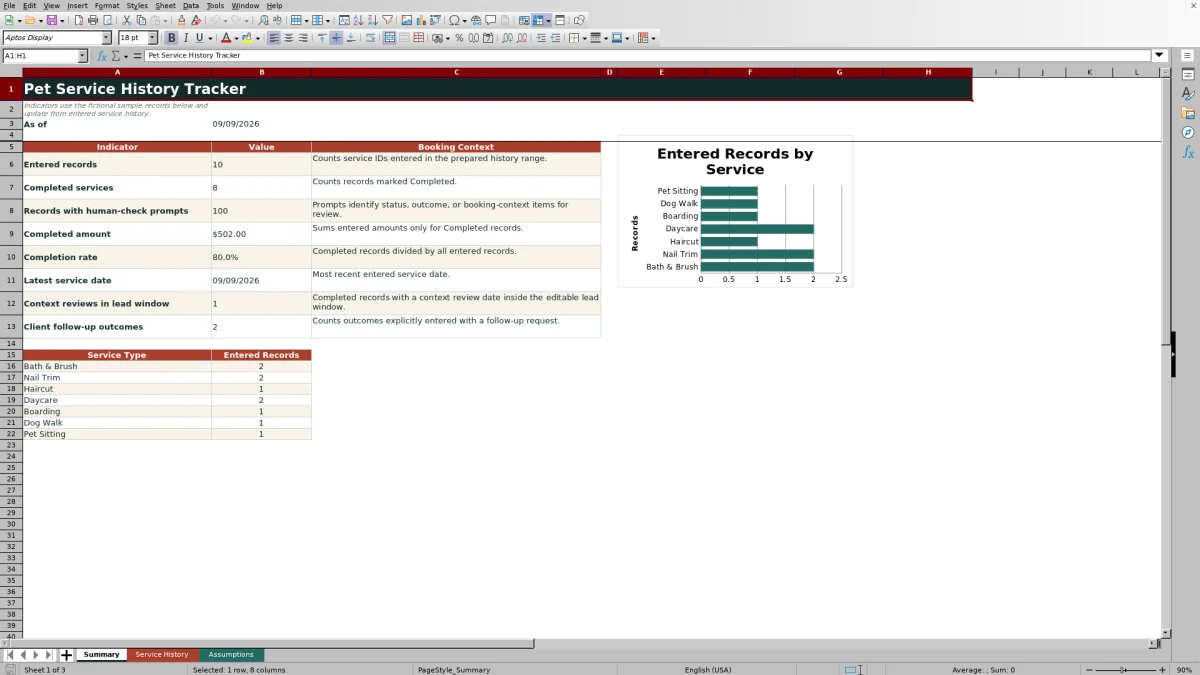
- Summarizes completion activity, completed amounts, latest service dates, follow-up outcomes, and service-type counts.
- Gives staff historical context to review before discussing another booking with a client.
What is in the file
How to get started
1. Review the assumptions
Open the Assumptions sheet and confirm the service types, context review days, status choices, outcome choices, provider choices, accepted date limit, quantity limit, amount limit, and alert lead days. The yellow editable cells control these internal choices and settings.
2. Enter service records
Use rows 5 through 104 on Service History. Enter data in the editable fields from Service ID through Status, selecting validated list choices where available. Keep the formulas in Context Review Date and Human-Check Prompt intact.
3. Resolve prompts
Check records that show Check status, Check outcome, Human follow-up, Check service type, Review soon, or Review history. Correct missing or inconsistent entries and have a person assess any follow-up or review prompt.
4. Review the summary and decide
Use the Summary sheet to evaluate completed activity, amounts, completion rate, recent dates, follow-up outcomes, approaching reviews, and service-type counts. Then consult the underlying history before deciding whether to contact the client or discuss a future booking.
A Structured Record of Pet Service History
The main worksheet provides 100 prepared history rows, covering rows 5 through 104. Each row can hold a service ID, service date, client ID, pet ID, service type, description, quantity, amount, provider, outcome, and status. This structure helps distinguish who received a service, what was completed, who provided it, and what happened afterward.
From Service Entry to Next Decision
Staff first record the service situation and choose standardized values from the editable lists. The workbook then calculates a context review date by adding the configured number of days for that service type to the entered service date. A second formula evaluates status, outcome, follow-up requests, and timing. The resulting prompt should be interpreted by a person, who can then decide whether the record needs correction, historical review, client contact, or no immediate action.
Interpreted Practical Example
Situation: The fictional sample history records a Bath & Brush for PET-FIC-BISCUIT on February 11, 2026, provided by Grooming Team A for $48, with a Completed status and a Completed as planned outcome. Action: The row uses the Bath & Brush setting of 56 context review days. Result: The formula calculates April 8, 2026, as the context review date. Interpretation: When that date falls within the editable 14-day lead window, the row can show Review soon; on or after the review date, it can show Review history. Next decision: Staff review the prior notes and decide whether client contact or a booking discussion is appropriate rather than treating the calculated date as an automatic appointment.
Reading the Summary Indicators
The Summary sheet counts entered records, completed services, records carrying human-check prompts, and outcomes marked Client follow-up requested. It also calculates completed-service amounts, completion rate, the latest entered service date, and completed records whose context review dates fall within the configured lead window. Service-type counts feed the included chart, making the dashboard useful for orientation while the detailed history remains the source for record-level interpretation.
Comparison With Simpler Alternatives
The workbook occupies a different role from a basic list or an appointment calendar. The comparison below focuses on practical workflow rather than claiming that one format is universally better.
| Approach | Historical detail | Review context | Summary capability | Best fit |
|---|---|---|---|---|
| Pet Service History Tracker Excel workbook | Captures IDs, dates, service details, providers, outcomes, statuses, quantities, and amounts. | Calculates review dates and displays human-check prompts from configured rules. | Includes indicators, service-type counts, and a chart. | Teams that want structured service history available during future booking discussions. |
| Basic service list | Can preserve core history, depending on the columns created. | Usually requires manual review unless formulas are added. | Usually requires separate formulas or reporting. | Small archives that need minimal structure. |
| Appointment calendar | Primarily records scheduled dates and may not retain consistent outcome or provider history. | Can support calendar reminders but not the workbook's outcome-based checks. | Typically emphasizes upcoming appointments rather than completed-service indicators. | Scheduling future appointments and managing time slots. |
The tracker is the more relevant alternative when completed-service outcomes and review context matter; a calendar remains more appropriate for managing actual appointment availability.
Common Entry Errors and Solutions
Error: overwriting columns L or M removes the prepared review-date or prompt formula. Solution: enter business data only in the editable fields and restore an affected formula from an intact neighboring prepared row or a clean workbook copy. Error: pasting a service type that is not in the configured list can leave the review date blank and produce Check service type. Solution: select a listed type or update the applicable Assumptions entry first. Error: leaving Status or Outcome blank can create a check prompt. Solution: verify the record and select the accurate configured choice. Error: entering a future service date or a date earlier than the accepted limit can fail validation. Solution: correct the date or revise the validated setting in Assumptions when the business rule genuinely needs to change.
Boundaries and Appropriate Use
The prepared formulas and summary ranges end at row 104, so records added beyond the 100-row entry area are not automatically included. The workbook also has no separate client-profile, pet-profile, or appointment-scheduling sheet. Its context dates and prompts are internal review aids based on editable intervals and record status; they are not medical guidance, care recommendations, or confirmed future bookings.
Frequently asked questions
What information does the Pet Service History Tracker record?
It records service and client references, pet IDs, service dates and types, descriptions, quantities, amounts, providers, outcomes, and statuses. It also calculates a context review date and a human-check prompt for each prepared row.
Does the workbook automatically schedule the next pet service?
No. It calculates an internal context review date from the service date and the configured interval for the selected service type. Staff must interpret that date and make any contact or booking decision separately.
Are the included clients, pets, and transactions real?
No. The workbook identifies its sample IDs and transactions as fictional. Replace the yellow sample-entry cells with authorized business records before operational use.
Can the service types and review intervals be changed?
Yes. The Assumptions sheet contains editable service types and Context Review Days, along with the status, outcome, and provider choices and several operating limits used by validation and formulas.
Why does a record show a Human-Check Prompt?
A prompt can appear when the status is not Completed, the outcome is missing, client follow-up was requested, the service type cannot produce a review date, or the calculated review date is approaching or has arrived. A person should review the underlying record before taking action.
Editorial responsibility

Tessa MarloweClient records and service workflows

Caleb HensleyWorkbook QA and operating controls