This Excel workbook is a pet owner preference tracker for recording administrative preferences related to client communication, routine updates, handoffs, invoice delivery, and billing detail. It deliberately keeps those preferences separate from pet care instructions.
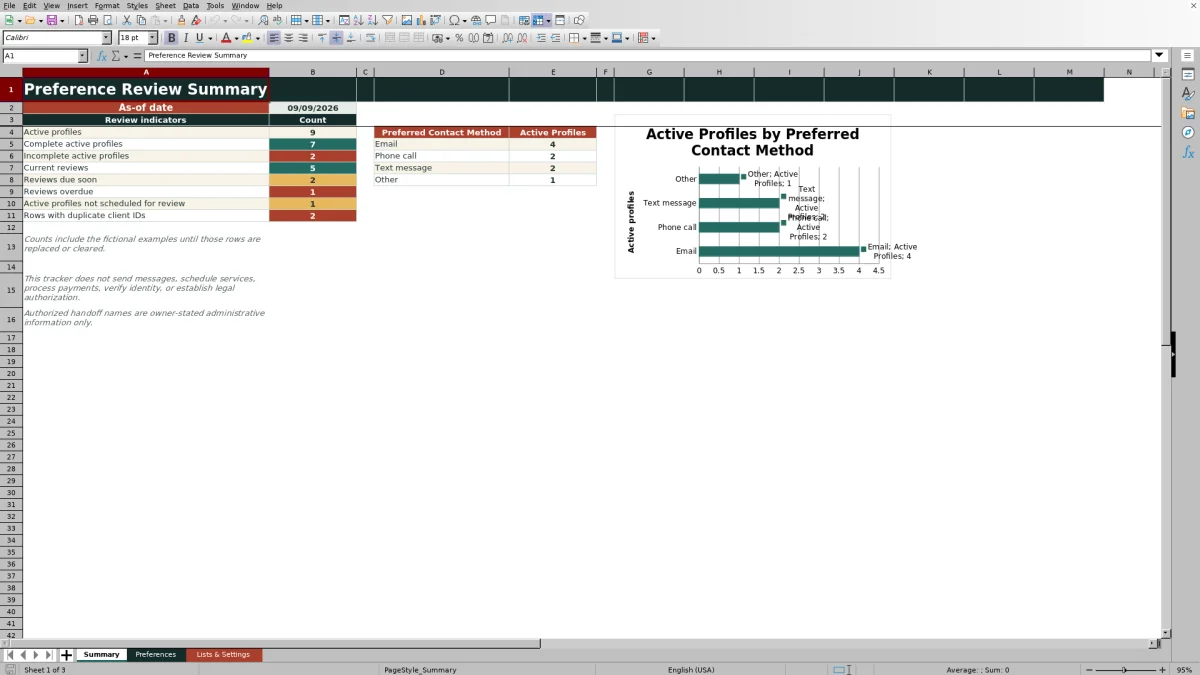
The XLSX includes a filterable Preferences sheet with capacity for 100 client profiles, a Summary sheet with review indicators and a preferred-contact chart, and a Lists & Settings sheet for controlled choices and review timing. Formulas calculate completeness, next review dates, review status, and data-check messages without sending communications, scheduling services, processing payments, verifying identity, or creating legal authorization.
How this workbook can help
- Keeps owner communication, handoff, and invoice-delivery preferences distinct from pet care instructions.
- Standardizes recurring entries with dropdown choices for profile status, contact methods, contact windows, updates, handoffs, and billing preferences.
- Helps staff identify complete, incomplete, current, due-soon, overdue, and unscheduled active profiles.
- Surfaces administrative data issues such as duplicate client IDs, repeated contact methods, and missing conditional details.
What is in the file
How to get started
1. Prepare the workbook
Open Lists & Settings to confirm the review interval and due-soon window. The supplied settings are 180 days and 30 days. On Preferences, replace or clear the fictional examples in rows 5 through 14 before using the file for operational records.
2. Enter the client profile
Assign a distinct client ID, add the owner display name, choose Active or Inactive, and complete the communication, contact-window, voicemail, routine-update, handoff, invoice-delivery, and billing-detail fields. Use the available dropdown choices where provided.
3. Add conditional details and confirmation dates
Enter an authorized handoff name when Authorized person is selected. Add an administrative note when Other is the preferred contact method, and record the date on which the preferences were last confirmed. Keep pet care directions in a separate record.
4. Review the calculated results
Do not replace the formulas in columns O through R. Filter the Preferences sheet by Completeness, Review Status, or Data Check, then use the Summary sheet to decide which active profiles need correction, confirmation, or a scheduled review.
Situation: Administrative Preferences Can Become Unclear
Communication and billing choices can change even when pet care instructions remain the same. A client may prefer text messages for scheduling, decline voicemail, request updates only when a schedule changes, choose a front-desk handoff, and want both emailed and printed invoices. The tracker gives those administrative choices dedicated fields instead of mixing them into pet care notes.
Each profile also has an Active or Inactive status. Active records feed the workbook's completeness and review indicators, while inactive records are labeled Not required for completeness and Inactive for review status.
Action: Create Consistent Client Profiles
Enter a unique client ID and owner display name, then select standardized values for contact method, alternate contact method, contact window, voicemail permission, routine updates, handoff, invoice delivery, and billing detail. The available choices come from named lists on Lists & Settings, reducing inconsistent variations such as multiple spellings for the same preference.
Some selections require context. Authorized person requires a handoff name, and Other as the preferred contact method requires an administrative note. The workbook uses these conditions when evaluating completeness and data quality.
Result: Review Dates and Summary Indicators
For an active profile with a Last Confirmed date, Excel adds the configured review interval to calculate the Next Review Date. It then compares that date with TODAY() and the due-soon setting to classify the profile as Current, Due soon, Overdue, or Not scheduled.
The Summary sheet counts active profiles, complete and incomplete active profiles, each review-status category, and rows with duplicate client IDs. It also counts active profiles by preferred contact method—Email, Phone call, Text message, or Other—and presents those contact totals in a chart.
Practical Example: From Situation to Next Decision
Situation: A fictional active client prefers text messages, uses phone calls as the alternate method, does not allow voicemail, wants routine updates only when the schedule changes, uses a front-desk handoff, and requests both emailed and printed invoices with summary billing. Action: Staff enter those selections and record March 25, 2026 as Last Confirmed. Result: With the supplied 180-day interval, the workbook calculates September 21, 2026 as the Next Review Date; the completeness formula can return Complete because the required administrative fields are present. Interpretation: The record describes how to communicate and deliver billing information, not how to care for the pet, and its review status will change according to TODAY() and the 30-day due-soon window. Next decision: Staff can leave the profile unchanged while it is current, confirm it during the due-soon period, or prioritize it after it becomes overdue.
Common Errors and Solutions
A Duplicate Client ID message means the same nonblank ID appears more than once in rows 5 through 104. Assign a distinct ID or consolidate the records. Alternate repeats preferred means the alternate contact value duplicates the preferred method; choose a different alternate or select None.
Add authorized handoff name appears when Authorized person is selected without a name. Enter the owner-stated name or choose another handoff preference. Add note for Other method appears when Other is selected as the preferred contact method without explanatory notes. Add the missing administrative detail. If Completeness is Incomplete, review the required active-profile fields, including Last Confirmed.
A missing review date generally means the profile is not active or lacks a Last Confirmed date. Enter a valid confirmation date when appropriate. Date validation accepts dates from January 1, 2000 through the current date, so a future confirmation date should be corrected rather than bypassing the rule.
Comparison: Preference Tracker and Alternatives
This workbook is designed for structured administrative preference review, not as a replacement for every client or pet record. The comparison below clarifies the boundaries.
| Option | Primary purpose | Best use | Important limitation |
|---|---|---|---|
| Excel pet owner preference tracker | Organizes communication, handoff, invoice-delivery, and billing-detail preferences | Standardized profiles, completeness checks, review dates, and summary counts | Does not send messages, schedule services, process payments, verify identity, or create legal authorization |
| Separate pet care instruction record | Documents directions related to the animal's care | Keeping care requirements distinct from client administration | Does not provide the preference review formulas or administrative summary in this workbook |
| Messaging, scheduling, or payment platform | Executes operational communications, appointments, or transactions | Sending notices, booking services, or collecting payment when the selected platform supports those tasks | May not preserve the same structured preference fields, review logic, or handoff notes without separate configuration |
The practical alternative is therefore complementary rather than interchangeable: use this XLSX to maintain reviewed administrative preferences, a separate record for pet care instructions, and appropriate operational systems for actions the workbook cannot perform.
Interpretation and the Next Review Decision
Completeness, review timing, and data quality answer different questions. Complete means the required administrative fields are present for an active profile. Current, Due soon, Overdue, or Not scheduled describes review timing. Data Check evaluates duplicate IDs and selected conditional inconsistencies, but an OK result does not verify identity or grant release authority.
Decision rule: correct data-check messages first, fill required fields for incomplete active profiles, arrange confirmation for due-soon or overdue records, and determine whether unscheduled profiles need a valid Last Confirmed date. Treat authorized handoff names as owner-stated administrative information and follow separate organizational procedures for identity checks or legal authorization.
Frequently asked questions
What does the Excel pet owner preference tracker record?
It records client profile status, preferred and alternate contact methods, contact windows, voicemail permission, routine update preferences, handoff choices, owner-stated authorized handoff names, invoice delivery, billing detail, confirmation dates, and administrative notes.
Does the workbook store pet care instructions?
No. The Preferences sheet explicitly directs users to keep pet care instructions in a separate record so administrative communication, handoff, and billing preferences remain distinct.
How often are active profiles reviewed?
The supplied review interval is 180 days, with a 30-day due-soon window. Both values can be adjusted on Lists & Settings within the workbook's validation limits, and the due-soon window must remain shorter than the review interval.
Why does an active profile show as Incomplete?
The completeness formula requires the main administrative fields, including client ID, owner name, communication choices, handoff preference, billing preferences, and Last Confirmed date. It also requires a handoff name for Authorized person and a note when Other is the preferred contact method.
Does an authorized handoff name establish legal permission?
No. The workbook states that authorized handoff names are owner-stated administrative information only. It does not verify identity or establish legal authorization.
Can this XLSX send reminders or process billing?
No. It calculates dates, statuses, checks, counts, and chart values, but it does not send messages, schedule services, process payments, or perform other operational actions.
Editorial responsibility

Tessa MarloweClient records and service workflows

Caleb HensleyWorkbook QA and operating controls