This Excel workbook provides a structured pet pickup authorization list for recording approved pickup people by client and pet. Each authorization can include the person’s relationship, validity dates, entered status, expected verification method, and owner-supplied handoff notes.
A linked pickup log documents what happened at collection, including staff initials, the verification method and result, the release decision, and handoff notes. Formulas calculate effective statuses, retrieve related authorization details, and present prompts for human handoff review rather than making the release decision automatically.
How this workbook can help
- Keeps each pet, client, and approved pickup person connected in one organized authorization list.
- Highlights incomplete, future, expired, paused, revoked, open-ended, and approaching-expiry authorizations for review.
- Reduces repeated entry by retrieving the client ID, pet name, and authorized person from the selected authorization ID.
- Creates a consistent handoff record covering verification, staff involvement, release decisions, and notes.
What is in the file
How to get started
1. Review the workbook settings
Open Assumptions and confirm the upcoming-expiry window and permitted date range. The supplied window is 14 days, with an allowed setting from 1 to 90 days.
2. Enter the approved pickup person
Create a unique ID in Authorizations and complete the authorization record with the client, pet, authorized person, valid-from date, status, expected verification method, and any applicable end date or owner instructions.
3. Check authorization readiness
Read the Effective Status and Human Check columns. Resolve incomplete data and investigate the calculated prompts for future, expired, paused, revoked, open-ended, or soon-to-expire records.
4. Record and review the handoff
In Pickup Log, enter a handoff ID, pickup date, authorization ID, staff initials, verification details, release choice, and notes. Confirm the retrieved client, pet, and person, review the Check Result, and make the final release decision under your organization’s procedures.
From Authorization Situation to Next Pickup Decision
Situation → action → result → interpretation → next decision describes the workbook’s intended workflow. A client identifies someone who may collect a pet; staff enter that person and the applicable validity details in Authorizations; formulas return an effective status and review prompt; staff interpret those prompts alongside current procedures; and the next decision is whether to proceed with verification, seek clarification, or decline release. After the interaction, Pickup Log preserves the entered verification and release outcome.
Interpreted Practical Example
Situation: the fictional sample AUTH-0002 associates Pixel with Morgan Sample and records an authorization period from August 25 through September 15, 2026. Action: HAND-0002 references that authorization for a September 4 pickup, records Pickup Code as the method, Matched as the result, and Yes as the release decision. Result: the linked formulas retrieve the related client, pet, and authorized person, while the entered pickup date is within the recorded authorization window. Interpretation: the entries are internally consistent, but the workbook’s date-sensitive authorization status uses TODAY(), so staff should review the recalculated status and Check Result when opening the file. Next decision: if the displayed record, verification, current authorization, and organizational procedures all support release, staff can retain the handoff as recorded; otherwise, they should correct or escalate the record before releasing the pet.
Common Errors and Solutions
An Incomplete result means one or more required authorization fields are missing, a date is not recognized, or the valid-through date precedes the valid-from date; complete the required cells or correct the date entries. An Authorization ID not found message means the pickup entry does not match an ID in Authorizations; verify the ID and remove extra characters. A Not Yet Valid, Expired, Paused, or Revoked status requires staff to review timing or the entered authorization status before release. A Not Matched or Not Checked verification result should not be treated as successful verification. In every case, fix the source entry, recheck the calculated prompt, and apply the organization’s current handoff procedure rather than overriding the warning without review.
Comparison: Authorization List vs. Pickup Log
The two working sheets maintain connected but distinct records: Authorizations describes who may collect a pet and under what entered conditions, while Pickup Log documents a specific handoff event.
| Aspect | Authorizations | Pickup Log |
|---|---|---|
| Primary purpose | Maintain approved pickup-person details | Document an individual pickup interaction |
| Record identifier | Authorization ID | Handoff ID linked to an Authorization ID |
| Key entered details | Client, pet, person, relationship, dates, status, expected verification, and owner notes | Pickup date, staff initials, verification method and result, release decision, and handoff notes |
| Calculated support | Effective Status and Human Check | Client, pet, and person lookups plus Check Result |
| Best interpretation | Current authorization reference requiring human review | Event log showing what staff entered at handoff |
A standalone contact list may be simpler, but it would not provide the workbook’s linked validity checks and handoff record. Conversely, a pickup log alone would show events without maintaining the underlying approved-person details.
How Effective Status Uses Dates and Entered Status
The Effective Status formula first checks whether required authorization fields are complete and whether the entered dates are valid. If the entered Authorization Status is Paused or Revoked, that value carries into the effective result. For records entered as Active, the valid-from date can produce Not Yet Valid, and a past valid-through date can produce Expired. An active authorization without an end date remains possible but receives a periodic-confirmation prompt. Because these checks use TODAY(), results can change when Excel recalculates the workbook.
Verification and Release Require Human Judgment
The workbook offers Photo ID, Pickup Code, In-Person Recognition, and Other as verification methods, with Matched, Not Matched, and Not Checked as result choices. These fields document the interaction; they do not authenticate a person by themselves. Pet Released? records Yes or No as the staff decision. The calculated Check Result is therefore a review aid, not an automatic approval, and staff should follow current privacy, safety, and escalation procedures.
Summary Review and Ongoing Maintenance
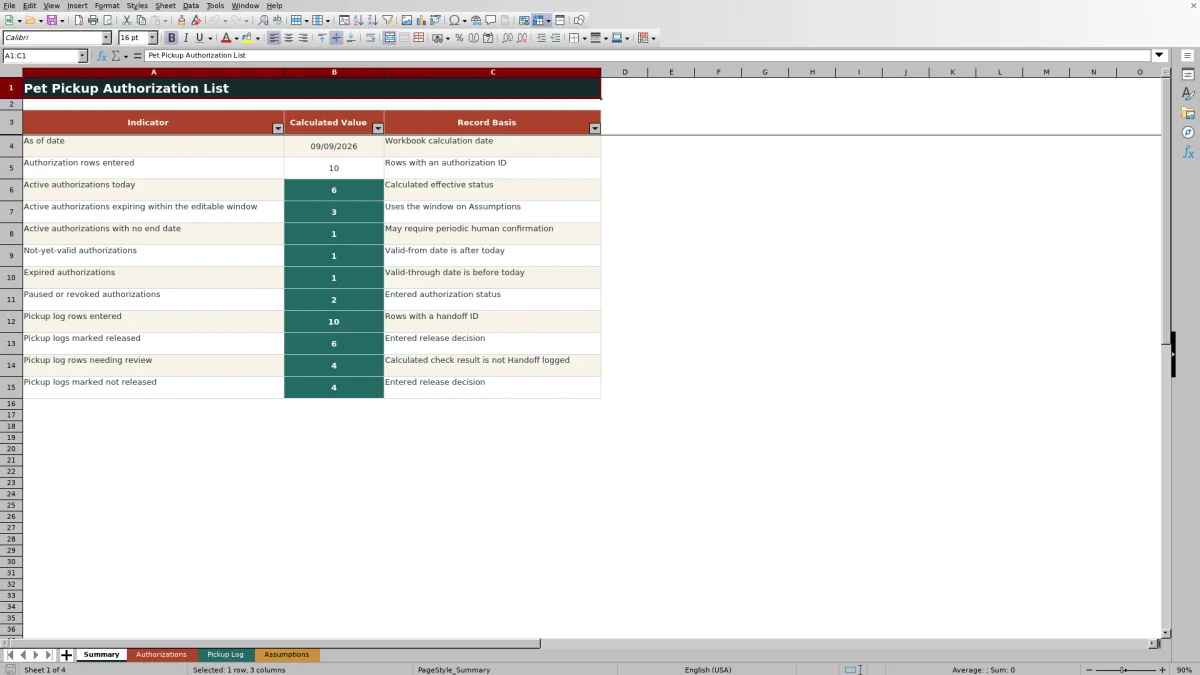
The Summary sheet counts authorization rows, active records, approaching expirations, open-ended authorizations, future or expired records, paused or revoked entries, handoff rows, releases, non-releases, and logs needing review. Filters and frozen headers support routine inspection, while conditional formatting draws attention to relevant records. When procedures change, update the visible Assumptions values and lists carefully; date entries are initially restricted to January 1, 2024 through December 31, 2031.
Frequently asked questions
What information belongs in the pet pickup authorization list?
Enter the authorization ID, client ID, pet name, authorized person, relationship, valid-from and valid-through dates, authorization status, expected verification method, and any owner-supplied handoff notes.
Does the Excel workbook automatically authorize a pet release?
No. Its formulas supply status and review prompts, but staff must verify the person, interpret the record, follow current procedures, and make the release decision.
What happens when an authorization ID is entered in Pickup Log?
The workbook uses lookup formulas to retrieve the associated client ID, pet name, and authorized person from Authorizations. If no match exists, it displays an ID-not-found message for review.
How does the workbook identify future or expired authorizations?
For an authorization entered as Active, formulas compare its validity dates with TODAY(). A future valid-from date can return Not Yet Valid, while a valid-through date before today can return Expired.
Can an authorization have no end date?
Yes. Valid Through may remain blank, but an otherwise active authorization then receives a prompt recommending confirmation as needed.
What should staff do when verification does not match?
Do not treat Not Matched or Not Checked as successful verification. Review the authorization, follow the organization’s escalation procedure, record the release decision accurately, and add relevant handoff notes.
Editorial responsibility

Tessa MarloweClient records and service workflows

Caleb HensleyWorkbook QA and operating controls