This Pet Temperament Note Tracker is an Excel workbook for recording visit-level handling notes, including owner-reported preferences or triggers, staff observations, operational accommodations, comfort ratings, outcomes, and follow-up details.
Use the XLSX to keep owner input distinct from what staff observed and did during a specific visit. Validated fields promote consistent entries, while calculated alerts and summary indicators help a person identify records to review without presenting the workbook as a diagnostic tool or automated notification system.
How this workbook can help
- Keeps owner-reported information, staff observations, and accommodations in separate fields for clearer records.
- Supports more consistent handoffs by organizing each note around a specific pet visit and service.
- Helps staff prioritize human review through comfort ratings, follow-up details, and calculated alerts.
- Allows businesses to adapt approved terminology and review limits through the Assumptions sheet.
What is in the file
How to get started
1. Review the setup
Configure the lists on the Assumptions sheet to match approved note categories, services, outcomes, follow-up choices, statuses, date limits, and comfort-rating limits.
2. Record the visit
Enter one visit note in a row on the Visit Notes sheet. Add the Note ID, visit and pet details, service, category, context, owner report, staff observation, accommodation, comfort rating, and outcome. Keep the formula-generated Review Alert cell intact.
3. Document follow-up
Set follow-up details by choosing Yes or No. When follow-up is needed, record the assignee, Review By date, and an appropriate status such as Open or Completed.
4. Check the result
Review the outputs by filtering the Visit Notes log and checking the Summary sheet. Investigate alerts such as Check follow-up, Check status, Set review date, Due soon, or Past due, then update the underlying entry after a human review.
What the Pet Temperament Note Tracker Records
The workbook organizes one note per visit rather than treating temperament as a permanent label. Each row can identify the pet, service, note category, and visit context before separating the owner's reported preference or trigger from the staff observation and the operational accommodation actually used. Additional fields capture a comfort rating from 1 to 5, the visit outcome, follow-up need, assignment, review date, status, and calculated alert.
From Visit Situation to Next Decision
A useful entry follows a practical sequence: describe the situation in Visit Context, record the action in Operational Accommodation, enter the observed result and Outcome, interpret the record using the comfort rating and follow-up fields, and make the next decision based on the Review Alert. This structure supports operational continuity while avoiding unsupported conclusions about a pet's health or behavior.
Interpreted Practical Example
Situation: The fictional sample for Juniper records an owner report that sudden cart noise can cause hesitation during a daycare arrival near a rolling supply cart. Action: Staff used a quieter side entrance and allowed extra entry time. Result: Juniper paused at the doorway, the outcome was entered as Improved, and the comfort rating was 2. Interpretation: The improvement suggests the accommodation may have helped, but a rating of 2 still contributes to the Summary's low-comfort count and does not establish a diagnosis. Because follow-up is Yes, the status is Open, and the Review By date is September 4, 2026, the calculated alert depends on that date relative to TODAY() and the configured three-day lead period. Next decision: The assigned person should review the open item and then record Completed when the follow-up is finished or maintain an accurate open status and review date if more action is required.
Comparison: Structured Excel Tracker and Alternatives
The most suitable format depends on whether the business needs visit context, consistent fields, follow-up prompts, or simple narrative flexibility. This workbook adds structure and reporting, but it still depends on accurate entry, protected formulas, spreadsheet recalculation, and human review.
| Approach | Strengths | Limitations | Best fit |
|---|---|---|---|
| Pet Temperament Note Tracker | Separates owner reports, observations, accommodations, outcomes, and follow-up; provides validated choices and summary indicators. | Requires consistent data entry and does not send automatic notifications or make clinical determinations. | Teams that need structured, visit-level operational records in Excel. |
| Free-form visit notes | Flexible and quick for unusual details. | Harder to filter, compare, summarize, or distinguish reported information from direct observation. | Occasional narrative documentation without recurring reporting needs. |
| Standalone task list | Simple for assignments, dates, and completion tracking. | May omit the original visit situation, owner input, observed response, and accommodation. | Teams that only need action tracking after context has been documented elsewhere. |
The Excel tracker is the stronger alternative when consistent context and review indicators matter; free-form notes remain more flexible, while a task list is narrower and better suited to action management alone.
Common Errors and Solutions
Error: replacing a formula in the Review Alert column prevents that row from evaluating correctly. Solution: preserve the formula or restore it from an intact adjacent row with the row references adjusted. Error: selecting Yes for Follow-Up Needed while leaving the status blank or choosing Not needed produces Check status. Solution: use an appropriate status and add a Review By date for an open follow-up. Error: selecting No while retaining Open status or a review date also produces Check status. Solution: clear unnecessary follow-up values or change the follow-up choice if action is genuinely required. Error: entering a date or rating outside the configured bounds can fail validation. Solution: verify the entry or update the approved limits on the Assumptions sheet. Error: combining an owner's statement with a staff observation obscures the source. Solution: keep those details in their separate columns.
Using Summary Indicators Correctly
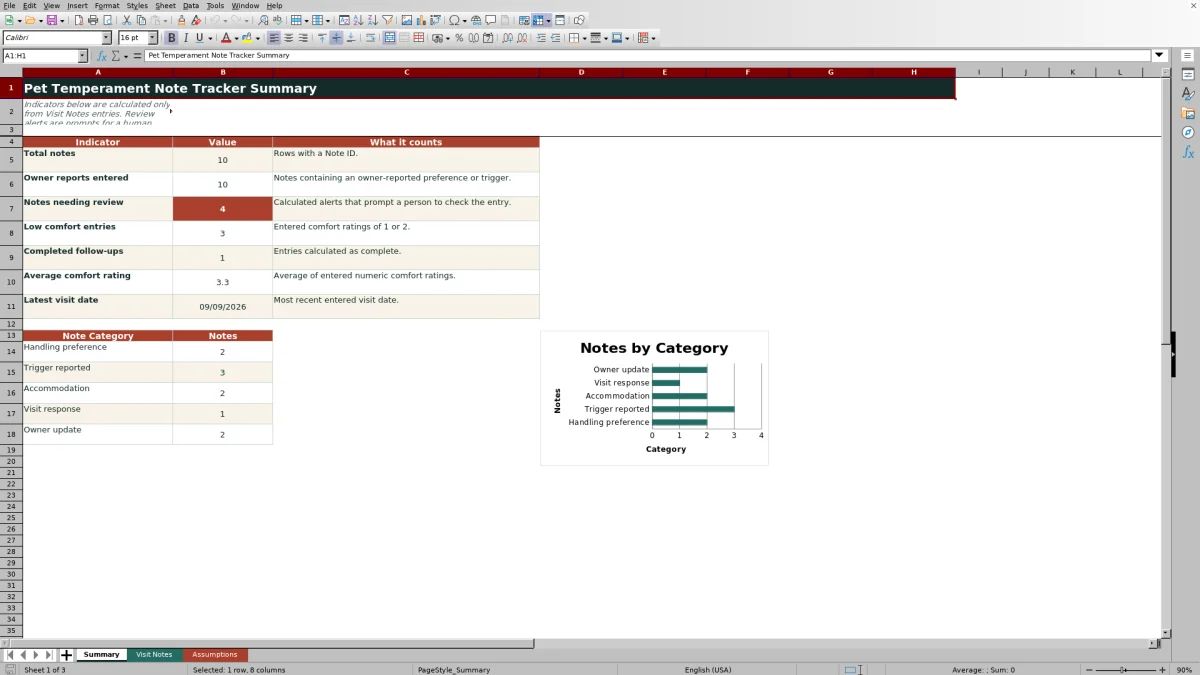
The Summary sheet calculates total notes, owner reports entered, notes needing review, low-comfort entries rated 1 or 2, completed follow-ups, average comfort rating, and the latest visit date. It also counts notes across the five configured categories and charts those totals. These figures describe entered records only: a blank or inconsistent row can affect what appears, and category counts reflect the choices currently supplied through the Assumptions sheet.
Responsible Recordkeeping and Review
Owner Report should contain owner-supplied handling preferences or triggers relevant to the visit. Staff Observation should use plain operational descriptions, and Operational Accommodation should state what was actually done. Avoid diagnoses, treatment guidance, and sensitive veterinary details. Review Alert values are prompts for a person to check the record; because the formulas use TODAY(), results such as Scheduled, Due soon, and Past due can change when Excel recalculates the workbook.
Frequently asked questions
How many visit notes can the workbook hold?
The Visit Notes sheet provides 100 entry rows, from row 5 through row 104.
What causes a Review Alert to appear?
The formula evaluates Follow-Up Needed, Follow-Up Status, Review By, the current date, and the due-soon lead period. Depending on the combination, it can return values including Check follow-up, Check status, Set review date, Scheduled, Due soon, Past due, Complete, or No follow-up.
Can the drop-down choices be changed?
Yes. The Assumptions sheet contains the lists for note categories, services, outcomes, follow-up choices, and follow-up statuses. Its instructions state that list changes flow into the Visit Notes drop-downs after recalculation.
Does the tracker diagnose pet behavior or medical conditions?
No. It is designed for owner-reported preferences, plain staff observations, operational accommodations, and follow-up records. It should not contain diagnoses, treatment guidance, or sensitive veterinary details.
Does the Excel workbook send automatic reminders?
No. The Review Alert column and Summary indicators provide calculated prompts inside the workbook, but they are not notifications. A person must open, recalculate, review, and update the file.
Editorial responsibility

Tessa MarloweClient records and service workflows

Caleb HensleyWorkbook QA and operating controls